You’ve written a tight true/false statement, dropped it into Blooket’s editor, hosted the game, and watched half your class pick the wrong answer because “True” showed up on the right for some of them. This guide fixes that exact problem and walks through the whole workflow for making true/false questions in Blooket that actually behave in a live round. To make a true/false question in Blooket, open the question set editor, write a clear statement, type “True” in Answer 1 and “False” in Answer 2, mark the correct choice, and turn off Random Order for that card before you save.
Below, you’ll find the step-by-step build, sample sets for four subjects, the mistakes that trip up teachers, and the writing rules that turn a two-choice question into a real assessment.
What is a true/false question in Blooket?
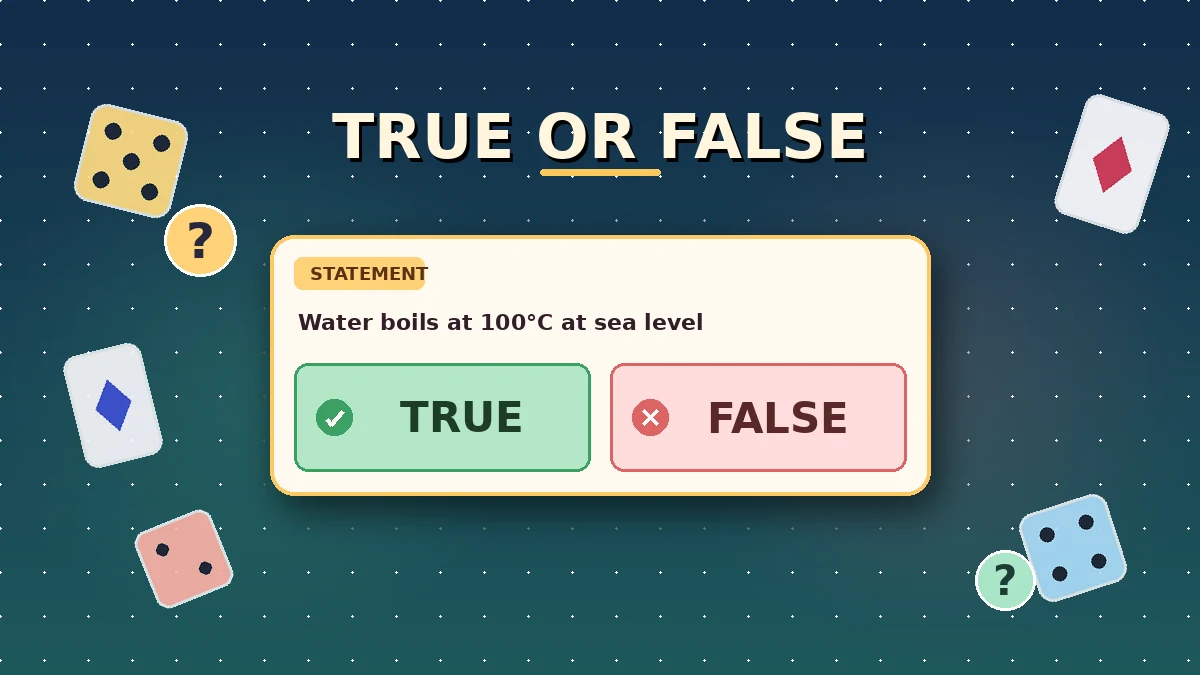
A true/false question in Blooket is a two-option version of the standard multiple-choice card. You write a factual statement, fill Answer 1 with “True” and Answer 2 with “False,” leave Answer 3 and Answer 4 blank, and mark whichever option is correct. Blooket does not have a separate true/false question type, so the multiple-choice editor is the tool you use.
That structure is why so many teachers hit the “True showed up on the right” problem. Blooket has one shuffle setting called Random Order that applies to answer positions. If you leave it on, the platform can flip “True” and “False” for individual students, and the two-option layout amplifies the confusion. Turning it off per card is the fix that most guides skip over.
Why Blooket doesn’t have a dedicated true/false button
Blooket keeps the editor lean by supporting one question type: multiple choice with up to four answers. True/false is treated as a subset with two slots filled and two empty. The upside is a single interface to learn. The downside is that you have to remember to toggle the shuffle setting manually.
Why the format still works well
Well-written true/false questions test recall, misconception spotting, and definition mastery in about 10 to 15 seconds each. In a live Gold Quest or Tower Defense round, that pace keeps the game moving. A 20-question true/false set runs in roughly 5 minutes, which is why it slots neatly into a class warm-up or exit ticket.
How to make a true/false question in Blooket step by step
To make a true/false question in Blooket, sign in on the official Blooket site, open a new or existing question set, click Add Question, type your statement, enter “True” in Answer 1 and “False” in Answer 2, tick the correct one, and turn off Random Order for that card. Save the set and preview it in Solo mode before you host. A tight 20-question set takes 15 to 20 minutes end to end.
Step 1: Sign in and open the set creator
Sign in with your free Blooket account. On the dashboard, click Create in the top navigation, then choose New Set to open the question editor. If you don’t have an account yet, see our Blooket Login guide for the sign-up flow. The wider layout is covered in the Blooket Dashboard guide if you’re new to the interface.
Step 2: Name your set and add a short description
Give the set a specific title such as “Grade 7 biology: cell structure true/false.” The description field is optional, and a single sentence about the learning goal is plenty. Skip clever titles you won’t recognize three months later.
Step 3: Add your first question card
Click Add Question. A card opens with a prompt field, four answer slots, a correct-answer selector, an image icon, a time-limit control, and a Random Order checkbox. The card defaults to multiple-choice mode, which is exactly what you need. If this is your first set from scratch, the full guide to creating a question set in Blooket covers the wider editor screen by screen.
Step 4: Write a clear declarative statement
Type a single statement in the prompt field. Make it unambiguously true or unambiguously false. “The mitochondria is the powerhouse of the cell” is clearly true. “Mitochondria are sometimes called the powerhouse of the cell” is technically true but the word “sometimes” invites second-guessing. Cut hedge words such as sometimes, often, might, and could.
Step 5: Fill Answer 1 with “True” and Answer 2 with “False”
Type “True” in the Answer 1 field and “False” in the Answer 2 field. Leave Answer 3 and Answer 4 empty. Blooket treats two-filled, two-empty as a binary question and shows only the two filled options during gameplay.
Do not swap in synonyms like “Yes/No,” “Correct/Incorrect,” or “Right/Wrong.” Students are trained to look for “True” and “False” specifically, and swapping labels adds a translation step that shows up in your accuracy data.
Step 6: Mark the correct answer
Tick the checkmark next to whichever option is correct. It turns green in the editor, giving you a clear visual confirmation. This is the single most common data-entry mistake teachers make, so double-check every card. A mismarked correct answer during a live game is embarrassing and hard to recover from without stopping the round.
Step 7: Turn off Random Order for that card
At the top of the question card, uncheck the Random Order box. This is the fix that makes true/false questions in Blooket work reliably. With Random Order on, “True” can appear on the right for some students, and students who read the layout instead of the label will pick the wrong side.
Random Order applies per question, not to the whole set. You have to uncheck it on every true/false card you add. Get into the habit of doing this immediately after typing “True” in Answer 1, before you tab to anything else.
Step 8: Set a time limit and add an image if it helps
Adjust the per-question timer if you want to. The default of around 20 seconds suits most true/false items, but 10 to 15 seconds works better for pure recall and 25 to 30 seconds is right for statements that need calculation. Our guide on setting time limits per question covers the pacing side in detail.
If a diagram, map, or photo would help students judge the statement, click the image icon. The guide on adding images to Blooket questions covers upload options and copyright-safe sources.
Step 9: Save the set and preview in Solo mode
Click Save Set in the top right, then open Solo mode from the set’s overview and play through it yourself. Watch every true/false card as it appears. If “True” is anywhere other than the left, you missed a Random Order checkbox. Go back, fix it, save, and preview again.
Two minutes of previewing saves you from stopping a live class mid-round to explain that yes, the question is correct, the layout just flipped.
Sample true/false question sets that actually work in classrooms
Strong true/false sets test one fact per statement, use clear language, and mix in enough false statements to prevent pattern guessing. The four short sets below are drawn from cards I’ve built and hosted across different subjects. Copy the format, swap in your own topics, and you have a working set in under 20 minutes.
Sample set 1: Grade 5 to 6 science
- Photosynthesis happens inside chloroplasts. (True)
- The human heart has three chambers. (False, it has four)
- Water boils at 100 degrees Celsius at sea level. (True)
- All insects have six legs. (True)
- Sound travels faster in air than in water. (False)
Sample set 2: Middle school world history
- The Silk Road connected China with the Mediterranean world. (True)
- The Roman Empire fell in the same century as the Ottoman Empire. (False)
- Ancient Egyptians used hieroglyphics as a writing system. (True)
- The Great Wall of China was built entirely by one dynasty. (False)
- The French Revolution began before the American Revolution. (False)
Sample set 3: High school algebra concepts
- The product of two negative numbers is always positive. (True)
- Every quadratic equation has two real solutions. (False)
- The square root of 49 is 7. (True)
- Zero is neither positive nor negative. (True)
- Pi is a rational number. (False)
Sample set 4: English language arts and grammar
- A comma always comes before the word “and” in a list. (False, the Oxford comma is optional)
- A verb expresses an action or a state of being. (True)
- The word “quickly” is an adjective. (False, it’s an adverb)
- Every complete sentence must have a subject and a verb. (True)
- Adjectives modify verbs. (False, they modify nouns)
Each of these sets took me between 12 and 18 minutes to build once I had a rhythm going, and each one plays cleanly in Gold Quest and Tower Defense.
True/false compared with multiple choice and matching
True/false is not the only question format Blooket supports, and each format has a role. True/false is fastest to write and answer, multiple choice tests deeper discrimination between plausible answers, and matching (built as sequential MC cards) works well for pairing terms with definitions. The table below shows when to reach for each.
Question format comparison
| Format | Time to write (per question) | Time to answer | Best for | Weak spots |
|---|---|---|---|---|
| True/false | 30 to 60 seconds | 10 to 15 seconds | Fact checks, misconception spotting, warm-ups | 50% guess floor, low nuance |
| Standard multiple choice | 1 to 3 minutes | 15 to 25 seconds | Concept mastery, discrimination between similar answers | Slower to write with good distractors |
| Matching (term to definition) | 45 to 90 seconds | 10 to 20 seconds | Vocabulary, definitions, terminology | Predictable pattern after several cards |
A well-balanced review set often mixes all three: five to eight true/false items as a warm-up, ten to twelve multiple-choice questions for the main assessment, and a few matching cards to close.
Expert tips for writing better true/false statements
Strong true/false statements test one specific fact, use plain language, and cannot be answered “kind of.” They also mix true and false answers roughly evenly across the set so students can’t guess the pattern. The tips below are the ones I keep coming back to after building hundreds of these cards.
Kill the hedge words
Words like sometimes, often, might, could, generally, and usually turn a clean true/false into an argument. If a student can build a case for either side, the item stops testing knowledge and starts testing lawyering. Remove the hedge and rewrite until the statement is either fully true or fully false.
Match statement length across your set
If your true statements are twice as long as your false ones, students will notice the pattern within five questions and guess accordingly. Aim for similar sentence lengths so length itself carries no signal.
Split double-barrelled statements
“Photosynthesis happens in the chloroplast and requires oxygen” is two facts stitched together, and only one is fully true. Split it into two cards: one about location and one about the input requirement. Compound statements produce data you cannot interpret cleanly.
Balance the true and false ratio
Aim for roughly 50/50 true and false across the whole set, with the sequence shuffled. Students catch on fast if six true statements arrive in a row. If your set skews heavily one way, reword a couple of items so the counts even out.
Use images for visual concepts
For geography, biology diagrams, art history, and any topic where the visual is part of the fact, add an image to the card. A map of Europe under “Paris is the capital of France” reinforces the content and reduces reading load for language learners.
Review the stats dashboard after the game
After hosting, open the set’s post-game report and look at the per-question accuracy. Any true/false card that lands close to 50% is a warning sign. Either the statement is ambiguous or students share a real misconception, and both cases are worth addressing in class before you host the same set again.
Common mistakes when making true/false questions in Blooket
The most common mistakes when making true/false questions in Blooket are leaving Random Order on, using “Yes/No” instead of “True/False,” writing ambiguous statements, filling every card with true answers, skipping the Solo preview, and treating true/false as the format for easy questions. Each of these turns clean assessment data into noise you can’t act on.
Mistake 1: Leaving Random Order on
This is the mistake that ruins otherwise-solid true/false sets. If Random Order is checked, Blooket can flip “True” and “False” on individual student screens, and students who scan positions instead of labels pick wrong. Uncheck it on every card, then Solo-preview to catch any you missed.
Mistake 2: Using “Yes/No” instead of “True/False”
Students recognize “True” and “False” instantly. “Yes/No” and “Correct/Incorrect” mean the same thing, but the translation step adds a fraction of a second and a small error rate. Stick with True and False across every set for consistency, especially if you host multiple review games in a week.
Mistake 3: Writing ambiguous statements
“The sky is blue” is not a clean true/false at sunset. Any statement that a curious student can argue against is a data problem, not a smart question. Rewrite until the answer is not up for debate, or drop the item entirely.
Mistake 4: Loading too many true/false questions in one set
A 20-question set that is all true/false starts to feel repetitive around card 12. Mix in five to ten standard multiple-choice items to keep the pace varied. If you already have a great multiple-choice set built, you can duplicate that set and add true/false cards to the copy instead of rebuilding from scratch.
Mistake 5: Never testing the set before hosting
Solo mode takes two minutes to run through and catches almost every mistake: mismarked correct answers, missed Random Order boxes, typos, and awkward wording. Skip it and you find those mistakes live, in front of your class.
Mistake 6: Treating true/false as “the easy option”
True/false has a 50% guess floor, but that doesn’t mean the questions have to be easy. A statement like “The Law of Conservation of Mass says the total mass of products equals the total mass of reactants” tests a real chemistry concept. Well-written true/false items can hit higher-order thinking; badly written ones become coin flips.
FAQs
Below are the questions teachers ask most often about building true/false questions in Blooket, with short direct answers from real classroom sets I’ve built and hosted. If your question isn’t covered here, the guides on question sets, images, and hosting on the rest of blooket.it.com go deeper into each part of the workflow.
Does Blooket have a dedicated true/false question type? No. Blooket uses one editor for all question cards. To make a true/false item, write your statement in the prompt field, type “True” in Answer 1 and “False” in Answer 2, and leave Answer 3 and Answer 4 blank. Blooket treats any card with exactly two filled answer slots as a binary question.
Why does True sometimes appear on the right during gameplay? That happens when Random Order is checked on the question card. Blooket then shuffles answer positions per student, which can flip True and False. Uncheck Random Order on every true/false card you build to lock True to the left and False to the right for everyone in the round.
Can I mix true/false and multiple-choice questions in the same set? Yes, and mixing usually plays better than an all-one-format set. Blooket handles each card independently, so a set can move from true/false to four-option multiple-choice with no student-facing difference beyond the number of answer choices shown. Vary the format every few cards to keep the pace fresh.
Which game modes work best with true/false questions? Fast modes like Gold Quest, Tower Defense, Battle Royale, and Fishing Frenzy reward the quick recall true/false questions produce. Slower modes like Café and Classic also work well and give students more time to think. Our Blooket game modes guide breaks down each mode’s pace.
How many true/false questions should I put in a set? For a live-hosted review, 15 to 25 total questions works best, with true/false making up roughly 30% to 50% of the set. For homework or solo practice, you can go longer, up to 40 or 50 questions, because students set their own pace. Very short sets of five true/false items also work well as bell-ringers.
Can I import true/false questions from a spreadsheet? Yes. Blooket’s CSV import accepts a standard spreadsheet with columns for the question, four answer fields, and the correct answer. Fill “True” and “False” in the first two answer columns and leave the third and fourth blank. Our Quizlet import guide covers the wider import workflow for existing content.
How do I share a true/false set with another teacher? Open the set, click Share, and copy the generated link. The other teacher can open the link and import a full editable copy into their own library. Your original stays untouched. The guide on sharing a Blooket question set with another teacher walks through the exact steps.
Can I reorder true/false questions after I’ve built the set? Yes. Open the set in the editor and drag any card to a new position. The order changes save instantly. This is useful when you want to open a live game with an easy warm-up card and build toward harder statements. See the guide on reordering questions in a Blooket set for the drag-and-drop details.
Final thoughts
Making true/false questions in Blooket comes down to five habits: write a clear statement, fill Answer 1 with True and Answer 2 with False, mark the correct answer, uncheck Random Order on every card, and preview the set in Solo mode before you host. Get those five right and the format runs cleanly every time.
Pick a topic from an upcoming lesson, open the Create screen on Blooket, and build a 10-card true/false set now. Use the sample sets above as a template if you’re short on time. For more on hosting your finished sets or mixing question types, browse the rest of the guides on blooket.it.com.
Stop searching and start growing — find solution-focused content that answers what you need most.