You’ve spent 40 minutes building a solid Blooket set for one class, and now you need a version with easier vocabulary for your second period, a longer version for homework, and a stripped-down version for a warm-up. Rebuilding from scratch three times is not the answer. To duplicate questions in a Blooket set, open the set in your library, click the three-dot menu, choose Copy, rename the new set immediately, then edit it as much as you want without touching the original. That is the whole workflow.
Below, you’ll find the full step-by-step, four different ways to duplicate content (free and Plus), real classroom scenarios where duplication saves hours, and the mistakes that turn a tidy library into 15 sets all called “(Copy).”
What does it mean to duplicate questions in a Blooket set?
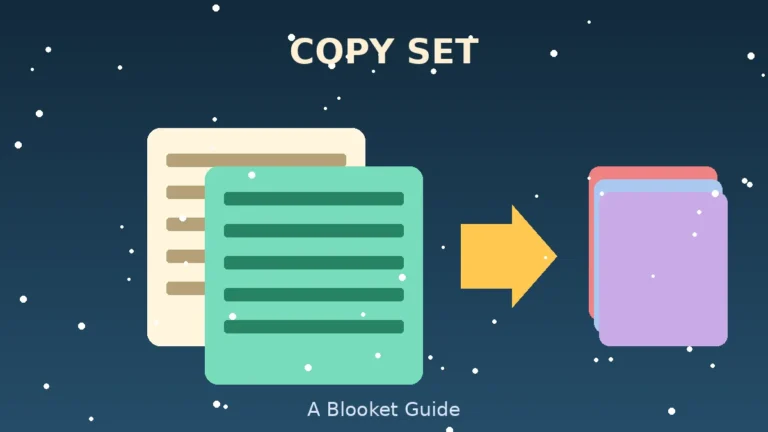
Duplicating questions in a Blooket set means creating a new, independent copy of an entire set inside your library, including every question, answer choice, image, time limit, and cover Blook. The copy sits under My Sets alongside the original, and any edit you make on the copy leaves the original untouched. Duplication is free for your own sets and a Blooket Plus feature for public sets built by other teachers.
That editorial independence is the whole point. A copy is a full fork, not a reference, so you can strip questions, rewrite prompts, swap images, and change time limits without any risk of losing the version you already trust for a different class or lesson.
What a duplicate actually copies
A duplicate carries across every piece of content attached to the set: the prompts, the four answer slots on each card, the correct-answer flags, any images or diagrams you added, the per-question timers, the cover Blook, and the set description. The subject tag and privacy setting also carry across, though you can change both after copying.
What a duplicate does not do
A copy is a static snapshot, not a live link. If the original creator later updates their set, your copy will not update automatically. Sharing analytics also don’t transfer, so a copy starts with a fresh play history. And copy does not equal shared: your duplicate stays private in your library unless you explicitly set it to public.
How to duplicate questions in a Blooket set step by step
To duplicate questions in a Blooket set, sign in on the official Blooket site, open My Sets from the dashboard, select the set you want to copy, click the three-dot menu near the top, choose Copy, confirm, and rename the new set the moment it lands in your library. The whole sequence takes under a minute. Public sets require a Blooket Plus subscription; your own sets are free to duplicate.
Step 1: Sign in and open My Sets
Sign in with your free account and open the Blooket dashboard. My Sets sits in the left sidebar with every set you’ve built or imported. If you don’t have an account yet, the Blooket login page is where you start.
Step 2: Open the set you want to copy
Scroll to the set you want to duplicate. Click its cover to open the set view. From here, you can see the question count, the cover Blook, and the header options for hosting, assigning, sharing, and managing the set. If you’re new to Blooket and haven’t built a question set from scratch yet, spend a few minutes with the editor before you start copying, so the layout feels familiar.
Step 3: Click the three-dot menu
In the set view, look for the three-dot icon or gear icon near the top-right of the set header. Click it. A dropdown opens with options such as Edit, Copy, Delete, Share, and (on Plus) Merge. The exact wording of the copy option varies slightly between builds, so look for Copy, Duplicate, or Make a Copy.
Step 4: Choose Copy or Duplicate
Click Copy from the dropdown. Blooket asks you to confirm. Click Yes. Within a second or two, an exact duplicate of the set appears in My Sets with “(Copy)” appended to the title. This is your working copy; the original stays exactly as it was.
Step 5: Rename the copy immediately
Do not skip this step. Sets called “Set Name (Copy)” and “Set Name (Copy) (Copy)” pile up fast, and a month from now you won’t remember which was which. Open the new set, click the title, and rename it with a clear pattern such as “Photosynthesis review, Grade 7 honors” or “Fractions warm-up, remedial.”
Adopt one naming pattern across your whole library. Topic, class or period, and difficulty level is a solid three-part format that scales.
Step 6: Adjust privacy and the cover Blook if needed
Privacy inherits from the original. If the source set was public and you want your version private, open the settings and flip the toggle. Same for the cover Blook: change it if you want a visual difference in the My Sets grid so you can spot the variants at a glance.
Step 7: Edit or delete what you don’t need
This is where the copy earns its value. Add new questions, delete cards you don’t want, rewrite prompts, swap distractors, and tighten the per-question timers to match your class pace. Dropping a diagram or photo into a card is often the fastest way to make a duplicated set feel fresh for students.
If the question order needs to change after your edits, that’s a quick drag-and-drop fix inside the editor.
Step 8: Preview and save
Save the set, then open it in Solo mode and play through the first few cards as a student would. This catches accidental duplicates, mismarked correct answers, and any question that broke during your edits. Two minutes here beats a live class stopped mid-round because a question doesn’t display correctly.
Four ways to duplicate content in Blooket
There are four reliable ways to duplicate content in Blooket: copy one of your own sets (free for every account), copy a public Discover set (Blooket Plus only), merge two sets into one (Plus only), or import from Quizlet and then duplicate the imported set. Each method fits a different starting point, and knowing all four lets you skip the retyping most teachers still do out of habit.
Method 1: Copy your own set (free for all users)
The most common workflow. Open My Sets, pick a set, three-dot menu, Copy, confirm, rename. This works for every free account and covers most classroom needs. Every version of an original stays in your library and can be edited without affecting the source.
Method 2: Copy a public Discover set (Blooket Plus only)
Public sets from other teachers are a huge time-saver when someone has already built a solid set on the topic you’re teaching. Open Discover, find the set, and look for the Copy or Make a Copy button in the header. On a free account, that button is hidden; the feature is part of Blooket Plus. Before you go hunting on Discover, it’s worth reading the extra rules around copying other teachers’ public sets, because attribution and Plus access work slightly differently.
Method 3: Merge two sets (Blooket Plus)
Merging combines questions from a second set into a first set, which is the fastest way to build cumulative reviews. Open My Sets, click the settings icon on the destination set, choose Merge, and pick the set you want to pull questions from. Blooket copies every question from the second set into the first.
Merging modifies the base set permanently, so it is not reversible. If you want to keep the original destination set intact, copy it first with Method 1, then merge into the copy. This one habit saves teachers from destroying good sets by accident.
Method 4: Import from Quizlet, then duplicate
If your source content lives on Quizlet, importing from Quizlet pulls the whole deck into Blooket in seconds, and from there you can duplicate the imported set as many times as your classes need. Click Create, choose Import, pick Import from Quizlet, paste the URL, and Blooket generates a fresh set for you. Use Method 1 to copy it as often as you want. Special characters and paired images occasionally cause hiccups, so scan the first few cards before you host.
Free vs Blooket Plus duplication compared
The core duplication features are split across free and Plus tiers, and knowing exactly which method needs Plus stops you wasting time hunting for buttons that aren’t there on your account. The table below is the short version.
Duplication features by tier
| Feature | Free account | Blooket Plus |
|---|---|---|
| Copy your own set | Yes | Yes |
| Copy a public Discover set | No | Yes |
| Merge two sets | No | Yes |
| Import from Quizlet | Yes | Yes |
| Rename the copy | Yes | Yes |
| Folders for organising copies | No | Yes |
| Question Bank (single-question copy) | No | Yes |
| Cost | Free | Paid subscription |
If you regularly copy Discover sets or want folder-based organisation for a growing library, Plus pays for itself quickly. If you mostly duplicate your own sets, the free tier covers you completely.
Real classroom scenarios where duplication saves hours
Duplication saves the most time in four situations: teaching the same lesson to multiple classes at different levels, building a cumulative review from smaller topic sets, testing different question orders to see which works better, and keeping seasonal or archived versions of the same set. Each scenario shares one pattern: build once, copy once per variant, edit only the differences.
Scenario 1: Differentiated instruction across periods
I teach the same unit across four periods with different ability levels. My workflow is to build one master set of 40 questions, duplicate it four times, and rename the copies as “Period 1 core,” “Period 2 honors,” “Period 3 ELL,” and “Period 4 mixed.” Each copy gets tuned: harder questions added to the honors version, simpler vocabulary and extra images in the ELL version, shorter length in the mixed version.
Before I used the duplicate feature, I would edit the original for one class and later realise I had wiped the version I needed for a different one. Copying eliminates that whole class of mistakes.
Scenario 2: Building a cumulative review from topic sets
At the end of a unit, I duplicate the best 8 to 10 questions from each of my three topic sets into a single “Unit review” set. On Plus, merge does this in one click. On the free tier, I duplicate the target set once, then manually rebuild the review by opening each source set side by side and re-entering the questions I want. Slower, but works.
Scenario 3: Testing different question orders
Two versions of the same 25-question set, identical content, different sequence. “Copy A, easy start” and “Copy B, hard start.” Run each with a different class, then compare the post-game reports. In one polynomial unit I tried this on, the “easy start” version had noticeably higher accuracy on the last five questions than the “hard start” version, enough of a difference that I changed how I sequenced sets across the year.
Scenario 4: Keeping seasonal versions of the same set
Some sets get used every year with minor updates. Duplicating an old version and dating the copy with the class year gives you a rolling archive without cluttering the current version. My format is “Topic: active” for the working version and “Topic: archive, class year” for a snapshot.
Expert tips for organising duplicates so you don’t lose them
The organisation problem hits every teacher who duplicates aggressively: within a month, My Sets fills with variants and archives, and finding the right one takes longer than editing it did. A naming rule, a rename-first habit, and a folder structure (on Plus) keep the library searchable.
Adopt a naming convention on day one
Pick a three-part naming format and use it for every set and every copy. Topic, then class or period, then difficulty or version works cleanly. Something like “Photosynthesis, Grade 7, core” tells you exactly what is inside without opening the set.
Rename the copy before you edit it
The single-click rename right after copying is the highest-impact habit in the whole workflow. Sets left as “Set Name (Copy)” become impossible to sort or search a month later.
Use folders on Plus for versioning
Blooket Plus supports folders. Create one folder per subject or per class period, and drop your active sets and their variants inside. Archived versions go in a separate “Archive” folder. This is the fastest way to keep a large library manageable.
Establish an archive naming rule
For anything you want to keep but not use every week, prefix the set title with “ZZ” or “Archive.” Sets sorted alphabetically push those to the bottom of the list automatically, so your active view stays clean.
Back up before every merge
Merging is destructive: it modifies the destination set permanently. Always copy the destination first with Method 1, then merge into the copy. If the merge produces something you like, delete the original. If not, delete the merge and keep the original untouched.
Common mistakes when duplicating a Blooket set
The most common mistakes when duplicating a Blooket set are not renaming the copy, treating merge as reversible, forgetting to check the privacy setting on the copy, assuming a missing Copy button means the site is broken, and skipping the review of auto-generated distractors after a Quizlet import and duplicate. Each of these takes 30 seconds to avoid and hours to recover from.
Mistake 1: Not renaming the copy
Ten copies later, your library is full of sets called “Set Name (Copy) (Copy) (Copy).” Rename the moment the copy appears. If you’re building six variants for six classes, do all six renames before you edit any content, so you never work on the wrong copy.
Mistake 2: Treating merge as reversible
Merge writes the second set’s questions into the first set and cannot be undone. If you want to keep the destination intact, duplicate it first and merge into the copy. This is the single most common way teachers lose good sets by accident.
Mistake 3: Forgetting to check the privacy setting on the copy
Duplicates inherit the privacy of the source. A copy of a public set stays public, and a copy of a private set stays private. If you meant to share the copy with a colleague or keep a personal version off Discover, open settings and flip the toggle before you host.
Mistake 4: Assuming a missing Copy button means it’s broken
If you can’t see a Copy or Make a Copy button on a public Discover set, that’s the account tier, not a glitch. Copying public sets is a Blooket Plus feature. Copying your own sets is free and always available under the three-dot menu in My Sets.
Mistake 5: Skipping the imported-distractor review
If you duplicated a set that came from Quizlet import, the auto-generated wrong answers can occasionally include options that are technically also correct, especially for vocabulary with overlapping definitions. Spend five minutes scanning each question card in Solo mode before you host the duplicate.
Mistake 6: Ignoring question count for the target mode
A duplicate should match how you plan to use it. If you’re duplicating a 50-question set for a live Tower Defense round, trim it down to 20 to 25 questions before you host, because live modes drag past that. The right set length depends on the mode you pick, and matching the two is the difference between a game that flows and one that stalls.
FAQs
Below are the questions teachers ask most often about duplicating Blooket sets, with short direct answers from real classroom use. If your question isn’t covered here, the guides on question sets, sharing, and hosting on the rest of blooket.it.com go deeper into each part of the workflow.
Can I duplicate a Blooket set for free? Yes, if it is your own set. Free accounts can duplicate any set in their own My Sets library through the three-dot menu, without any Plus subscription. What free accounts cannot do is copy public Discover sets built by other teachers or use the merge feature; both of those require Blooket Plus.
What is the difference between Copy, Duplicate, and Make a Copy? Nothing. All three labels describe the same action, which creates a fresh independent copy of the set in your library. Blooket’s own interface uses “Copy” and “Make a Copy” in different places, and teachers often say “Duplicate.” Whichever button you see, clicking it produces the same result.
Can I copy just one question from a Blooket set instead of the whole thing? Not directly with the standard Copy button, which duplicates the entire set. On a free account, the workaround is to open the source set, create a new set in a second tab, and manually re-enter the question you want. On Blooket Plus, the Question Bank feature lets you pull single questions from your saved library.
Why is my Copy button missing on a public Discover set? Because copying public sets is a Blooket Plus feature. On a free account, the Copy option only appears on sets you own. If you want to use a public Discover set on the free tier, your options are to build a similar set from scratch or to ask the original creator to share a direct copy link with you.
Can I merge two sets without losing the originals? Yes, if you copy first and merge into the copy. Direct merging modifies the destination set permanently and cannot be undone. The safe sequence is to duplicate the destination set with the standard Copy button, then merge the second set into that copy. If the merge produces what you wanted, delete the copy of the original; if not, delete the merge.
Will my duplicate update if the original creator changes their set? No. A duplicate is a static snapshot at the moment you copied it, not a live link to the source. If the original creator adds questions or edits answers later, your copy stays exactly as it was. To pick up their changes, you’d need to copy the updated version fresh and either replace your copy or manually port the differences across.
Can I share my duplicated set with another teacher? Yes. Open the duplicate, click Share, and copy the generated link. Your colleague can open the link and duplicate the set into their own library, where they can edit their copy without changing yours. If you want the full breakdown, sharing sets with other teachers covers permissions and edge cases too.
How do I keep my library organised when I have dozens of duplicates? Adopt a strict naming convention, rename copies the moment they land in My Sets, and use folders if you have Blooket Plus. A three-part name format like topic, class, and version keeps sets sortable. On Plus, one folder per subject plus a single Archive folder covers most teachers’ organisation needs.
Final thoughts
Duplicating questions in a Blooket set is the fastest way to build a library that actually serves multiple classes without doubling your prep time. Open My Sets, click the three-dot menu, choose Copy, rename immediately, and edit the duplicate to fit whichever class needs it. Keep merges safe by copying first, and use a naming convention that still makes sense to you six months from now.
Pick one set you already use often, duplicate it, rename it for a specific class, and swap out five questions to make it fit that class. For more on building sets, mixing question types, or hosting them once they’re ready, browse the rest of the guides on blooket.it.com.
Make your next click count — uncover value-packed reads that deliver more than just words.