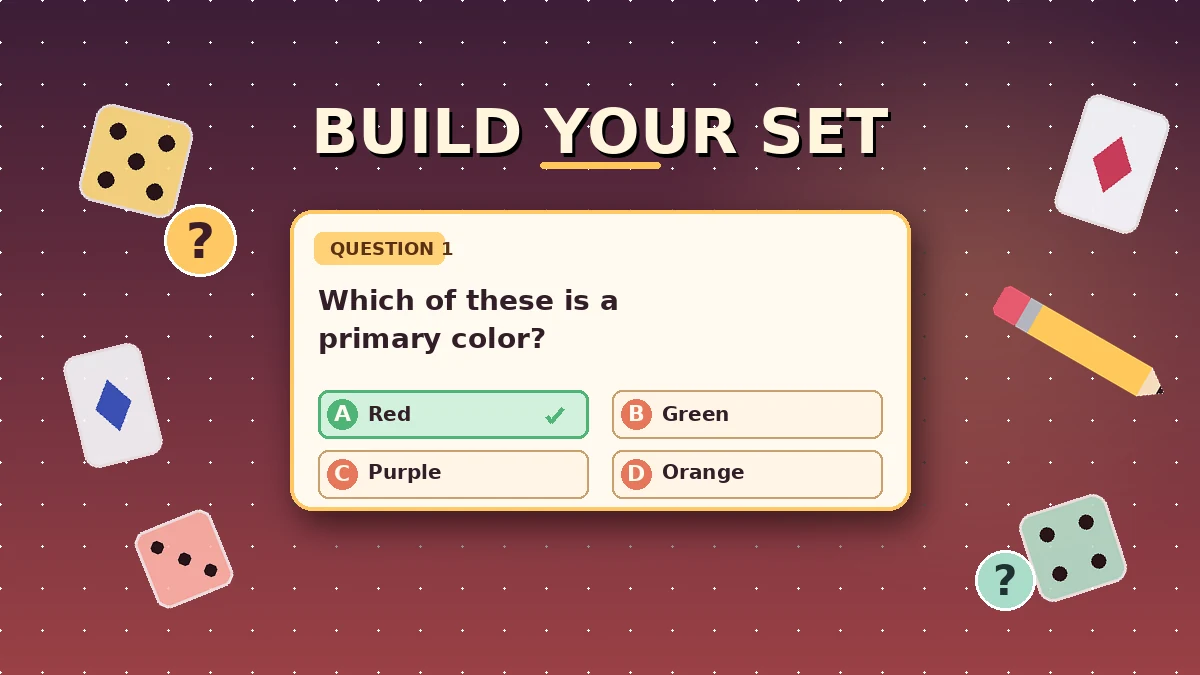
You’ve mapped out tomorrow’s lesson, opened Blooket, clicked Create, and now you’re staring at a blank editor wondering where to start. This guide shows exactly how to create a question set in Blooket from a blank page, from a Quizlet URL, or from a spreadsheet, and how to write questions that actually test what you’re teaching. To create a question set in Blooket, sign in on the official Blooket site, click Create, choose New Set, add a title, then enter each question with four answer choices, mark the correct one, and click Save Set.
The catch is that most sets get built in a hurry and play badly. Below, you’ll find the exact clicks, three import shortcuts, common mistakes that waste your prep time, and the writing rules that turn a rushed set into a solid review game.
How to create a question set in Blooket
To create a question set in Blooket, log into your free Blooket account, click Create on the dashboard, select New Set, add a title and description, then enter each question with four answer choices, tick the correct one, and click Save Set. You can also import from Quizlet, paste CSV data, or duplicate an existing set instead of typing questions by hand.
A question set is the content layer that every Blooket game runs on. Modes such as Gold Quest, Tower Defense, and Fishing Frenzy are just wrappers, and the questions inside them come from a set you create or copy. Without a set, none of the modes have anything to ask.
Set creation is free, unlimited, and account-based. Anyone with a free account can build sets, share them, and host them. Only playing as a guest is possible without an account; creating and hosting always require login. If you don’t have an account yet, our Blooket Login guide walks through the sign-up flow.
What a Blooket question set actually is
A question set is a saved collection of multiple-choice questions inside your Blooket account. Each question has one prompt, four answer options, one marked correct answer, and optional extras such as a per-question time limit or an image. The same set works in every game mode without any changes.
That reusability is the reason a well-built set is worth the time. One tight 20-question review set can power a live Gold Quest today, a Tower Defense session tomorrow, and homework practice next week. Our Blooket game modes guide covers which modes reward which types of questions.
What you need before you start
You need three things: a free Blooket account, a modern browser or the mobile app, and a rough plan for what you want to cover. Ten minutes of planning saves an hour of rewriting later. A single Google Doc or notebook page with your topic, learning goal, and 15 to 25 draft prompts is enough to build cleanly on the first pass.
How to create a question set in Blooket step by step
Sign in on the official Blooket site, click Create, choose New Set, add a title and short description, then click Add Question and fill in the prompt, four answer choices, and the correct answer for each entry. Set a time limit if you want one, add an image where it helps, and click Save Set when you’re finished. The full sequence takes 15 to 25 minutes for a first solid set.
Step 1: Sign in and open the creator
Sign in with your free Blooket account. On the dashboard, find the Create button in the top navigation or the left sidebar depending on your device size. Click it, then choose New Set from the menu. The Blooket Dashboard guide covers the wider layout if you’re new to the interface.
Step 2: Name the set and add a short description
Give the set a specific title that includes the subject, topic, and grade level. Something like “Grade 6 fractions: adding and subtracting” tells you and your colleagues exactly what’s inside without opening it. The description field is optional, and a single sentence about the learning goal is enough.
Skip clever or vague titles. If you build 40 sets over a year, you will not remember what “Review Set 2” contains three months from now.
Step 3: Add your first question
Click Add Question. A question card opens with a prompt field, four answer fields, a correct-answer selector, a time-limit control, and an image option. Type your prompt in plain, clear language. Keep it short enough to fit on a game screen, because Blooket renders questions on a single view.
Avoid stacking two questions into one prompt. Something like “Which of these is a mammal and lives in water?” mixes two skills; split them into two entries.
Step 4: Fill in the four answer choices
Type your correct answer in one of the four fields, then write three plausible wrong answers in the other three. Plausible is the important word here. If three choices are obviously off, the question stops testing knowledge and becomes a speed-clicking exercise.
The strongest distractors come straight from student misconceptions. If half your class thinks 7 × 8 = 54, put 54 in the answer list. If a common spelling error is “definately,” include it as a distractor for the correct “definitely.”
Step 5: Mark the correct answer and set a time limit
Tick the radio button next to the correct answer. Then look at the per-question timer. The default is around 20 seconds, which suits most review questions. For fact-fluency drills, drop it to 10 seconds. For multi-step reasoning, push it up to 30 or 45. Our guide on setting time limits per question covers this in detail.
Match the timer to what you’re actually testing. A 10-second clock on a paragraph-length reading question guarantees random clicking.
Step 6: Add an image if it helps
Click the image icon on the card if the question needs a diagram, photo, or visual anchor. Blooket lets you paste a URL, upload from your device, or use the built-in image search. Not every question needs one, but well-chosen images help retention for vocabulary, geography, biology, and any topic where the visual is part of the learning. Our guide on adding images to Blooket questions covers the image workflow and copyright-safe sources.
Skip decorative images that don’t add meaning. They slow down the round and clutter the mode’s screen space.
Step 7: Add every remaining question
Repeat the same card for each question in your set. For a live-hosted game, aim for 15 to 25 questions. For homework or solo practice, 40 to 75 works well because students pause between sessions. The creator auto-saves as you go, but click Save Set every 5 to 10 questions as a safety habit.
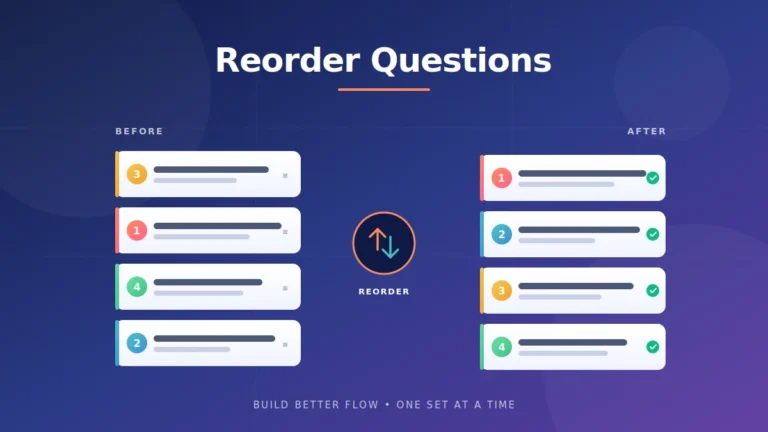
If your questions arrive in a random order and you want to re-sequence them, see the guide on reordering questions in a Blooket set.
Step 8: Save and set the privacy option
Click the green Save Set button in the top right. Give the set a cover Blook image, choose whether it’s public or private, and pick a subject tag. Public sets appear in Blooket’s Discover feed and can be copied by other teachers. Private sets stay in your library only.
The set now sits under My Sets on your dashboard and can be launched in any mode or assigned as homework.
How to import questions instead of typing them
Blooket lets you import questions from a Quizlet URL, from CSV data, or from another set in your library. This saves you from retyping content you already have. Quizlet import handles most flashcard decks in seconds, CSV import handles bulk uploads from spreadsheets, and duplicating existing sets lets you remix sets you or a colleague have already built.
Import from Quizlet
On the Create screen, choose Import from Quizlet. Paste the full Quizlet set URL and click Import. Blooket pulls the terms and definitions, maps the term to the question and the definition to the correct answer, and auto-generates three distractors from other cards in the same deck. A 50-card Quizlet deck can become a playable Blooket set in under a minute.
Always scan the imported set before you host it. Cards with special characters, paired images, or unusual formatting sometimes create weak distractors that need fixing. For a full walkthrough of the Quizlet workflow and the edge cases, see our import Quizlet to Blooket guide.
Bulk import with CSV
If you already track questions in a spreadsheet, CSV import is the fastest route. Export your sheet as CSV or copy the raw rows, then paste them into Blooket’s CSV Import window. The expected column order is question, answer 1, answer 2, answer 3, answer 4, and correct answer, followed by an optional time-limit column. The correct-answer cell must match one of the four answer cells exactly.
A 50-question review set that takes 45 minutes to type by hand can go in through CSV in under 10 minutes if the spreadsheet is already tidy. This is the shortcut most teachers skip because they don’t realise it exists.
Duplicate an existing set
If a colleague shares a set with you, or you want a differentiated version of one of your own, use the duplicate option. Open the set, click the copy icon, and Blooket makes a full editable copy in your library. You can then swap out questions, adjust time limits, or shorten the set for a specific class. Our guide on duplicating questions in a Blooket set covers the shortcut in more detail.
Manual build, Quizlet import, and CSV import compared
The three creation methods handle different starting points. Manual is best for building from scratch when you want full control over every prompt and distractor. Quizlet import is best when the material already lives in a Quizlet deck. CSV import is best when you already track questions in a spreadsheet, especially for large sets. Duplication is best when a good set already exists and you only need to tweak a few questions.
Creation methods side by side
| Method | Best for | Rough build time (30 questions) | Distractor quality | Editing effort after |
|---|---|---|---|---|
| Manual build | Full control, custom distractors | 35 to 50 minutes | High if you plan them | Minimal |
| Quizlet import | Existing flashcard decks | 3 to 5 minutes | Auto-generated, needs a scan | Moderate |
| CSV import | Sheet-based question banks | 8 to 15 minutes | Whatever you wrote in the sheet | Minimal if sheet was clean |
| Duplicate and edit | Remixing a good existing set | 5 to 10 minutes | Inherited from the source | Depends on how much you change |
Practical examples of well-built question sets
The strongest question sets test one skill per question, use plausible distractors, and match the time limit to the type of thinking involved. The four examples below show real formats that hold up in live and homework rounds, drawn from sets I’ve built and hosted across different subjects and grade levels.
Vocabulary review
- Prompt: Which word means “extremely hungry”?
- Answers: Ravenous, Generous, Curious, Nervous
- Correct answer: Ravenous
- Time limit: 15 seconds
- Notes: All four options end in “ous,” which forces students to read the whole word rather than pattern-match on the suffix.
Math fact fluency
- Prompt: 7 × 8 = ?
- Answers: 54, 56, 48, 64
- Correct answer: 56
- Time limit: 10 seconds
- Notes: The distractors are all common mistakes rather than random numbers. 54 is the “off by one” error; 48 comes from confusing 6 × 8; 64 comes from squaring 8.
Science multiple choice
- Prompt: Which part of a plant cell captures light for photosynthesis?
- Answers: Chloroplast, Ribosome, Nucleus, Vacuole
- Correct answer: Chloroplast
- Time limit: 20 seconds
- Notes: Every distractor is a real cell part, so students have to know the function, not just the vocabulary word.
History timeline order
- Prompt: Which event happened first?
- Answers: Boston Tea Party, Declaration of Independence, Constitution Ratified, Louisiana Purchase
- Correct answer: Boston Tea Party
- Time limit: 25 seconds
- Notes: No image, because the point is sequence rather than recognition. Four real events prevent guessing by elimination.
Expert tips for writing better questions
Well-written questions test one clear idea per prompt, use plausible distractors, and match the timer to the type of thinking. Randomising answer order, previewing the set before hosting, and matching set length to the mode all help too. These small habits are the difference between a set students race through and one they actually learn from.
Balance answer lengths
If the correct answer is noticeably longer than the three distractors, students guess it without reading. Match the length of every option to within a few words.
Use student errors as distractors
Skim recent quizzes, worksheets, or exit tickets for common wrong answers, and drop those into the distractor slots. Real misconceptions test real understanding.
Preview before you host
Play through the set as a student before going live. This catches mislabeled correct answers, typos, and awkward wording. Blooket’s preview mode simulates the student view exactly.
Randomize answer order
In the set settings, turn on Randomize Answer Order so students can’t memorize positions from a repeat play. This matters most for classes that see the same set twice in one week.
Match question count to the mode
For live-hosted games, cap the set at 15 to 25 questions. For homework or solo practice, 40 to 75 questions work well because students pause between sessions. Long live sets kill engagement around the 20-minute mark.
Reuse and remix
Duplicate an existing set, tweak a few questions, and you have a differentiated version for another class in minutes. If you’re sharing sets with a teaching partner, the copy-link workflow inside Blooket lets them import a full editable copy into their own library without touching your original.
Common mistakes when creating a Blooket question set
The most common mistakes when creating a Blooket question set are writing obvious distractors, ignoring the per-question timer, overloading live sets with too many questions, skipping the review after Quizlet or CSV import, and using vague wording that could be interpreted more than one way. Each of these turns a review into a race and hides who actually knows the material.
Mistake 1: Distractors that aren’t plausible
When three answer choices are obviously wrong, the question stops testing knowledge and becomes a speed-clicking contest. Fix this by pulling distractors from student work: recent quizzes, exit tickets, and homework are full of the wrong answers people actually give.
Mistake 2: Ignoring per-question time limits
Without a reasonable timer, a live game rewards fast clickers over thoughtful thinkers. Match the timer to the skill: 10 seconds for fluency, 20 for standard review, 30 to 45 for reasoning-heavy questions.
Mistake 3: Overloading a live set
I once ran a live Gold Quest with 40 questions and watched engagement drop after question 22. Live sets play best at 15 to 25 questions. Save the long sets for homework or solo practice, where students set their own pace.
Mistake 4: Skipping the import review
Quizlet and CSV imports are fast, but they don’t guarantee perfect output. Always scan the imported set for weak distractors, misaligned correct answers, and special-character glitches. A five-minute review saves you from a live game where half the questions are broken.
Mistake 5: Not using CSV import when a spreadsheet already exists
Teachers often retype questions manually even when they already have them in a Google Sheet or Excel file. CSV import turns that job from 45 minutes of typing into 10 minutes of pasting. If your questions live in a spreadsheet, use it.
Mistake 6: Vague or double-barrelled question wording
Prompts like “Which is best?” or “What is the main idea and the theme?” invite arguments. Test one clear idea per prompt, and use verbs students already know from your lessons. Clear wording is the fastest way to get cleaner data on who actually understood the lesson.
FAQs
Below are the questions teachers and students ask most often about building question sets in Blooket, with short direct answers drawn from real classroom sets I’ve built and hosted. If your question isn’t here, the rest of blooket.it.com covers Blooket Login, hosting, and each individual creation feature in more depth.
Do I need Blooket Plus to create a question set? No. Free accounts can build unlimited sets, import from Quizlet, use CSV upload, and access every creation feature. Blooket Plus adds enhanced post-game reports, priority support, and some extra modes, but the core set-creation tools stay free forever on the standard account.
How many questions can a Blooket set have? There’s no hard cap in the editor, but the practical limits depend on how you plan to use the set. Live-hosted games run best with 15 to 25 questions. Homework and solo practice work well up to 75. Very large sets can slow down loading on older devices.
Can I import a Quizlet set directly into Blooket? Yes. On the Create page, choose Import from Quizlet, paste the Quizlet set URL, and click Import. Blooket turns terms into questions and definitions into correct answers, then generates three distractors from other cards. Review the imported set once before you host, since occasional odd matches can slip through.
What is the CSV format Blooket expects? The columns should be, in order: question, answer 1, answer 2, answer 3, answer 4, correct answer, and an optional time limit in seconds. The correct-answer cell must match exactly one of the four answer cells. A header row is not required, and you can paste the data straight from your spreadsheet.
Can I edit a question set I’ve already saved? Yes. Open the set from your library, click Edit, and add, remove, or modify any question. Changes save instantly. If you’ve already assigned the set to students, they will see the updated version the next time they open it, unless they’re mid-session on the old version.
Does Blooket save my work automatically as I create? The editor auto-saves progress inside the current session, but you should still click Save Set to commit the set to your library. Closing the tab or losing connection before a save can wipe the last few questions you added. A quick habit of saving every five questions keeps you safe.
Can I share my question set with another teacher? Yes. Open the set and click Share to generate a link, then send it to a colleague. They can open the link and duplicate the set into their own library, where they can edit their copy freely. Your original stays untouched. See the sharing question sets guide for the exact steps.
How do I host a question set once it’s saved? Open the set from your library, click Host, and pick a game mode. Blooket generates a 6-digit code that students enter on the Play page to join the lobby. For the full host-side workflow, our Blooket Host guide walks through picking a mode and running the round.
Final thoughts
A well-built question set is the difference between a review students race through and one they actually learn from. Whether you build it manually, import it from a Quizlet URL, or paste it in from a spreadsheet, the same rules apply: one clear idea per prompt, four plausible answers, a timer that matches the thinking, and a scan-through before you host.
Pick a topic from an upcoming lesson, open the Create screen on Blooket, and build one 15-question set now. Use Quizlet or CSV import if you already have the content ready, and hit Save Set before you close the tab. For more on hosting, adding images, or sharing your finished sets with colleagues, browse the rest of the guides on blooket.it.com.
Read More About Blooket