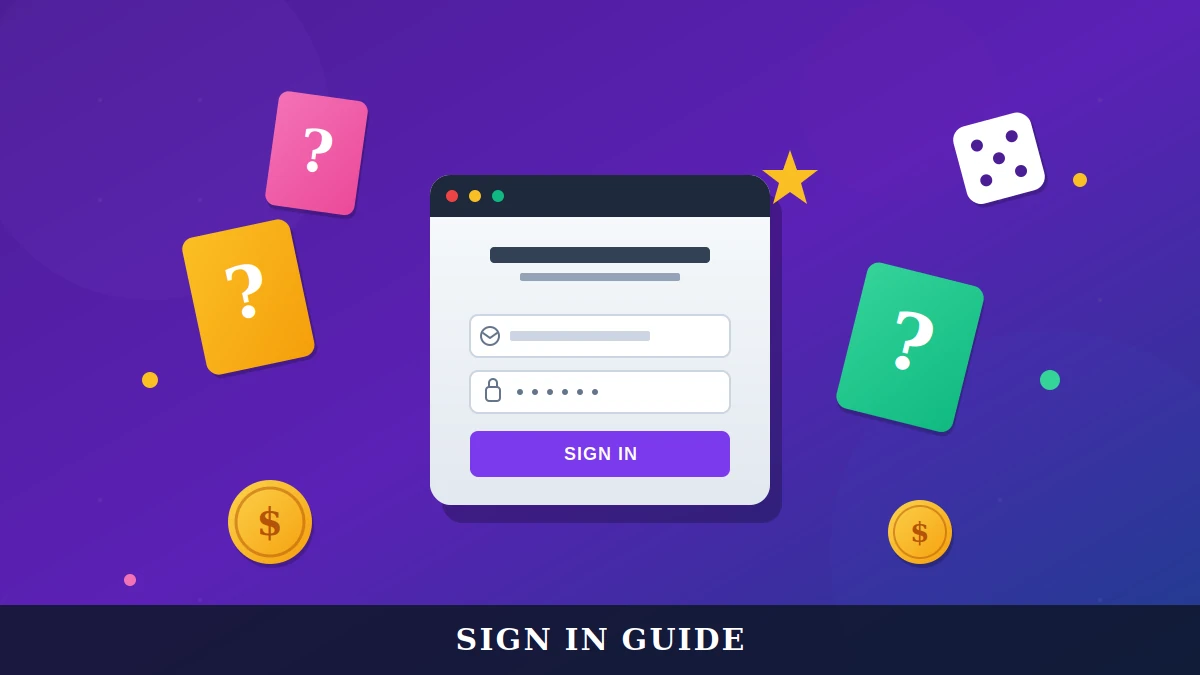
How to login to Blooket: open id.blooket.com/login, then sign in with your email and password, Google account, or Clever if your school uses it. The dashboard loads within seconds, and students joining a live game do not need an account at all — they can enter the code at play.blooket.com instead.
Most login problems trace back to three small mistakes: the wrong URL, the wrong method, or a browser that has not been cleared in months. This guide walks through every sign-in path, the fixes for the errors people hit most, and the difference between logging in as a host and joining as a player.
This is an independent Blooket resource, not the official platform. Everything below is written for students, teachers, and parents who want the login process to feel automatic instead of confusing.
What is the fastest way to login to Blooket?
The fastest way to login to Blooket is to type id.blooket.com/login directly into your browser and use whichever sign-in method matches how you first registered. Most users are inside their dashboard within fifteen seconds. Bookmarking that exact URL removes the single biggest source of friction, which is landing on the wrong page.
Two URLs cause almost all the confusion. Blooket.com is the marketing homepage. Play.blooket.com is where students enter a game code. Neither of those is the login page. When someone says their sign-in is broken, the first question I ask is what they typed into the address bar. Nine times out of ten, that is the whole problem.
Any modern browser handles the platform cleanly. Chrome, Safari, Firefox, and Edge all work on desktop, and the same browsers work well on phones and tablets. There is no separate Blooket app to download for signing in on iOS or Android, since the site is fully responsive.
What are the three ways to sign in to your Blooket account?
Blooket supports three sign-in methods, and picking the right one on the first try separates a quick login from a frustrating loop. Each method uses the same starting page, id.blooket.com/login, but expects a different credential set. If your first attempt fails, switch methods rather than retrying the same one over and over.
Email and password sign-in
Email and password is the universal fallback. If you signed up by typing an email address into the registration form, this is your route. Head to id.blooket.com/login, enter the exact email you used, then type your password. Case matters here, so double check that Caps Lock is off before hitting log in.
Teachers usually see the full control panel immediately, with question sets, hosted games, and reports across the top. Students land on a lighter dashboard that shows their game history and Blook collection. The switch between the two happens automatically based on the account type you picked at signup.
Google sign-in for classroom accounts
Google sign-in is the cleanest workflow if you use a school Gmail or a personal Google account. On id.blooket.com/login, click Sign in with Google, then pick the correct profile if your browser has more than one active. There is no password to remember, no reset link to hunt for, and no email confirmation needed after the first setup.
For teachers who already run Google Classroom, this is the workflow I recommend most often. Student accounts made through Google inherit the school domain, which makes district-level rostering much easier down the line.
Clever single sign-on for school districts
Clever is a district-wide sign-on tool that many US schools already use for other software. If your school runs on Clever, you will see a Login with Clever button on id.blooket.com/login. Click it, then enter the same credentials you use for other district apps.
The Clever button only appears for users whose district has enabled the integration. If you do not see it, your school has not turned it on, and you should sign in with Google or email instead. There is no way for an individual student to force Clever access, since that decision sits with the district admin.
How do you login to Blooket step by step?
The full login flow takes under twenty seconds once you know which of the three doors to open. This section covers the process from a cold start, plus the sign-up route for anyone who has not yet created an account. If you already have an account, jump straight to the returning users flow below.
For returning users
- Open your browser and type id.blooket.com/login into the address bar.
- Choose the sign-in method that matches your original registration: email, Google, or Clever.
- Enter your credentials, double checking Caps Lock if you are using a password.
- Click Log In and wait three to five seconds for the dashboard to load.
- Bookmark the URL so future logins are one click away.
If the dashboard does not appear within about ten seconds, jump to the troubleshooting section below rather than refreshing repeatedly.
For first-time users creating an account
- Head to blooket.com and click Sign Up in the top corner.
- Choose Student or Teacher, since this decides which features you get.
- Enter your date of birth. The platform blocks users under thirteen in the US and under sixteen in most other regions.
- Pick Google or Email as your registration method and follow the on-screen prompts.
- If you chose email, look for a verification code in your inbox and enter it before setting your password.
- Pick a username, accept the terms, and you are in.
The whole signup takes around two minutes. From then on, future logins collapse into one click if you use Google. For a longer walkthrough, see the guide on how to create a Blooket account.
On mobile devices
Blooket runs in the browser on mobile, so the login flow mirrors the desktop version. Safari on iOS and Chrome on Android both handle the site smoothly. Tap the address bar, type id.blooket.com/login, and use the same three-method choice. The layout adapts automatically to the smaller screen.
One thing to watch on mobile: some school-issued tablets block third-party cookies by default, which can break Google sign-in. If Google fails on a school iPad, switch to email and password for that device.
Why is your Blooket login not working?
Login failures fall into a handful of patterns, and every one of them has a fix that takes under a minute. The trick is diagnosing which pattern you are hitting before you start clicking. Refreshing over and over is the single worst move, because it can trigger a temporary block that keeps you out for longer.
Wrong URL problem
Typing blooket.com/login into the browser sometimes leads to a redirect loop or a blank page, especially on school networks that filter certain root domains. The direct URL, id.blooket.com/login, sidesteps the filter because it uses a subdomain. This one change resolves a large share of the sign-in issues I have seen in classrooms.
502 Bad Gateway error
The 502 error usually appears during peak school hours when servers are handling a spike in traffic. Do not spam the refresh button. Wait sixty seconds, then hit Ctrl + F5 on Windows or Cmd + Shift + R on Mac for a hard refresh. If it persists past two minutes, try an incognito or private window.
Repeated refreshing can trip a rate limiter that treats your browser like a bot. That extends the outage on your end while everyone else recovers.
White screen after clicking login
A blank white screen after login usually means a browser cache issue or a school firewall blocking part of the domain. Clear cache and cookies from All Time, then reload. If your school network is the culprit, switching to the direct id.blooket.com/login URL fixes it most of the time. When neither helps, try a different browser, since the Blooket login page sometimes behaves differently on Edge versus Chrome.
Google sign-in failing
Google sign-in errors almost always come from cookie conflicts, VPN interference, or the wrong Google profile being active. Log out of every Google account in that browser, then sign back into only the correct account before retrying. Disable any VPN for the login attempt. If your school issues Chromebooks with a locked profile, ask your teacher which account Blooket is tied to.
Account temporarily locked
Blooket locks accounts after roughly five to ten failed password attempts, and the lock lasts fifteen to thirty minutes. There is no shortcut here. Waiting is the fix. Once the timer clears, use the Forgot Password link on the login page. The reset email lands within a few minutes, so check spam if it does not appear.
Dashboard stuck loading
If you get past the login screen but the dashboard spins forever, a browser extension is usually the culprit. Ad blockers, script managers, and privacy extensions sometimes break the JavaScript that loads your Blooket dashboard. Try a private window with all extensions disabled. If that loads, re-enable extensions one at a time until you find the one causing the block.
Do you need to login to play a Blooket game?
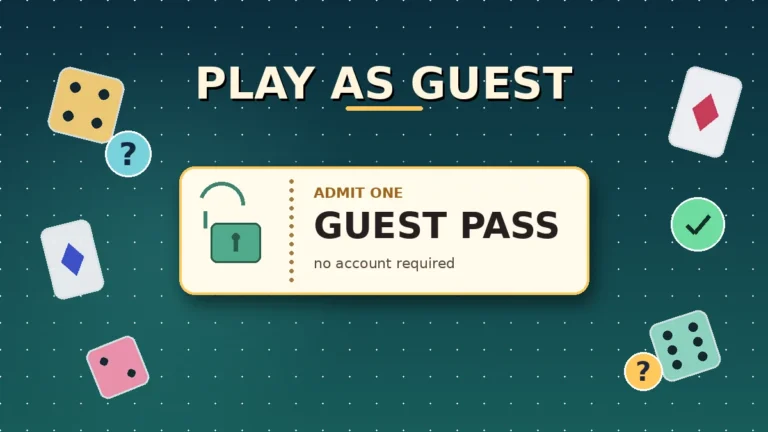
You do not need to login to play a Blooket game. Students can join any live session by visiting play.blooket.com, entering the six-digit code the host shares, picking a nickname, and choosing a Blook. No email, no password, no signup — just the code. Clearing up this confusion saves classrooms about five minutes at the start of every session.
Playing as a guest with a game code
Guest play covers everything most students need for a normal classroom game. Head to play.blooket.com on any device, punch in the six-digit code your teacher shows on the board, and pick a Blook. For a fuller walkthrough on entering codes, see the Blooket join guide or the dedicated Blooket code page.
The guest route is device-friendly. Phones, tablets, Chromebooks, and desktops all work. Nothing installs. The catch is that guest players do not keep tokens, Blooks, or history after the game ends.
What an account gives you that guest mode doesn’t
An account is the difference between playing one game and building a collection over the school year. With a free account, you keep every Blook you unlock, accumulate tokens across games, review your accuracy over time, and practice solo with any public question set. Teachers can also host their own live games from the same dashboard.
If you play more than once a week, the account is worth the two minutes it takes to set up. If you are joining a single class quiz, guest mode is enough.
Which Blooket account type is right for you?
Blooket has three functional account tiers: guest, student, and teacher. Each covers a different slice of the platform, and it helps to know which one you actually need before you sign up. The table below compares them side by side, based on what each tier can do without any paid extras.
| Feature | Guest | Student | Teacher |
|---|---|---|---|
| Join live games with a code | Yes | Yes | Yes |
| Earn tokens for gameplay | No | Yes | Yes |
| Keep Blooks permanently | No | Yes | Yes |
| Solo practice with public sets | No | Yes | Yes |
| Create custom question sets | No | No | Yes |
| Host live games | No | No | Yes |
| View student performance reports | No | No | Yes |
| Access Blooket Plus extras | No | No | Yes (paid) |
The free teacher tier already includes unlimited question sets, all core game modes, and a comfortable player cap that handles most single classrooms without any subscription. Blooket Plus is a paid upgrade that expands the player cap and adds deeper reporting for teachers who host large sessions.
Students who play mostly in class rarely need more than a free student account. It saves their Blook collection, tracks progress, and lets them practice at home with the same question sets their teacher used in class.
FAQs
Can I login to Blooket without a password? Yes. If you signed up through Google or Clever, both methods skip the password entirely. Click the matching button on id.blooket.com/login, pick your profile, and you are in. Setting a Blooket-specific password is optional for those accounts and only useful as a backup.
What is the difference between blooket.com and play.blooket.com? Blooket.com is the main site for account management, question set creation, and hosting. Play.blooket.com is a dedicated page for joining live games with a code. Students should bookmark play.blooket.com. Teachers and account holders should bookmark id.blooket.com/login for signing in.
Where do my students go if I am hosting a Blooket game? Send students to play.blooket.com. They enter the six-digit game code you display on the board, pick a nickname, and choose a Blook. No login is required for participation. Only students who want to save progress across sessions need to create their own free account.
Why can I not see the Login with Clever button? The Clever button only appears when a school district has enabled the Blooket integration on the admin side. Most districts have not turned it on. If your district uses Clever for other apps but not Blooket, ask your school IT lead. Sign in with Google or email in the meantime.
Is Blooket free to use? Yes. The core platform is free. That includes unlimited question sets, the main game modes, guest and student accounts, and a player cap that fits standard classroom sizes. Blooket Plus is an optional paid subscription for teachers who need larger sessions, extra modes, and richer reports.
Can I use the same account on multiple devices? Yes. Blooket accounts sync across devices automatically. Log in from a school laptop, a home desktop, or a phone, and your Blooks, tokens, and question sets appear in every session. There is no device limit and no separate mobile install to worry about.
What if I am under the age minimum? Users under thirteen in the US and under sixteen in most other regions cannot create their own Blooket accounts. Guest play is still an option, since a student under the age limit can join any teacher-hosted game with the code, without any signup step at all.
Can I recover a lost Blooket account? Yes. Use the Forgot Password link on id.blooket.com/login and enter the email tied to the account. A reset link lands in your inbox within a few minutes. If you signed up with Google or Clever, sign in through that provider instead. For email swaps, see the guide on how to change your Blooket email address.
Final thoughts
Learning how to login to Blooket takes about fifteen seconds once you have the right URL and the right method. The three routes cover almost every scenario: email and password for anyone who typed an address at signup, Google for classroom accounts, and Clever for supported school districts. Everything else is troubleshooting the same three or four errors.
Bookmark id.blooket.com/login for signing in and play.blooket.com for joining live games. That one habit removes most of the day-to-day confusion. If you are new to the platform overall, the guide on what Blooket is covers the wider picture. Browse the rest of the Blooket guides on blooket.it.com for setup tips, mode breakdowns, and classroom ideas.
Master what matters most — explore priority-focused guides that respect your time.