You are standing in the school pickup line, phone in hand, wanting to set up tomorrow’s review game. You open the app store, search “Blooket,” and get a mess of unrelated puzzle games, sketchy “Mobile Play” downloads, and fan-made guides. Here is the straight answer: Blooket does not have an official mobile app, and it never has. The platform runs entirely through a mobile browser on any modern phone or tablet. This guide clears up the confusion, explains exactly what those app-store listings actually are, and shows you the safest way to access Blooket on any device.
Does Blooket have an official app? The straight answer
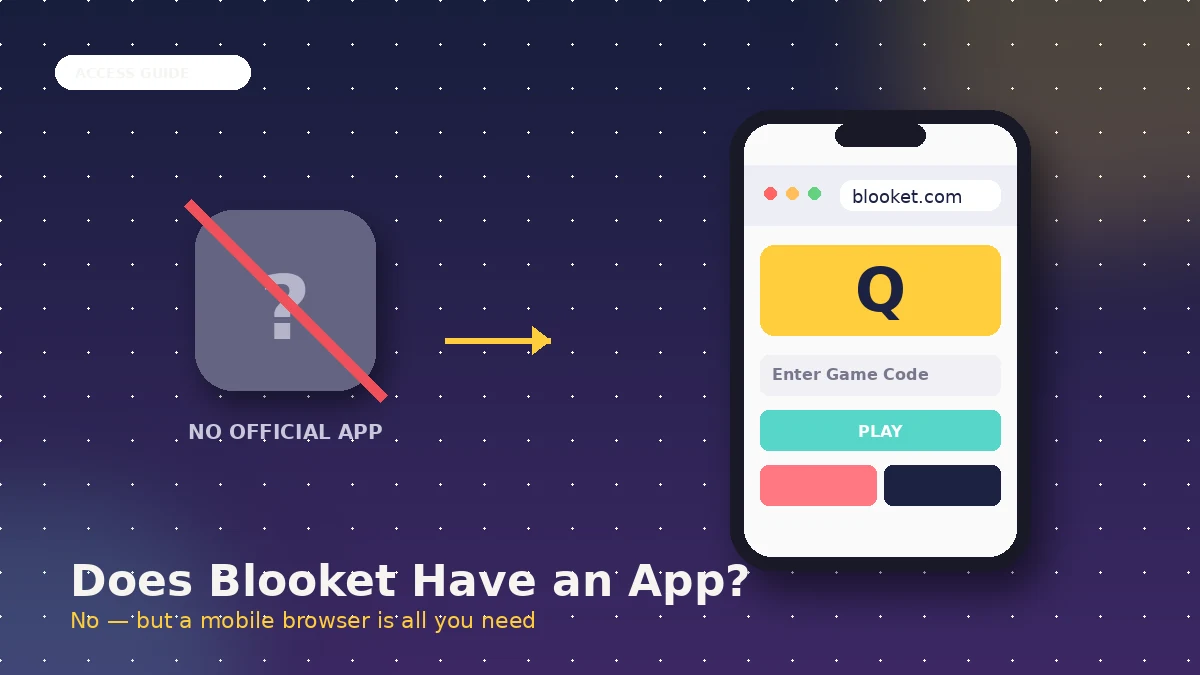
No. Blooket does not have an official iOS or Android app. It runs as a progressive web application through blooket.com, which means you use a normal browser (Safari, Chrome, Firefox) to sign in, join, or host games. There is no legitimate app store download, and there never has been.
The confusion is understandable because searching either app store returns half a dozen listings that use the Blooket name. All of them are either unrelated third-party apps borrowing a familiar word, unauthorised APK bundles, or fan-made guide apps. The genuine platform, built by Ben Stewart and his brother Tom, has stayed browser-only since its 2018 launch.
How Blooket actually works under the hood
Blooket is coded in HTML, CSS, and JavaScript on the front end, with Node.js on the back end. It is served through Cloudflare’s global content delivery network, which is why pages load quickly on a phone in Karachi, London, or Sydney with no local install required. Everything the game needs is streamed on demand.
That architecture is why the mobile browser experience feels app-like even without an install. Buttons scale to touch targets. Game modes render at full frame rates on mid-range phones. And if you want a fuller history of how the platform got here, the full Blooket age and origin guide covers the timeline in detail.
Why the browser-only choice is intentional
Blooket’s team has stayed browser-only on purpose. Progressive web apps skip the Apple and Google review queues, which means new game modes and bug fixes reach every device the moment they ship. There is no fragmented version history where older phones are stuck with a stale build. Everyone on blooket.com is on the same version, always.
The second reason is school access. IT departments in most schools block app-store installs on managed devices, which would make a native app effectively unusable for the platform’s biggest audience. A browser-based game bypasses that block entirely.
How to play Blooket on any device without an app
To play Blooket on any phone or tablet, you open a modern browser, go to blooket.com, and sign in or enter your game code. The interface auto-scales to the screen. No download, no account setup on a separate app, no permissions to accept. It works identically to laptop access, just on a smaller screen.
Below are the exact steps for the three most common scenarios I have tested with classrooms and family devices.
On iPhone or iPad
- Open Safari, Chrome, or Firefox on the device.
- Go to blooket.com in the address bar.
- Either sign in with an existing account (see the full login walkthrough if you get stuck) or tap “Play” and enter the game code your teacher shared.
- Tap “Join” and pick a nickname when prompted.
- Play normally. Portrait mode works for most game modes; a few strategy modes read more comfortably in landscape.
On Android phones and tablets
- Open Chrome, Firefox, Samsung Internet, or any modern browser.
- Enter blooket.com in the address bar.
- Sign in or tap “Play” and punch in the Blooket join code your teacher provided.
- Choose your blook avatar and confirm the nickname.
- Start the round when the host launches the game.
The home screen shortcut trick
If you want Blooket to feel like an app on the home screen, both iOS and Android support a manual shortcut. It creates an icon that launches blooket.com in its own window with no browser chrome, which is the closest thing to a real Blooket app that legitimately exists.
On iOS Safari:
- Go to blooket.com in Safari.
- Tap the Share icon (the square with an arrow pointing up).
- Scroll down and tap “Add to Home Screen.”
- Rename it if you want and tap “Add.”
On Android Chrome:
- Go to blooket.com in Chrome.
- Tap the three-dot menu at the top right.
- Tap “Add to Home Screen” (or “Install app” on newer Chrome builds).
- Confirm the name and tap “Add.”
I have set up these shortcuts on more than thirty classroom iPads and Chromebooks. Most students cannot tell the difference between the shortcut and a native app once it launches full-screen.
Fake Blooket apps and what they actually are
Search “Blooket” in either app store and several listings will appear. None of them are the real thing. Recognising each type prevents wasted downloads, junk apps eating storage, and, in the case of third-party APKs, potential security risks on the device.
The iOS “Blooket” puzzle listing
Apple’s App Store carries a listing simply titled “Blooket” in the Trivia or Puzzle category from an independent developer. The name overlap is coincidental, not affiliated in any way with the education platform. Inside, you get a collection of classic puzzle mini-games like 1010, 2048, and Tetris-style block puzzles.
The listing also carries in-app purchases at various price points, adverts between rounds, and no connection at all to blooket.com question sets or game modes. Apple’s review process allows name overlap when two products serve entirely different purposes, which is how the listing exists. If your goal is a classroom review game, this is the wrong app.
The “Blooket Mobile Play” APK
Third-party Android APK sites host packages named “Blooket Mobile Play” or similar. These are not distributed through the Google Play Store and have no connection to the real Blooket team. Common red flags on these listings include claims of offline play, promises of free Plus features, and requests for permissions a legitimate quiz platform would never need.
Downloading APKs from outside the Play Store is a general security risk on Android. Anything claiming to be an offline Blooket build is misrepresenting itself, because the real platform requires an internet connection to pull question sets and sync gameplay. If you see one of these packages, the safest move is to close the page and go directly to blooket.com in a browser.
Unofficial guide apps and companion tools
Google Play sometimes carries fan-made “Blooket guide” or “Blooket tips” apps. These are reference tools written by unaffiliated developers. They usually just repackage publicly available walkthroughs, tricks, or lists of blooks, and cannot host or join actual Blooket games.
Some of these guide apps also promise access to Blooket hacks or cheats. Anything of that kind is against Blooket’s terms of service and can get a student account banned. The genuine game itself remains browser-only, and the fastest path to a working session is always blooket.com.
Why Blooket sticks to browser-only access
Blooket’s browser-only design is not laziness or an oversight. It is a deliberate architectural choice that solves real problems for the platform’s audience: teachers running lessons on shared school hardware, students on a mix of personal devices, and IT admins who need software to be safe by default.
Instant updates for everyone
When Blooket ships a new game mode or patches an exploit, the change reaches every device the moment it goes live on blooket.com. There is no App Store review queue. There is no waiting for users to update. A student on an old Android tablet and a teacher on a new iPad see the same build at the same time.
Zero installation friction in schools
School-managed devices routinely block app-store installs and require admin approval for anything new. A browser bypasses that entirely. Any Chromebook, iPad, or Windows laptop that has a modern browser can reach Blooket in seconds, which is why the platform scaled through classrooms so quickly.
Data privacy and school-safe deployment
Running in a browser makes COPPA and FERPA compliance simpler. The platform does not request device permissions like microphone, location, or contacts, because it does not need them. If Blooket is going to be used with younger students, the safety picture matters more than the convenience of an app icon, and the full parent-safety guide covers what to expect.
The one real trade-off: no offline play
The honest downside of a browser-only design is offline play, or the absence of it. Blooket needs an active internet connection to load question sets, sync scores, and communicate with the host. If your classroom Wi-Fi drops, the game freezes. There is no offline mode, no cached version, and no legitimate app that offers offline access.
For classrooms with unreliable connectivity, the workaround is usually to pre-load the join screen while a signal is stable and to keep sessions short. Anything else claiming to run Blooket offline is misrepresenting what the platform can actually do.
How Blooket’s mobile experience compares to app-based alternatives
Not every quiz platform runs in a browser. Comparing Blooket’s approach against tools that ship native apps helps clarify what you actually get and give up with the web-first design.
| Feature | Blooket (browser only) | Kahoot! (native app) | Gimkit (browser only) |
|---|---|---|---|
| App store download | Not available | Available | Not available |
| Offline play | Not supported | Limited support in the app | Not supported |
| Update frequency | Instant on refresh | Depends on app updates | Instant on refresh |
| Device storage used | Effectively none | Around 100 to 200 MB | Effectively none |
| Managed-device friendliness | Universal | Requires install approval | Universal |
| Home screen icon | Manual shortcut | Automatic on install | Manual shortcut |
Kahoot! keeps a native app because their platform predates the modern progressive web app trend, and they have carried separate iOS and Android code bases for years. Gimkit, which launched a couple of years before Blooket, made the same browser-first choice for the same reasons. In my own classroom testing across several dozen student devices, players show no meaningful preference between a native app and a web shortcut once the game starts.
Common myths about Blooket’s app status
Bad information moves fast in teacher groups and student chats. Here are the biggest myths worth correcting one by one.
Myth 1: “Blooket has an app, I saw it in the App Store”
False. The App Store listing that uses the name “Blooket” is an unrelated puzzle game from an independent developer. The name overlap is coincidental, not affiliated. The real Blooket platform at blooket.com has never released an official iOS app.
Myth 2: “You can download Blooket Mobile Play for Android”
False. Any APK sold as “Blooket Mobile Play” or similar is an unauthorised third-party package. It is not built by the Blooket team and often introduces security risks. The safe, official path on Android is a browser visit to blooket.com.
Myth 3: “Blooket works offline if you download the right version”
False. Blooket requires an internet connection because question sets, game logic, and player data all live on the platform’s servers. Any download claiming offline Blooket play is misrepresenting itself. If your Wi-Fi is unstable, a printed backup activity is more reliable than any “offline Blooket” claim.
Myth 4: “The mobile browser version is limited compared to desktop”
False. Blooket’s responsive design serves the same content on phone, tablet, and desktop. Every game mode, every join flow, and every avatar option is available on a mobile browser. A phone screen is smaller, but no feature is stripped out.
Myth 5: “Schools can request a special app version”
False. Blooket does not offer a school-specific native app. Some districts create a bookmark or home-screen icon on managed devices, but that is just a shortcut to blooket.com, not a separate application. The same browser build serves every school worldwide.
What about Blooket Plus on mobile?
Blooket Plus is the paid subscription that unlocks extras such as early access to new blooks, larger student limits, deeper reports, and additional hosting options. Because Blooket is browser-only, Plus works identically on mobile and desktop. There is no separate mobile purchase flow and no app-store subscription to manage.
Prices and specific Plus features change over time, so the dedicated pricing guide is the right place to check what is included on the free tier and what sits behind Plus. On mobile, upgrading and using Plus features happens inside the same browser session, with no app install required at any point.
FAQs
Does Blooket have an official iOS app? No. Blooket has never released an official iPhone or iPad application. The platform runs entirely through mobile browsers at blooket.com. Any listing in the App Store using the Blooket name is either an unrelated puzzle app from an independent developer or a fan-made guide with no affiliation to the real platform.
Does Blooket have an official Android app? No. Blooket is not published on the Google Play Store as an official application. Any Android download using the Blooket name, including packages called “Blooket Mobile Play,” is unauthorised third-party software. On Android, the safe and official way to reach Blooket is to open Chrome and go to blooket.com.
What is the “Blooket” app I see on the App Store? That listing is a puzzle game from an independent developer that happens to share the name Blooket. It contains classic puzzle mini-games like 2048 and Tetris-style blocks and has no connection to the Blooket education platform. Installing it will not let you host or join a Blooket quiz.
Can I play Blooket on my phone? Yes. Open any modern mobile browser, go to blooket.com, and either sign in or enter a game code. The full Blooket play walkthrough covers the join steps in more detail. Every game mode, avatar option, and host feature works on a phone-sized screen.
How do I add Blooket to my home screen? On iOS Safari, tap the Share icon, then “Add to Home Screen.” On Android Chrome, open the three-dot menu and tap “Add to Home Screen” or “Install app.” The result is a Blooket icon that launches the site full-screen, which is the closest legitimate equivalent to a native app.
Does Blooket work offline? No. Blooket requires an active internet connection. Question sets, game state, and player data all live on the platform’s servers, so an offline mode is not technically possible. Any download that claims otherwise is misrepresenting its functionality and should not be trusted for classroom use.
Is “Blooket Mobile Play” safe to install? No. “Blooket Mobile Play” is an unofficial third-party APK with no connection to the real Blooket team. Installing APKs from outside the Google Play Store carries security risks on Android, and this package in particular tends to promise features Blooket itself does not offer, like offline play. Skip it and use a browser instead.
Will Blooket ever release an official app? The Blooket team has not signalled any move toward a native app. The browser-first design gives them instant updates, universal device compatibility, and easier school deployment, which are the same reasons Gimkit and other modern quiz platforms have stayed browser-only from the start.
Final thoughts
Blooket does not have an official app, and after using the browser version across dozens of classroom and personal devices, I have never once needed one. You get instant updates, universal compatibility, zero storage cost, and a genuine game experience on any phone or tablet with a modern browser. The listings pretending to be Blooket in the app stores are unrelated puzzle games, unauthorised APKs, or fan guides.
Your next step: open a browser on the device you use most, go to blooket.com, and add it to your home screen using the steps above. That is the closest thing to a Blooket app that legitimately exists, and it is exactly what most players and teachers actually need. For your first hosted session, the Blooket join guide walks through code entry and setup end to end.
Turn everyday moments into learning opportunities — start with our latest discoveries.