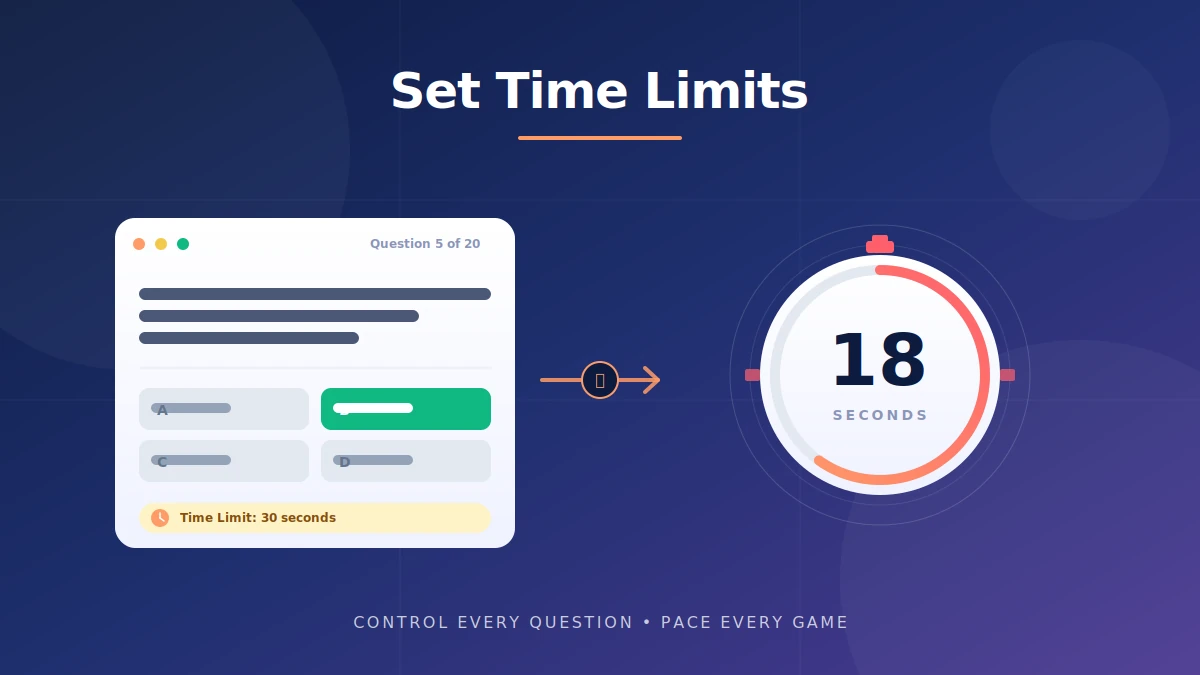
Setting time limits per question in Blooket takes about 10 seconds per question and controls how long students have to answer before their response is marked wrong. The setting lives inside each question card, right below the answer choices, in a field labeled Time Limit. Type a number, save, and the countdown applies every time that question appears.
This guide covers where the timer lives, how to bulk-edit it across a full set, and the exact second ranges that work for different question types. Every recommendation comes from live classroom testing across strategy, speed, and synced game modes.
The default timer is 60 seconds per question, which is too long for vocabulary and too short for multi-step math. Getting the number right is the difference between an energetic review game and a stalled session.
This is an independent guide to Blooket, not the official site. For account access, head to blooket.com.
What is the per-question time limit in Blooket and how does it work?
The per-question time limit in Blooket is a countdown attached to each individual question that determines how many seconds a student has to answer before the question is marked wrong. It is set inside the question card during creation or editing, not from the host screen, and it stays with the question across every game mode you run.
Blooket keeps two separate timers, and mixing them up is the source of most timer confusion in teacher forums. The per-question timer controls a single question. A separate game-length timer, set on the host screen, controls the total session duration. Both timers can be active at the same time, and understanding the difference is the first step to running a session that actually finishes when you want it to.
Per-question timer vs game timer
The per-question timer starts the moment a question loads on a student’s screen and resets for the next question when the current one ends. The game timer is a global cap on the whole session, usually set to 5, 7, or 10 minutes. If a student answers correctly with 4 seconds left on the question timer, the next question loads and a fresh countdown begins. If the game timer runs out mid-question, the entire session ends.
How the timer behaves across game modes
In synced modes like Classic and Battle Royale, every student sees the same question at the same moment and the timer runs in parallel across all devices. In self-paced modes like Cafe, Factory, and Gold Quest, students move through questions independently and each student runs their own timer. The setting is the same, but the classroom feel is completely different.
How do you set a time limit per question in Blooket?
To set a time limit per question in Blooket, open the question set editor, click into any question card, scroll to the Time Limit field beneath the answer choices, and type a number in seconds. Blooket accepts any whole number from 1 second upward, though 5 to 120 seconds covers almost every real classroom use.
The setting saves the moment you click Save on the question. There is no separate confirmation step, and the value persists through every game mode you run with that set.
Setting timers on a new question set
Follow these steps in the question builder:
- Sign in to your Blooket account and open the dashboard.
- Click Create in the top navigation, then choose Create New Set. The full walkthrough for building a set from scratch is covered in the guide on how to create a question set.
- Name your set, then click Add Question to open the question card.
- Type the question and fill all four answer slots. Mark the correct answer with the green checkmark.
- Scroll to the bottom of the card and find the Time Limit field. It shows 60 as the default value.
- Click into the field and type your target number of seconds.
- Click Save on the question card.
- Repeat for every question in the set.
That is the entire flow. On a laptop with a decent connection, ten questions with custom timers take about three minutes to configure.
Editing timers on an existing set
Open My Sets from the dashboard and click the set you want to modify. Hit the Edit pencil icon to open the editor. Click any question card to expand it. Update the Time Limit field, then click Save on that card. Repeat for other questions, then click Save Set to lock in the changes across the whole set.
Bulk-setting timers with CSV import
For sets with 30 or more questions, editing timers one card at a time is slow. Use the CSV import tool instead:
- From the Create screen, choose CSV Import.
- Download the template spreadsheet.
- Fill in your question text, answer choices, correct-answer indicators, and time limits.
- Save the file as CSV and upload it.
Blooket applies all time limits at once. A 50-question unit review that would take 25 minutes to click through takes about 5 minutes with CSV import.
How to preview timers before hosting
Never host a set live without a solo playthrough first. From the set page, click Solo, run through the first five questions with a stopwatch, and note where the timer felt too tight or too loose. Fix anything obvious, then run a second solo pass. Once you host the game, you cannot change per-question timers mid-session.
What time limit should you set for each question type?
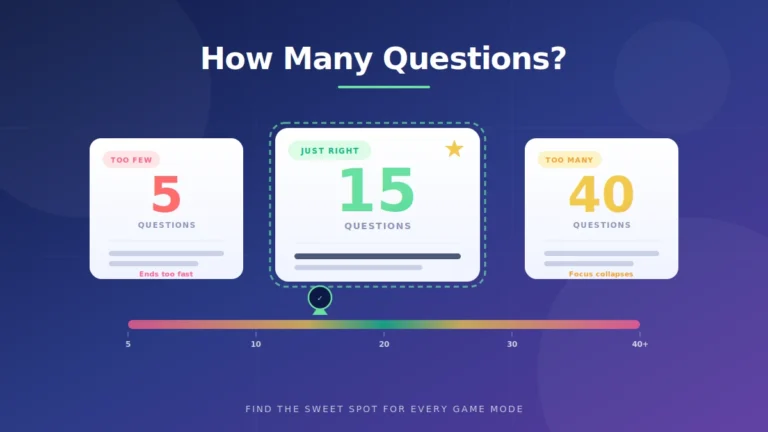
Match the time limit to the cognitive load of the question. Simple recall needs 10 to 20 seconds. Single-step math needs 30 to 45 seconds. Multi-step problems and reading comprehension need 60 to 120 seconds. Getting these ranges right is the difference between a smooth review game and a room full of timeout notifications.
Below is the timing table I use as a starting point across subjects. Every number is a starting point, not a rule, and every teacher should refine these based on their own class data.
| Question type | Recommended time | Reason |
|---|---|---|
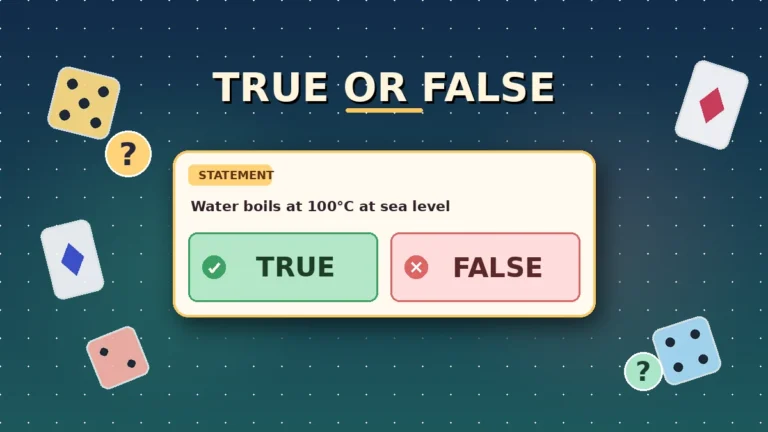
| True or false | 10-15 seconds | Two options, fast decision |
| Simple vocabulary recall | 15-20 seconds | Students either know it or they do not |
| Element or symbol identification | 15-20 seconds | Pure recognition task |
| Single-step math | 30-45 seconds | Mental computation needs a beat |
| Multi-step math | 60-90 seconds | Students work through stages |
| Diagram or image analysis | 45-75 seconds | Visual processing plus selection |
| Reading comprehension | 90-120 seconds | Includes passage reading time |
| Foreign language translation | 30-45 seconds | Retrieval plus recognition |
| Short answer typed | 1.5x the equivalent MC time | Typing is slower than tapping |
Quick recall questions
Vocabulary drills, sight words, and math facts belong in the 10 to 20 second range. Shorter timers reward fluency and prevent guessing. A first-grade sight word set with 25 second timers feels sluggish. The same set with 12 second timers moves at a pace kids find satisfying.
Math and multi-step problems
Give math problems room to breathe. A two-step equation needs at least 60 seconds. A three-step word problem needs 90. Cutting these short does not sharpen thinking; it just increases wrong answers and student frustration. If your goal is speed, use single-step problems with short timers. If your goal is problem-solving, use longer timers.
Reading comprehension
Any question with a passage in the prompt needs 90 to 120 seconds. Students have to read the passage, hold it in memory, and pick the correct interpretation. I have watched entire comprehension sets fall apart because a teacher set 45 second timers on 80-word passages. Read the passage aloud yourself and time it. Then double that time for the student version.
Diagram and image analysis
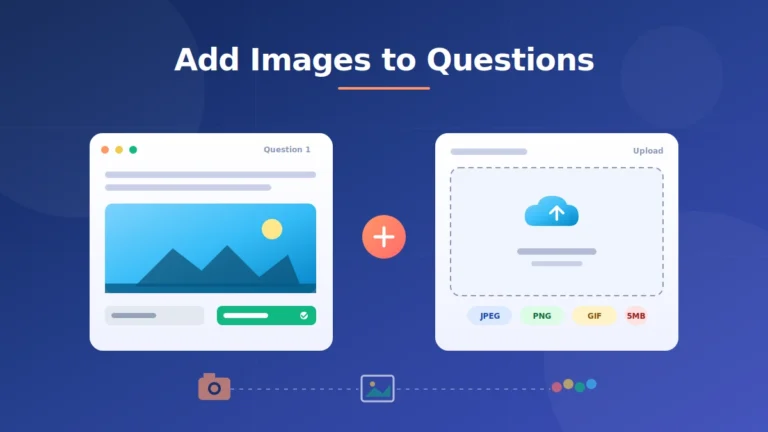
Diagrams, maps, and charts add visual processing to answer selection. Allow 45 to 75 seconds depending on complexity. A simple bar graph question fits in 45 seconds. A labeled cell diagram with 6 organelles needs the full 75. The guide on adding images to Blooket questions covers how to size these visuals so they load fast enough to leave students time to actually read them.
Short answer typed questions
Typed answers take longer than tapping a multiple-choice option, especially on tablets and Chromebooks with less familiar keyboards. My rule of thumb: give short answer questions 1.5 times the timer you would give the equivalent multiple choice. A 30-second multiple choice math problem becomes a 45-second short answer. This ratio has held steady across every set I have tested with mixed question types.
How does game mode affect your time limit choice?
Game mode changes how the timer feels even when the seconds are identical. Synced modes like Classic put the whole class on the same clock and reward tight timers. Self-paced modes like Cafe and Factory let students run their own pace and tolerate slightly longer timers. Homework mode needs the most generous timers of all because there is no classroom energy driving pace.
Synced modes like Classic and Battle Royale
In Classic, every student answers the same question at the same time. Group pace controls the feel. Keep timers tight, 15 to 30 seconds for most content, because the collective energy of the room drives momentum. In Battle Royale, head-to-head matches use a built-in urgency that already forces fast decisions. I rarely override the mode’s default timing for Battle Royale.
Self-paced modes like Cafe and Factory
In Cafe mode, Factory, and Gold Quest, students move at their own speed. Faster students race ahead, slower students finish more questions in total than they would in a synced mode. Give slightly longer timers, 25 to 60 seconds depending on question complexity, because there is no group pressure to compensate for a tight clock.
Tower Defense and strategy modes
Tower Defense and Tower Defense 2 have a strategy layer between question rounds where students spend earnings on defenses. That planning time is separate from the answer clock. Set the answer timer to 30 to 60 seconds and let the strategy layer handle the pacing.
Homework mode
Homework mode strips out live competition and classroom energy. Students play at home with all the distractions of the household. Set timers 30 to 50 percent longer than you would for live play. A 20-second live vocabulary drill becomes a 30-second homework drill. A 60-second math problem becomes 90 seconds.
Common mistakes when setting time limits in Blooket
Five mistakes account for most timer problems teachers hit. Each has a fast fix that saves the session.
Confusing the game timer with the question timer: Setting a 7-minute game cap while leaving question timers at 60 seconds on a 20-question set means the game timer will never actually cap the session. Decide which timer will control pace and set the other one loosely as a safety net.
Leaving 60 seconds on every question: The default timer is a placeholder, not a recommendation. Sixty seconds on a true or false question feels endless. Sixty seconds on a multi-step math problem feels tight. Mix your timers to match content difficulty.
Skipping the solo playtest: Blooket locks question settings once a live game starts. If you discover the timer is wrong at question three, your only options are to plow through or abort. Test every set in solo mode before hosting.
Ignoring Random Order interactions: If your set uses Random Order in self-paced modes, question one for student A might be a 15-second recall and question one for student B might be a 90-second problem. Wide timer spreads create unfair first-question experiences. Keep the gap between shortest and longest under 20 seconds, or turn Random Order off.
Forgetting short answer needs more time: Typing takes longer than clicking. Short answer questions with multiple-choice timers produce a wave of timeouts. Apply the 1.5x rule to every short answer question.
How does the Blooket question bank affect timers?
Questions imported from the Blooket question bank arrive with their own default timers, usually 20 seconds. Review these values after import because they may not match your class needs. Batch-edit any imported questions using the same steps as regular editing before hosting.
The question bank is a fast way to build sets, but the built-in timers are calibrated for average difficulty. Adjust up for younger grades and down for review of already-mastered content.
FAQs about setting time limits per question in Blooket
Can I set a different time limit for each question in Blooket? Yes. Every question card has its own Time Limit field. You can give question one a 5-second rapid opener and question 20 a two-minute case study. There is no requirement to keep timers uniform across a set, and mixing timers actually improves engagement by matching pace to content difficulty.
What is the default time limit per question in Blooket? The default is 60 seconds per question. This value appears automatically when you create a new question and stays in place until you change it. Sixty seconds is too long for most vocabulary and true or false questions and too short for multi-step reading comprehension, so review it every time.
What happens when the question timer runs out? The question is marked incorrect automatically. Students see a time’s up notification, the correct answer appears if you enabled explanations, and the game moves to the next question. There is no partial credit and no grace period. The scoring engine treats a timeout identically to a wrong answer.
Can I change the timer after the game has started? No. Blooket locks all question set settings once a live game begins. You can pause or end the session from the host dashboard, but individual question timers are frozen. Always test your set in solo mode before hosting to catch timer issues before they affect students.
Does the time limit apply in homework mode? Yes. The per-question time limit is embedded in the question set itself and applies whether students play live, solo, or as homework. Homework players face the same countdown clock on each question, which is why I set homework timers 30 to 50 percent longer than the live version of the same set.
Which Blooket game modes respect the per-question timer? Every mode that uses question-answer mechanics honors the per-question timer. That includes Classic, Gold Quest, Cafe, Factory, Fishing Frenzy, Battle Royale, Tower Defense, Crypto Hack, Blook Rush, and every homework-compatible mode. The only difference between modes is whether the prompting is synced across the class or self-paced per student.
How short can I set a Blooket question timer? Blooket accepts any whole number starting at 1 second. In practice, anything below 5 seconds is unusable because students need at least a moment to read the question. My minimum is 10 seconds, and I only use that low a number for ultra-simple true or false statements. Everything else gets 15 seconds or more.
Why can’t I see the Time Limit field when creating a question? Scroll down inside the question card. The field sits below the answer choices. On smaller laptop screens with 1366 by 768 resolution, it can fall below the visible area of the card. Zoom out with Ctrl or Cmd plus minus, or resize the browser window, and the field appears.
Final thoughts
Setting time limits per question in Blooket is a two-click process, and calibrating those numbers is the biggest lever for pacing you have as a host. Match timer length to question difficulty, always run a solo playtest, and treat the 60-second default as a placeholder rather than an answer.
Action step: open your most-used question set, adjust the Time Limit field on the first five questions using the difficulty table above, and run a solo pass with a stopwatch. Note where the timing felt right and where it felt off. One tweak, one test, and your next session will run visibly smoother than the last one. Browse more Blooket guides on blooket.it.com to keep sharpening your setup.
Take the first step toward mastery — explore insight-rich articles that make learning feel effortless.