Your default grey Blook stares back at you every time you join a game, and everyone else seems to have colorful characters and custom titles. The good news is that changing your profile takes about ten seconds once you know where to click.
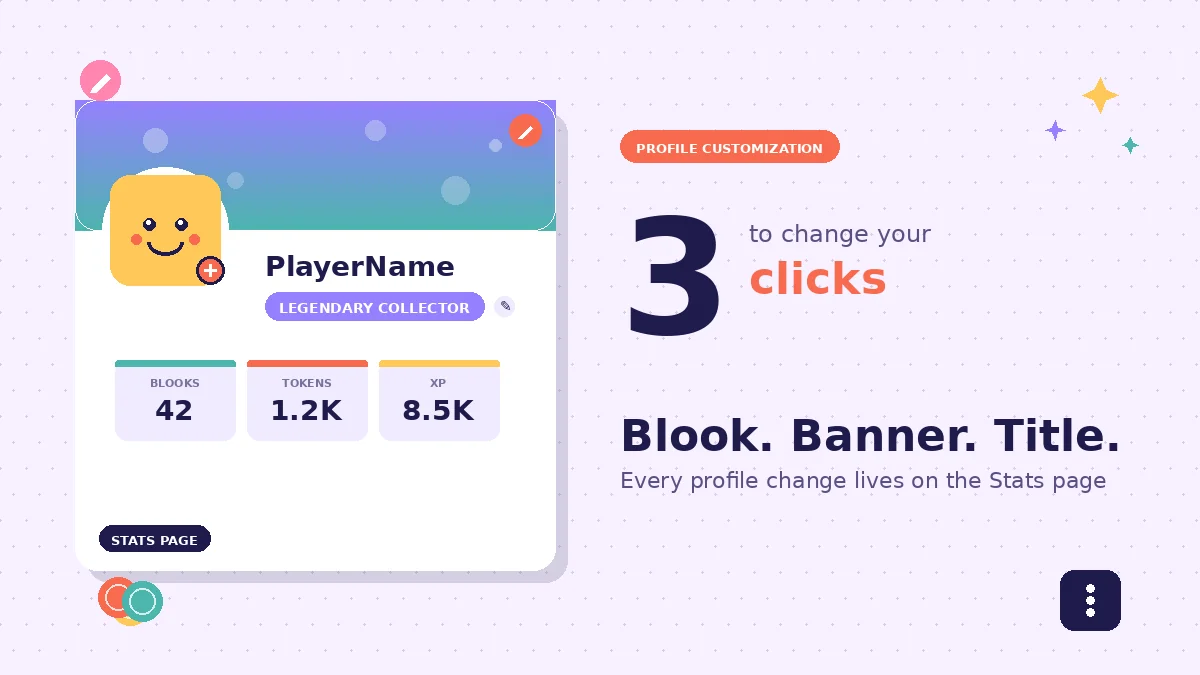
To change your profile Blook, banner, or title in Blooket, open your account, go to the Stats tab in the left sidebar, and click directly on the item you want to change. A pop-up shows every option you own. Pick a new one and it applies instantly with no save button required.
This independent guide walks you through the exact click path on the Blooket Stats page, how to earn new Blooks and banners from the Market, the five myths that trip up new players, and which pack tiers give you the best value for your tokens.
What are profile Blooks, banners, and titles in Blooket?
Your Blooket profile has three visible customizable pieces. The Blook is the character avatar next to your name in games. The banner is the header image on your Stats page. The title is a short text label under your username. All three signal who you are during live games.
Profile Blook (your avatar)
The Blook is the most visible piece. It sits next to your name in every live game you join, on the Stats page, and on end-of-game leaderboards. Common Blooks are the everyday characters you pick up in starter packs. Chromas and Mystical tier characters are the rarest, and other players spot them instantly.
Blooket has hundreds of Blooks organized into tiers by rarity. Some are permanently available in specific packs. Others are only earned through class pass milestones or limited events, which is why some accounts show Blooks that no active pack contains.
Profile banner (your header background)
The banner is the wide rectangular image sitting at the top of your Stats page. Other players see it when they view your profile, and it displays behind your username during certain game screens. Banners tend to be themed around specific packs or events, which makes them a subtle status marker.
Unlike your Blook, banners do not appear next to your name in most live game modes. That makes them a personal touch rather than a public one, but the Stats page is where friends and classmates check to see what you have collected.
Profile title (your text label)
The title is a small text line under your username. Titles are event rewards, class pass rewards, or drops from specific packs. Some are goofy jokes, others are achievement labels, and a few are only available to players who joined during past event windows.
Titles do not affect gameplay. They exist purely as a way to show off what you have played or accomplished. Rare titles from older events tend to draw the most attention because newer players cannot obtain them.
Where these three items appear
- Live games: Your Blook shows next to your username on the join screen, in-game player list, and end scoreboard.
- Stats page: All three are visible together on your own profile and on other players’ profiles.
- Leaderboards: Only your Blook and username appear on class or public leaderboards, not your banner or title.
If you play mostly in classroom settings, other students will see your Blook every round. If you host or join public rooms, all three items are visible on friend profile checks.
How to change your profile Blook, banner, and title
Every profile change happens on the Stats page inside your Blooket account. Log in, open Stats from the left sidebar, and click directly on the Blook, banner, or title you want to swap. Pick a new one from the pop-up. The change saves automatically without any confirm button.
Step 1: Open your Blooket Stats page
Log in to your account through the Blooket login page or through the Google sign-in option. Once you land on your Blooket dashboard, look at the left-hand sidebar.
The Stats tab has a small graph icon next to the label. Click it. This is the only page in the Blooket account layout where all three profile items can be swapped. Nothing under the gear icon or account settings will change your Blook.
Step 2: Find the item you want to change
Once the Stats page loads, your existing profile setup is displayed at the top:
- Top left: your Blook avatar
- Top background: your banner
- Under your username: your title
Each of these three areas is a click target. Hover over any of them and the cursor changes to a pointer, which confirms you can interact with it.
Step 3: Click the item and pick a new one
Click directly on the Blook, banner, or title. A pop-up window opens showing every option you own.
For Blooks, the pop-up organizes options by pack and rarity tier. Scroll through, pick the one you want, and click it once. For banners and titles, the pop-up is a shorter list of everything in your inventory. Click a new one to select it.
You cannot select items you do not own. Locked options either do not appear at all or show up greyed out with a padlock icon depending on the item type.
Step 4: Confirm the change on screen
Close the pop-up by clicking anywhere outside it or hitting the X in the corner. The Stats page refreshes automatically to show your new selection.
There is no save button anywhere in this workflow. The click on the new item is the save. If you want to swap back, repeat the process and pick your old selection.
Making the change stick before a live game
If you change your Blook and join a game right away, sometimes the game still shows your old avatar. This is a cache lag issue on the browser side.
The fix takes five seconds. After picking your new Blook on the Stats page, press F5 or Ctrl+R to refresh your browser window. Then click Play or paste your game code. The refresh forces your browser to pull the updated profile from the server.
How to get new Blooks, banners, and titles
You can only pick from items your account already owns. To grow that inventory, earn tokens by playing games, spend them on Blook packs in the Market, watch the Weekly Shop for rotating banners and titles, and level your class pass for exclusive parts. Tokens are the core currency for all three.
Earn tokens through gameplay
Tokens are your main currency for everything in the Market. Every game you play awards tokens based on how many questions you answer correctly, how many game rounds you complete, and which mode you played.
Some modes pay out more than others. Gold Quest, Factory, and Battle Royale tend to give the highest token counts per session in my experience. Cafe and Racing sit in the middle range. If you want to build inventory fast, prioritize the high-payout modes.
Question accuracy matters more than raw play time. A player who gets 90 percent correct in a five-minute Gold Quest round often earns more tokens than a player who guesses through a 15-minute session.
Buy Blook packs from the Market
Open the Market tab from the sidebar. You will see packs organized by theme, such as Outback, Breakfast, and Ice Monster. Each pack costs a set number of tokens and gives you one random Blook when you open it.
Rarer Blooks have lower drop rates. A standard pack has roughly a 70 percent chance of dropping a common Blook, 20 percent for rare, 8 percent for epic, and 2 percent or less for legendary. Chromas and Mystical tier Blooks have the lowest drop rates of all.
If you are hunting a specific rare Blook, expect to open many packs before it drops. Some players open 50 or more before landing the top-tier Blook from a themed pack.
Watch the Weekly Shop for banners and titles
The Weekly Shop is the main source for banners and titles. It sits inside the Market and refreshes every seven days with a rotating selection.
Items in the Weekly Shop are typically limited. If you skip the week a specific banner or title is featured, you may not see it again for months. That scarcity is why some banners and titles feel like collector items.
Check the Weekly Shop on the first day of the refresh if you can. That way you have the full week to earn enough tokens to grab anything you want before it rotates out.
Level up your class pass for custom parts
The class pass is a progression track based on experience points (XP). As you level up by playing games, you earn rewards at each tier. Some of these rewards are custom Blook parts that let you build a unique avatar from scratch instead of picking a pre-made one.
Higher pass tiers reveal rarer parts. This is one of the only ways to end up with a Blook that no one else in your class has exactly.
Save tokens for bulk pack openings
It can be tempting to open every pack the moment you have enough tokens. In my experience, saving 2000 to 3000 tokens and then opening ten packs of the same type in one session gives you better odds of landing at least one rare or epic drop.
Bulk pack openings also make it easier to track which Blooks you already have. If you log your pulls in a spreadsheet or a Blooket calculator, you can avoid wasting tokens on packs you have already exhausted.
Read more: What is the rarest Blook in Blooket?
Which Blook tiers are worth spending tokens on?
Not every Blook is worth the same token cost. Common Blooks work fine for casual play but do not stand out. Rare and Epic Blooks give you presence without draining your token bank. Legendary and Chroma Blooks cost the most on average but signal serious playtime and get instant recognition in live games.
Comparison table: Blook tiers at a glance
| Tier | Approximate drop rate | Recognition in live games | Token cost efficiency |
|---|---|---|---|
| Common | 60 to 70 percent | Blends in with most players | Very high |
| Rare | 20 to 25 percent | Noticed by regular players | High |
| Epic | 5 to 10 percent | Stands out in most rooms | Moderate |
| Legendary | 2 to 4 percent | Turns heads instantly | Low, worth it long-term |
| Chroma | Under 1 percent | Immediate status marker | Very low, collector value |
| Mystical | Under 0.5 percent | Sparks curiosity every game | Lowest, prestige-driven |
Common and Rare (low-cost variety)
Starter packs and lower-token packs give you Common and Rare drops. These are the workhorses of your inventory. If you like changing your Blook often to match your mood or theme, Common Blooks are the cheapest way to keep variety.
Rare Blooks also make solid daily-use avatars. They cost slightly more to acquire consistently, but they look distinct enough that other players notice them in classroom rooms.
Epic (mid-cost, high presence)
Epic Blooks are the sweet spot for players who want to stand out without emptying their token bank. They typically drop from mid-tier and themed packs at a rate of about 5 to 10 percent per pull.
Epic drops are recognizable enough to prompt other students to ask which pack you opened. They cost a reasonable amount of tokens if you open packs in batches during Weekly Shop themed events.
Legendary and Chroma (high-cost, high status)
Legendary Blooks are the top drops in most themed packs. They are much rarer and much more visible in games. Other players tend to comment on them, which is why they hold status value.
Chromas are alternate color versions of specific Blooks. They are considered even rarer than most Legendaries because they only appear in specific packs during specific windows. Owning a Chroma is a signal that you play regularly and open lots of packs.
Mystical tier (prestige only)
Mystical Blooks are the rarest tier in Blooket. They are almost never worth chasing purely for value because the drop rate is so low that you may spend thousands of tokens without pulling one.
If you land a Mystical, use it as your profile Blook. Every player who sees you in a game will recognize you immediately.
Common mistakes and myths about profile customization
Because Blooket does not spell out the customization path in a help menu, misconceptions travel fast on classroom forums. These are the five most common ones and what actually happens when you test each in the app.
Myth 1: You change your banner in the Settings menu
False. The Settings menu, which sits behind the gear icon in the top-right corner, handles account-level items like your username, email, and password. It does not control your Blook, banner, or title. All three of those live on the Stats page and nowhere else.
Myth 2: You need a secret code to unlock banners
Fake sites and video thumbnails sometimes claim that a special code releases premium banners. This is not real. Banners are earned through the Weekly Shop or through event drops. If you see a site offering a “banner unlock code,” it is either a scam or a Blooket hack attempt that risks your account.
Myth 3: Your new Blook is not showing up in games
This is almost always a browser cache issue rather than a bug. You changed your Blook on the Stats page, then joined a game before the browser refreshed the account data. Fix it by pressing F5 to refresh your browser after any profile change, and before you join a game using a code.
Myth 4: You can upload a custom image as your banner
False. Blooket does not accept user-uploaded images for any part of the profile. Banners must be selected from your inventory, and that inventory only grows through the Market or event drops. Unlike Discord or other social platforms, there is no custom upload path.
Myth 5: Titles give you gameplay bonuses
Titles are entirely cosmetic. They do not affect your coin earnings, question difficulty, mode timers, or matchmaking. The only advantage a title provides is social. Rare or event-exclusive titles tend to attract attention from other regular players, but they do not change how the game plays.
FAQs
How do I change my profile Blook on Blooket?
Open your Stats page from the left sidebar of your Blooket dashboard. Click the Blook image in the top-left corner. A pop-up shows every Blook you own. Click a new one to select it. The change applies instantly with no save button needed anywhere in the flow.
Where is the banner setting in Blooket?
The banner setting is on your Stats page, not in the Settings menu. Click directly on the banner image sitting at the top of the page. A pop-up opens with every banner in your inventory. Pick a new one. If you own only the default, the click does nothing until you acquire more from the Weekly Shop.
Why can I not change my banner or title?
If clicking the banner or title does nothing, your inventory only holds the default. You need to earn more before the picker becomes useful. Banners and titles are earned from the Weekly Shop inside the Market, from limited events, or from class pass milestones. Get a second one, and the picker opens right up.
How do I get new Blooks for my profile?
Earn tokens by playing games, then head to the Market tab from your sidebar. Spend tokens on themed packs like Outback, Breakfast, or Dino. Each pack gives one random Blook. Higher-cost packs contain rarer drops. Save tokens and open packs in batches to improve your odds of landing rare or epic Blooks.
What happened to the old Blooket profile edit page?
The older layout split profile editing across the Settings menu and a separate edit page. That workflow was replaced with the single Stats page approach, which now handles Blook, banner, and title changes together. The gear icon still exists but only handles account details like username, email, and password.
Can I use a custom image from my phone as my Blooket banner?
No. Blooket does not accept image uploads for any part of the profile. You can only choose from banners and Blooks you have earned inside the game through the Market, the Weekly Shop, or event drops. There is no photo upload button anywhere in the profile customization pop-ups.
My Blook is not updating in the game. What should I do?
This is a browser cache lag rather than a real bug. Change your Blook on the Stats page, then press F5 to refresh the browser window before you click Play. The refresh forces the browser to pull the updated profile from the server. Your new Blook will show correctly from the next game onwards.
Do titles do anything besides look cool?
No. Titles are pure cosmetics with no gameplay effect. They do not change your coin multiplier, question difficulty, matchmaking, or reward drops. Their entire value is social. Older event titles that newer players cannot get anymore tend to draw the most attention on the profile screen.
Also Read: Is Blooket free? Complete pricing guide
Final thoughts on changing your profile Blook, banner, and title
Every profile change on Blooket happens in one place: the Stats page. Once you know that, the entire workflow takes ten seconds per swap. The real work is not the clicking, it is building an inventory worth swapping through, which means playing consistently and spending tokens on the packs that match the Blooks and banners you want.
Here is your next step. Log in, open the Stats page, and click your Blook once. Even if you own only the default, you now know exactly where to go the moment you get your first pack drop.
Ready to build up your token bank? Browse more Blooket guides to sharpen your pack strategy.