You found a public Blooket set that fits your unit perfectly. You click around looking for a duplicate button and hit a wall because the set is locked to edits. Copying public question sets in Blooket uses a host-first model: you host the set once in any mode, end the session, and Blooket saves a fully editable copy to your library automatically. There is no standalone “Copy” button. The whole workflow takes under a minute once you know which button unlocks it, and it works on the free Educator plan. This guide covers exactly how the host-first save works, the step-by-step process, post-copy edits worth doing every time, and the mistakes that keep sets from saving. Note that blooket.it.com is an independent guide site, not the official Blooket platform.
What does copying a public question set in Blooket actually mean?
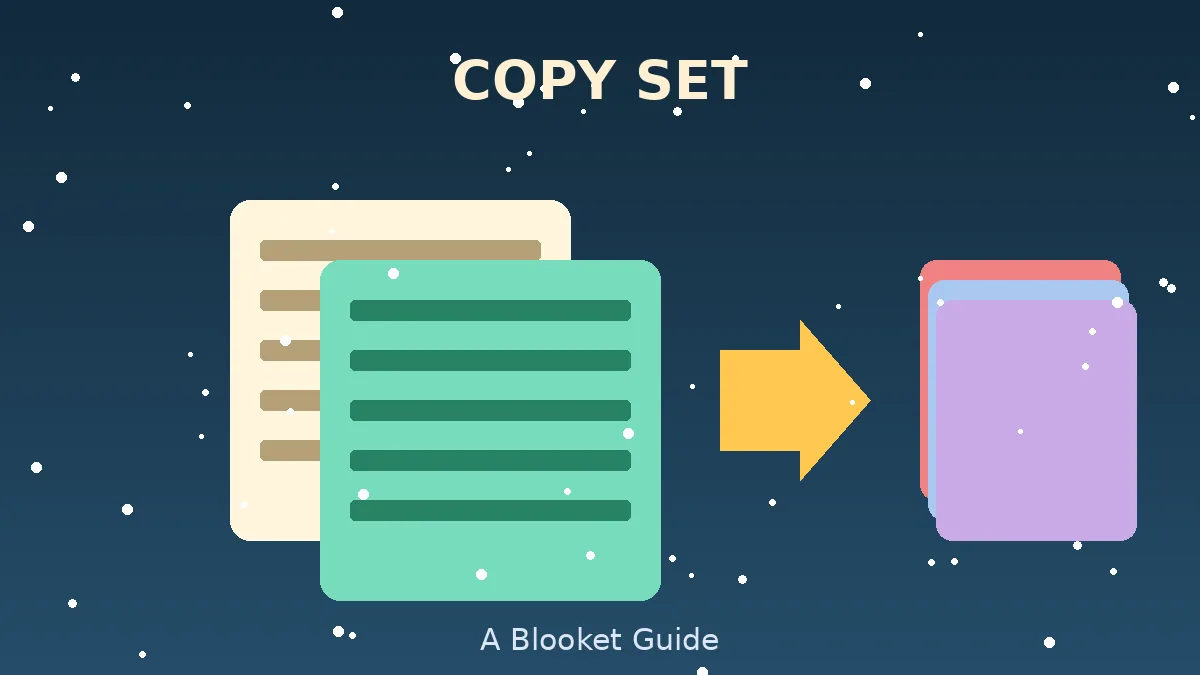
Copying a public question set in Blooket means creating a private, editable duplicate of another user’s set inside your own library. Blooket does not offer a direct duplicate button on public sets. Instead, the moment you host that set in any game mode and end the session, a saved copy appears in My Sets that you fully own and can edit.
The host-first model is deliberate. It prevents your library from filling with sets you never actually tried and it forces a light quality check before you commit. Once the copy lands in My Sets, the original stays untouched in the public library and your version becomes an independent fork.
Understanding this single mechanic removes almost every duplicate-set problem teachers run into. If you have not built or opened any sets yet, the Blooket question set creation guide covers the base editor, and the Blooket question bank guide explains how the built-in question library complements public sets.
Why Blooket uses a host-first save
The design nudges teachers toward active use rather than passive collection. It also keeps the public library cleaner because casual browsers do not automatically duplicate every set they open. Once you get used to the flow, the extra step becomes invisible.
What counts as a public set
Public sets are user-created question sets that the creator marked public in their sharing settings. They show up in the Discover feed and inside search results. Private sets and unlisted sets are not copyable this way because you cannot host them without direct access.
How do you copy a public question set in Blooket step by step?
Sign into your teacher account, open Discover, find the set, click Host, run any mode briefly, then end the game. Blooket writes a copy to your library automatically. The whole flow takes about 30 seconds, and the Homework mode option makes it possible to save a copy without running a live round at all.
Follow the exact sequence below to avoid the one step where most users get stuck.
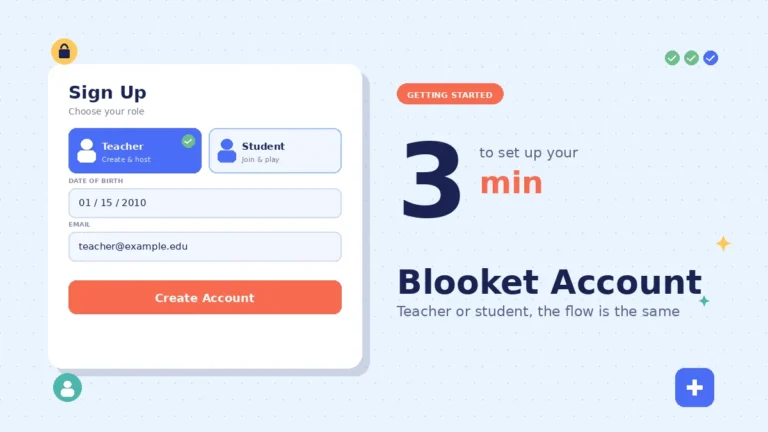
- Sign in to your teacher account: Go through the Blooket login page. You need an Educator plan, free or paid. Student accounts cannot host and therefore cannot copy public sets.
- Open Discover Sets: Click Discover in the left navigation and use the search bar to find your topic. Filter by Most Played or Favorites to surface sets that have already survived classroom use.
- Preview before you host: Open the set’s detail page and scan the first eight to ten questions. Check for accuracy and phrasing. A quick preview catches wrong answer keys before they show up in front of students.
- Click the purple Host button: This is the critical step. Save to Favorites and Add to Folder do not create an editable copy. Only Host triggers the save.
- Choose a mode and click Host Now: Homework mode is the fastest choice because you can set a short timer and end the session without any players joining. This creates the copy without running a real game.
- End the game to lock in the save: After the session ends or you click End Game, Blooket shows a Results saved confirmation. Behind that banner, your copy has been written to My Sets.
- Open My Sets and rename the copy: The copied set appears at the top of your library. Rename it right away with a clear label like the unit name plus your initials. That habit prevents confusion when you scroll a growing library later.
Homework mode as a save trick
Homework mode is the shortest path to a copy. Pick Homework, set the shortest allowed timer, then click End Game before any student joins. The set still saves because the host session officially opened and closed. This is the workflow I use every time I collect sets in bulk.
What to do if the copy did not appear
If My Sets does not show the new copy, the host session likely did not end cleanly. Reopen the Discover set, host again, and click End Game explicitly instead of closing the tab. Closing the browser mid-session sometimes prevents the copy from being written to your library.
For a broader host workflow, the Blooket host guide covers room controls and mode-specific settings that pair with different classroom scenarios.
What should you do right after copying a public set?
Copying is only the first step. Turning a public set into a real teaching asset needs a short post-copy edit: rename, prune weak items, align answers to your standard, add media where it helps, and file the set into a folder. That four-minute routine is what turns collected sets into ones you actually reach for again.
Rename the set with a clear label
Public set titles are often generic. Rename the copy with the unit name, grade level, and your initials so search across a growing library stays fast. A set called “Cell Organelles Review, Grade 7, JS” is far easier to find later than a duplicate of a stock title.
Prune questions that will not land in your class
Every public set has a few items that miss for your students. Delete anything with dated references or vocabulary your class does not use. Removing five weak items from a 30-question set often improves pacing more than adding new items.
Verify the answer keys
User-created sets sometimes ship with minor factual mistakes. Read every answer key top to bottom. A three-minute check prevents an incorrect answer from marking a right student wrong during a live game. If two items look the same or feel too similar, the duplicate questions in a Blooket set guide covers cleanup.
Add images or audio where they help
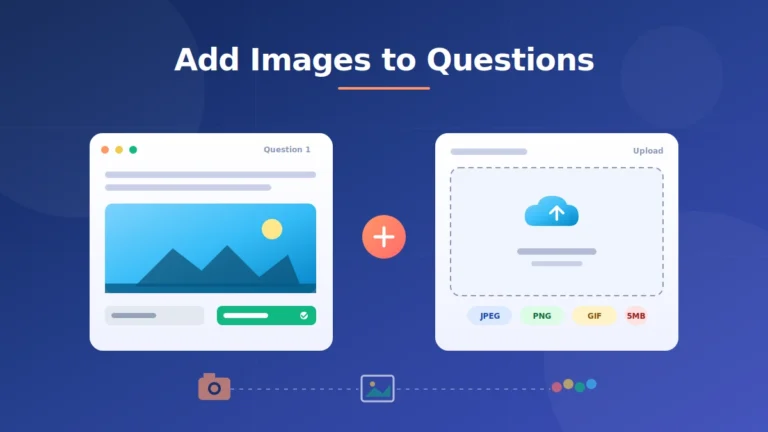
Blooket lets you attach media per question. A single well-chosen diagram lifts comprehension on visual topics like biology diagrams or geometry proofs. If you want the exact workflow, the add images to Blooket questions guide walks through upload steps and size limits.
Reorder for pacing
Public sets are rarely ordered for the class you are running. Move harder items to the middle where student focus tends to peak. The reorder Blooket questions guide covers the drag-and-drop steps.
File into a folder
Create a folder per unit and drag your renamed copy inside. Teachers who skip folders end up with libraries of a hundred-plus sets and lose track of what they already own. Folders take seconds and remove that friction permanently.
How set size affects usability
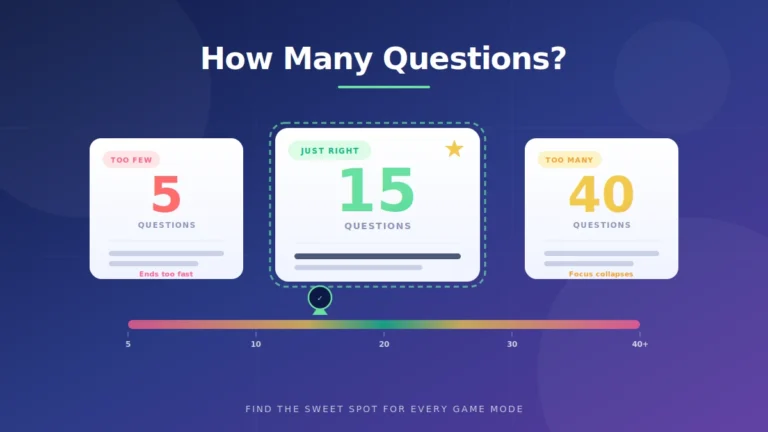
Public sets range from 10 to 100 plus questions. The sweet spot for most live games is 20 to 35 questions. For guidance on tuning set length to game mode and class size, the how many questions guide covers the trade-offs.
How does copying compare with favoriting or playing solo?
Copying, favoriting, and playing solo all sit close together in the interface, but they do very different things. Only hosting creates a copy. Favoriting bookmarks a set without saving an editable version. Solo lets you practice against the set without adding it to your library. Confusing them is the single most common mistake I see teachers make.
The table below draws the sharp distinctions.
| Action | Creates editable copy | Visible to others | Best used when |
|---|---|---|---|
| Host any mode | Yes, automatic | Only you unless re-shared | You want to edit and reuse the set |
| Favorite | No | Only your star, not others | You want a bookmark for later |
| Solo play | No | No | You want to practice against the set |
| Import Quizlet | Yes, a fresh set | Only you until shared | You have flashcards you want in Blooket |
Solo trips up new users constantly. Playing a Solo round feels like a save because you see the set again, but nothing was written to My Sets. If a set never seems to stick to your library, that is almost always why. If your source is Quizlet flashcards rather than a Blooket public set, the Quizlet to Blooket import guide covers the direct pipeline.
Sharing a copied set with your team
Once the copy sits in My Sets, open it and click Share. Toggle the link so anyone with it can view. Colleagues who click the link and host it create their own copies in their libraries. The share a Blooket set with another teacher guide covers the sharing settings in more detail.
What are the common Blooket set-copying mistakes and myths?
Even teachers who copy public sets weekly hit the same avoidable snags. The three that come up most often waste real classroom time when they land during a live game.
Mistake 1: closing the tab before ending the game
Closing the browser mid-session sometimes skips the save. Always click End Game and let the results screen appear before you leave. The extra two seconds is the difference between owning a copy and hosting the same public set again next week.
Mistake 2: expecting a Copy button
There is no standalone Copy button on public sets. Users who scroll for one keep clicking Favorite instead and end up with a bookmark rather than an editable copy. The Host button is the correct trigger, and Homework mode makes the flow instant.
Mistake 3: never renaming the copy
Copies inherit the original title. If you skip renaming, your library ends up with three sets called something like Cell Review, and future-you cannot tell them apart. Rename immediately after every copy, before you close the tab.
Myth: copying notifies the original creator
Blooket does not send an alert when someone hosts or copies a public set. The original stays exactly as the creator left it, and your fork is private. If they update their set later, your copy does not sync with those changes.
Myth: students can copy public sets
Only educator accounts can host, so only educator accounts can trigger the automatic save. Students can still play sets in Solo mode for practice, but nothing lands in a permanent library from a student account.
Myth: you need Blooket Plus to copy public sets
The core copy workflow is available on the free Educator plan. Blooket Plus adds features like advanced reporting and set merging, but a free account can copy every public set that shows up in Discover.
Myth: True/False sets copy differently
Every question type copies the same way through the host-first flow. If you plan to write your own True/False items after the copy lands, the True/False question guide explains the exact rules that keep those items clean.
How does copying fit into safer, ToS-friendly Blooket use?
Copying public sets is fully within Blooket’s Terms of Service because the platform designed the host-first flow for exactly this purpose. It is also the safer alternative to any third-party tool that claims to bulk-download or scrape sets, since those tools break the ToS and put accounts at risk.
Give students legitimate targets tied to the sets you copy. The Blooket coin calculator helps set realistic goals per session so students focus on answering questions rather than looking for shortcuts. Pair copied sets with modes like Café for review or Gold Quest for energy: the Café mode guide, the Gold Quest guide, and the Tower Defense guide each cover the pacing that suits different question set styles.
FAQs
Can I copy a public question set in Blooket on a free account?
Yes. The free Educator plan includes full copy functionality through the host-first flow. You can host public sets, end the session, and get an editable copy in your library at no cost. Free accounts do have daily host limits, but each hosted session still produces a saved copy inside My Sets.
Why does no copy button appear on a public set?
Blooket does not offer a standalone copy button on public sets by design. The platform uses a host-first save mechanism, where hosting any mode with a public set and ending the session automatically writes a private, editable copy to My Sets. Save to Favorites bookmarks the set without saving an editable version.
Does copying a public set notify the original creator?
No. Blooket does not send notifications when someone hosts or copies a public set. The original stays exactly as the creator posted it, and your version becomes a private fork inside your own library. If the creator edits or removes the original later, your saved copy is not affected in any way.
Can students copy public question sets?
No. Only educator accounts can host sets, and hosting is what triggers the automatic save into My Sets. Student accounts can play any public set in Solo mode for practice, but nothing lands as a permanent, editable copy in their library. This is a plan-level restriction, not something a workaround unlocks.
How do I share my copied set with another teacher?
Open the set in your library, click Share, and set the link visibility so anyone with the link can view it. Colleagues who click the link and host the set create their own private copies inside their own libraries. Their edits stay independent from yours and neither version syncs back to the original public set.
Will my edits sync back to the public version?
Never. The moment you host and save a public set, your version becomes a completely independent copy. Edits you make do not push to the original public set, and updates the creator makes later do not appear in your copy. Rechecking major sets once a semester is a good habit if you rely on them for a unit.
Why does my copied set show zero plays?
Play counts on your private copy only increase when you actually run a full game with students. The host session that created the copy does not add to the play counter on your version. A fresh copy starts at zero plays even when the original public set has thousands, because you own a separate file now.
What happens if I close the tab before ending the game?
If you close the browser tab before Blooket officially ends the host session, the save sometimes fails and no copy appears in My Sets. To be safe, always click End Game and wait for the results screen before leaving. If that happens, reopen the public set and host again, this time ending the session cleanly.
Final thoughts
Copying public question sets in Blooket runs on a host-first model that quietly saves an editable copy to your library after any hosted session ends. Sign in, open Discover, host any mode, click End Game, and rename the copy inside My Sets. Try it right now with a set you have been eyeing, and delete one weak question before you close the tab. For more workflow guides, browse blooket.it.com.
Turn small moments into big breakthroughs — discover micro‑learning gems you can finish anywhere.