Signing up for Blooket sounds simple until you land on the sign-up page and realize you need to choose a role, verify an email that never arrives, or figure out whether your school even lets you register. The whole process can take three minutes or thirty depending on which trap you fall into.
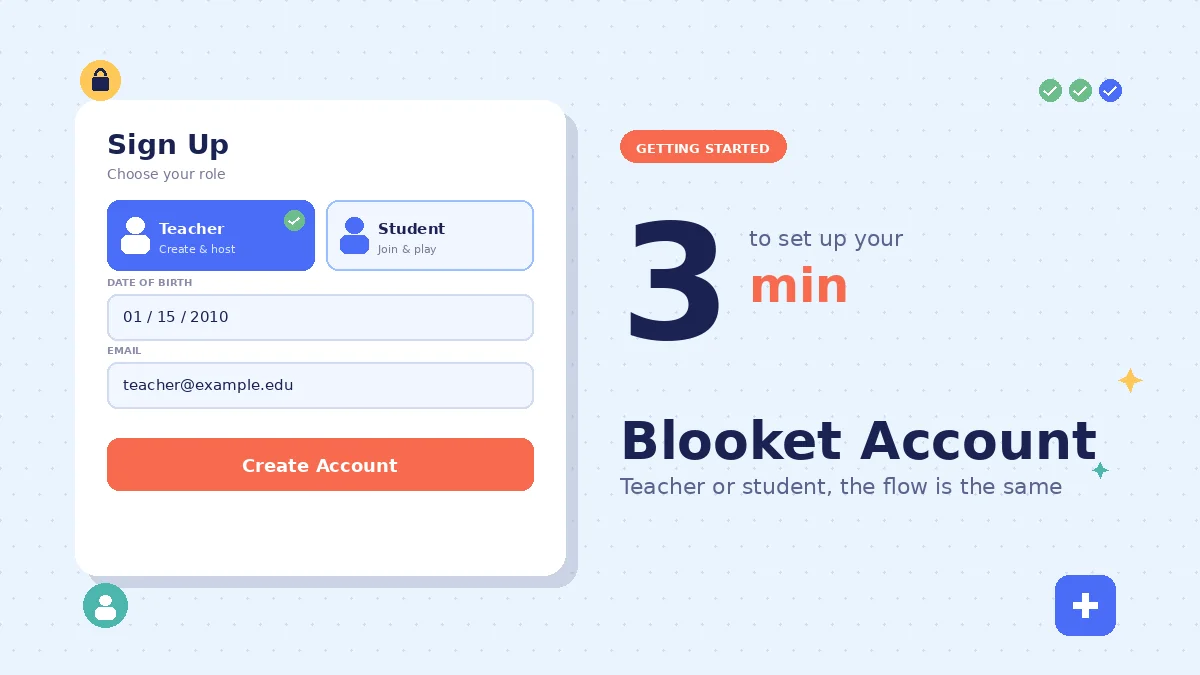
Blooket account creation takes about three minutes when it goes smoothly. Go to blooket.com, click Sign Up, pick Teacher or Student, enter your date of birth, and sign up with Google or email. Verify the email if prompted, choose a username, and your dashboard is ready.
This independent guide walks you through every step, the fixes for the five most common sign-up problems, the age and privacy rules that matter, what to do in your first five minutes on the platform, and how the free tier compares with Blooket Plus.
What is a Blooket account and what does it give you?
A Blooket account is your saved identity on the platform. Teachers use it to build question sets and host live games. Students use it to save gameplay progress, tokens, and their Blook collection. Anyone can join a game without an account, but progress and hosting both need one.
Teacher accounts
Teacher accounts give you the full creation toolkit. You can build question sets, host live games for up to 60 players on the free plan, assign homework, and view basic student performance reports.
In my testing with new teachers, the free tier covers about 90 percent of what a typical classroom needs. The main limitations are the 60-player cap and the absence of question-level analytics without a Plus subscription.
Teachers also get access to the Discover library, which contains millions of community-built question sets. Instead of typing every question yourself, you can search for a topic and clone an existing set into your own account.
Student accounts
Student accounts are built for gameplay and collection. They track your tokens, XP, and Blook inventory across every game you play.
Students who play without an account lose all progress at the end of each session. A student account keeps everything, which matters if you want to build a serious Blook collection or climb class leaderboards.
Students must be at least 13 in the US, or 16 outside the US, to create an account under the platform’s terms. Younger students can still play through a teacher-provided game code, they just cannot save progress.
Do you actually need an account?
Not always. Anyone can join a live Blooket game at play.blooket.com using the 6-digit code from the host. No email, password, or age check is required for this path.
The account is worth creating if you want to host, save progress, or use the platform outside of a single classroom session. If you just want to jump into one game your teacher started, skip the sign-up and use the code path instead.
How to create a Blooket account step by step
Blooket account creation follows the same flow whether you are a teacher or a student. Open blooket.com, click Sign Up, pick your role, enter your date of birth, and sign up with Google or email. The whole process runs on one page and takes about three minutes when nothing blocks it.
Step 1: Go to the sign-up page
Open your browser and go to blooket.com. The Sign Up button sits in the top-right corner of the homepage. Click it to start.
You will land on the sign-up flow directly, no extra menus. If you already have an account and see the login page instead, look for the “Sign Up” link under the login form.
Step 2: Choose your role (teacher or student)
The first question is “Are you a Student or a Teacher?” This choice shapes your dashboard, permissions, and available features for as long as you use the account.
Teachers can create and host. Students can join and collect. If you pick the wrong one, you can switch later under Settings, but picking correctly saves a step.
Step 3: Enter your date of birth
Blooket runs an age check on every new account. You must be 13 or older in the US to sign up. Outside the US, the minimum is 16.
Check the confirmation box if you are signing up from outside the US. Being under the age minimum triggers a soft block and prevents account creation entirely.
Step 4: Pick Google or email sign-up
Two paths appear next:
- Google sign-up (fastest): Click Continue with Google, pick your Google account from the pop-up, and Google handles verification automatically. This is the smoothest path and skips the email code step entirely.
- Email sign-up: Enter your email address and click Submit. Blooket sends a verification code to that email. Do not close the browser tab until you finish, or the flow restarts.
Teachers using school email addresses: many district mail systems block external senders, which stops Blooket’s verification code from arriving. If that happens, either switch to Google sign-up or use a personal Gmail address instead.
Step 5: Verify your email (if using email)
Check your inbox for the verification code. Copy it, return to the Blooket tab, paste it into the box, and click Confirm Code.
If nothing arrives within five minutes, the school mail server is probably filtering the message. Check your spam or junk folder first. If still nothing, restart the sign-up and use Google instead.
Step 6: Set your password and username
Create a password you can remember and confirm it. Then choose a username.
For teachers, pick something students recognize on the join screen. A name like “MsJohnson_Math” or “MrChen_Science” reads far better than a random string. For students, pick something you would not mind classmates seeing on the class leaderboard.
Step 7: Accept terms and finish
Check the box agreeing to Blooket’s Privacy Policy and Terms of Service, then click Submit. Your dashboard loads immediately after.
If the button does not activate, one of the required fields is empty or your password does not meet the strength check. Fix the flagged field and try again.
What happens after your account is set up?
Your Blooket dashboard loads immediately after sign-up. Teachers see options to create sets, browse Discover, host games, and check stats. Students see gameplay shortcuts, their Blook inventory, and progress tracking. The first five minutes decide whether you actually stick with the platform or click away.
First moves for teachers
The fastest way to see the value of Blooket is to host a game right away. From your teacher dashboard:
- Click Discover in the sidebar
- Search for a topic close to your next lesson, like “multiplication” or “US states”
- Open any question set that looks reasonable
- Click the orange Host button
- Pick a game mode. Gold Quest and Tower Defense are both free and popular
- Click Host Now to generate a 6-digit game code
- Share the code with students so they can join at play.blooket.com
The whole thing takes under a minute once you find a decent set. In my experience, cloning a Discover set into your own library first (so you can edit it) is worth the extra 30 seconds.
First moves for students
For students, the first moves are simpler:
- Go to play.blooket.com
- Enter the 6-digit code from your teacher
- Choose a nickname, or use the random name if your teacher enabled it
- Pick a starting Blook character
- Answer questions to earn tokens and XP
Every game you finish adds tokens to your account. Save them for the Market to open packs and grow your Blook collection over time.
Setting up your profile
Your account starts with a default profile. You can swap your Blook, banner, and title from the Stats page, though you have to earn most options first through the Market. For the full walkthrough, see the profile customization guide.
If you plan to host games regularly, take the extra 30 seconds to add your name and photo to your teacher profile. Students spot familiar names on the join screen faster, which cuts confusion for younger classes.
Common Blooket sign-up problems and fixes
Most Blooket sign-up problems fall into five patterns: missing verification email, blocked school network, wrong role chosen, page not loading, or a taken username. Each has a straightforward fix that avoids starting the whole process over. Try the network-independent fixes first before you touch your IT department.
The verification email never arrived
This is the most common issue, and it almost always traces back to a school mail filter blocking Blooket’s sender address. First, check your spam or junk folder for a message from Blooket.
If nothing appears after five minutes, the mail server is blocking delivery. Skip the wait by restarting the sign-up flow and choosing Continue with Google. Google’s verification runs through your Google account directly, which bypasses the email code path entirely.
If Google sign-up is not an option, try a personal Gmail or Outlook address that accepts external mail. Once your account exists, you can update the email later from Settings if you want to switch back to a school address.
The sign-up page will not load
Browser extensions cause most of these issues. Ad blockers, privacy tools, and script-blocking add-ons sometimes interfere with the sign-up flow’s authentication scripts.
Try one of these fixes:
- Open the sign-up page in an incognito or private browsing window
- Temporarily disable your ad blocker for blooket.com
- Try a different browser like Chrome, Firefox, or Edge
- Clear cookies for blooket.com and reload
If the page still refuses to load, the issue is probably network-side. Move to the next fix.
Your school network blocks Blooket
Some district firewalls block Blooket entirely, or block specific subdomains. If you see a white screen, a “connection refused” error, or a “site blocked” page at school, the network is filtering the domain.
Try these steps in order:
- Switch to a personal device on your phone’s hotspot
- Try from home on a personal network
- Ask your school’s IT team to whitelist blooket.com, play.blooket.com, and id.blooket.com
Whitelisting is usually approved for education platforms once a teacher requests it, but expect a lag of a few days for the change to propagate.
You chose the wrong role
You do not have to restart. Go to Settings (the gear icon on your dashboard), scroll down, and click Switch to Teacher Account or Switch to Student Account. The change is instant.
Switching preserves your email, password, username, and any progress you have already made. If you switch from student to teacher, your Blook collection stays with the account but does not display on the teacher dashboard.
Your username is already taken
Blooket has millions of accounts, so common usernames go fast. If the platform rejects your first choice, try one of these adjustments:
- Add a subject or grade level: “MsJohnson_Math7”
- Add a school abbreviation: “MrChen_LHS”
- Add a favorite number: “PlayerName_42”
Avoid using personal identifiers like a full last name or full birthday in a public username, especially for students who play in mixed-classroom rooms.
Age rules, privacy, and safety for account creation
Blooket sets a minimum age of 13 in the US and 16 outside the US for account creation. Younger students can still join live games through a teacher’s game code, they just cannot save progress or own an account. The platform is designed with COPPA and school data privacy standards in mind.
Minimum age requirements
The account creation flow includes a mandatory date-of-birth field. Entering a birth date that makes you under 13 in the US or under 16 outside the US will end the sign-up flow.
This is not a soft warning. The age check prevents the account from being created, and there is no bypass built into the platform. If you are under the age minimum and want to play, use a teacher’s game code at play.blooket.com instead. No account required for that path.
What Blooket collects about you
Blooket collects minimal user data by design. A username is the only required piece of information for gameplay, and it does not need to be personally identifiable.
The platform does not sell or rent user data to third parties, and the privacy policy specifies what is stored (account details, gameplay stats, and inventory). Teachers who host games can choose Random Names in the host settings to keep student real names off the leaderboard entirely.
School district data agreements
Many US school districts sign formal data privacy agreements with Blooket before approving the platform for classroom use. These agreements are typically reviewed through the Student Data Privacy Consortium.
If your district requires a signed agreement before you can use Blooket in your classroom, your school’s IT or data privacy officer should have a copy on file. If they do not, ask them to reach out to Blooket directly, or check the Consortium’s public database.
Parent considerations for younger children
If your child is under 13, they should not create their own Blooket account under the platform’s terms. That does not mean they cannot use the tool.
The safest setup for a younger child at home is for the parent to create a teacher or student account and supervise gameplay directly. The child participates in games through the parent’s account rather than creating their own login. This keeps the family compliant with COPPA and gives the parent visibility into what their child sees.
Read more: Is Blooket free? Complete pricing guide
Free vs Plus: what does each tier include?
The free Blooket tier covers most classroom needs, including question set creation, most game modes, and hosting for up to 60 players. Blooket Plus adds premium game modes, question-level analytics, audio question support, and the ability to copy and edit other users’ sets. The free tier is permanent, not a trial.
What free accounts include
The free tier is more capable than most first-time users expect. You get:
- Unlimited question set creation
- Access to over a dozen free game modes
- Hosting for up to 60 players per game
- Basic performance reports
- Full access to the Discover library
- Blook collection and Market access for students
The 60-player cap is the main hard limit. For classrooms under that size, which covers most K-12 rooms, free is enough for regular use.
What Plus adds
Blooket Plus is a paid subscription that layers on top of the free tier. It adds:
- Access to Plus-only game modes
- Question-level analytics showing per-question accuracy
- Audio question support with spoken prompts
- Ability to duplicate and edit other users’ public sets
- Priority customer support
Plus is priced as a monthly or annual subscription. The exact price shifts with promotions and regional pricing, so check the Plus page on blooket.com for the going rate. It sits in the range typical for other classroom SaaS subscriptions.
Comparison table
| Feature | Free | Plus |
|---|---|---|
| Question set creation | Unlimited | Unlimited |
| Free game modes | Over a dozen | Over a dozen |
| Plus-only game modes | Not included | Included |
| Hosted players per game | Up to 60 | Up to 60 |
| Basic performance reports | Included | Included |
| Question-level analytics | Not included | Included |
| Audio question support | Not included | Included |
| Copy and edit others’ sets | Not included | Included |
| Blook collection (students) | Included | Included |
For most classroom teachers, the free tier is enough for the first term or two. Consider Plus once you know you use the platform weekly and want detailed accuracy reports per question.
FAQs
Do students need a Blooket account to play a game?
No. Any student can join a live game at play.blooket.com using the 6-digit code from the host. No email, password, or registration is needed for that path. An account is only necessary if the student wants to save their tokens, Blooks, and progress across sessions.
How do I switch from a student account to a teacher account?
Open Settings from your dashboard, scroll down, and click Switch to Teacher Account. The change takes effect instantly. Your email, password, and username stay the same. You can switch back to a student account anytime using the same menu without losing any account data.
Is Blooket free forever, or is there a trial period?
The free tier is permanent, not a trial. You can create question sets, host up to 60 players, and access most game modes indefinitely without paying. Blooket Plus is an optional paid subscription that adds premium features, but the free plan does not expire or convert into a paid one.
Can I use Blooket on a tablet or phone?
Yes. Blooket runs in any modern web browser on any device with no app download needed. The interface adapts to mobile screens, though a few game modes are easier on larger screens like tablets or Chromebooks. Both iOS and Android browsers work fine for both hosting and playing.
My school email did not receive the verification code. What now?
School email systems often block external senders. The fastest fix is to restart the sign-up and pick Continue with Google, which skips the email code path entirely. If Google is not an option, use a personal Gmail or Outlook address to receive the code, then update your account email later.
How many game modes are free versus paid?
Blooket has many game modes in total. Most are available on the free tier, including popular options like Gold Quest, Tower Defense, Cafe, and Battle Royale. A smaller set is reserved for Plus subscribers. The exact split can shift as Blooket adds new modes, so check the host screen after logging in.
Is Blooket safe for elementary students?
Yes when used with the game code path. Elementary students under 13 should not create their own accounts. Instead, teachers should have them join live games through a code at play.blooket.com. Enabling Random Names in the host settings keeps student real names off the leaderboard for extra classroom privacy.
Can parents create accounts for younger children?
Under Blooket’s terms, users must be 13 or older in the US and 16 or older outside the US to create their own account. For younger children, parents should create their own account and supervise gameplay from that shared login rather than making a separate account under the child’s name.
Also Read: How to permanently delete your Blooket account
Final thoughts on Blooket account creation
The Blooket account creation flow is short, but every step has a common failure mode that can add ten minutes to a two-minute process. The biggest wins come from choosing Google sign-up over email, picking the right role the first time, and knowing that younger students do not need an account at all to play in your classroom.
Here is your next step. Open blooket.com, click Sign Up, and finish the flow using the Google path if it is available to you. Then head to Discover, clone one set into your library, and host a five-minute game to see the platform in action.
Ready to build out your workflow? Browse other Blooket guides to sharpen your setup and hosting habits.