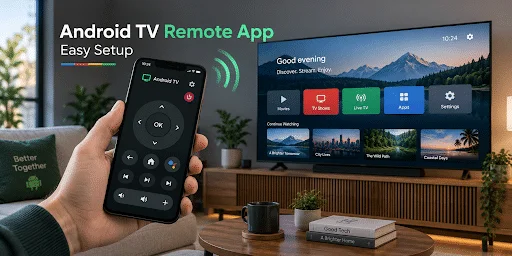
An Android TV remote app lets you use a smartphone or tablet to navigate a compatible Android TV or Google TV over your home network. With Google’s official Google TV app, you can pair your phone with the television, navigate menus, control playback, adjust volume, enter text, and access other supported functions without relying on the original handheld remote.
The technology has become relevant to a very large audience. Google reported in May 2025 that Google TV and Android TV had surpassed 270 million monthly active devices. Pew Research Center’s 2025 survey, meanwhile, found that 91% of U.S. adults owned a smartphone.
That combination explains why replacing or supplementing a physical remote with a phone is increasingly practical. This guide explains how an Android TV remote app works, how to pair one correctly, what features to expect, and what to do when your phone cannot find the TV.
1. What Is an Android TV Remote App and How Does It Work?
An Android TV remote app turns the touchscreen of your phone into a virtual controller for a television or streaming device running Android TV or Google TV.
Unlike a traditional infrared remote, the most common mobile remote setup communicates through your home network. Your TV and phone connect to the same Wi-Fi network, the app discovers the television, and a pairing process authorizes the phone to send commands.
Google’s official support documentation confirms that the Google TV app can control both Google TV and Android TV devices. Supported functions include media playback, power control on compatible devices, volume adjustment, Google Assistant access and text entry.
That last feature is especially useful. Entering a long Wi-Fi password, streaming-service login or movie title with directional buttons can be slow. An Android TV remote app allows you to use your phone’s keyboard instead.
The scale of the platform is also worth noting. According to Google’s Android Developers Blog, Android TV OS reached 220 million monthly active devices in 2024, up 47% year over year. Google subsequently reported more than 270 million monthly active Google TV and Android TV devices in 2025.
More recently, Google has described the wider platform as powering over 300 million active Google TV and Android TV OS devices, showing how widely phone-to-TV interaction can potentially be used.
2. What You Need Before Connecting Your Phone to Android TV
Setting up an Android TV remote app is normally straightforward, but a few requirements need to be met first.
The most important is the network. Your phone and Android TV should be connected to the same Wi-Fi network. Google specifically lists this as the first troubleshooting check when its virtual remote cannot connect.
Before pairing, check:
- Your Android TV or Google TV is powered on.
- Your phone has Wi-Fi enabled.
- Both devices are connected to the same home network.
- The TV has completed its initial setup.
- Your remote app is updated.
- Local-network or nearby-device permissions are enabled when required.
If you are setting up a new Android TV from scratch, Google also lists a Wi-Fi internet connection and Google Account among its basic setup requirements.
There is an important practical distinction here. An Android TV remote app works best after the television has already joined your network.
If the TV has been factory-reset and is sitting on the initial Wi-Fi setup screen, your phone may not be able to discover it yet. In that situation, you may still need the original physical remote or another compatible controller to complete the first network connection.
Once the TV is online, mobile control becomes considerably easier.
3. How to Set Up an Android TV Remote App
Google’s current setup process for its virtual remote requires only a few steps. The exact labels can change slightly with app updates, but the pairing logic remains similar.
Step 1: Connect Both Devices to Wi-Fi
Start by confirming that the smartphone and television are on the same network.
Look at the SSID rather than assuming that because both devices have internet access they are connected together. Some homes have separate main, guest and extender networks.
An Android TV remote app relies on local device discovery, so network isolation can prevent the phone from seeing the television.
Step 2: Open the Google TV App
On an Android phone, open the Google TV app.
Google’s current support instructions tell users to select the TV connection option near the bottom-right area of the app. Depending on the current interface version, the wording may appear as Remote, Connect TV or a nearby-TV option.
If you prefer another remote control app for TV, check that it explicitly supports Android TV or Google TV before installing it.
Step 3: Select Your Android TV
The app scans the local network for compatible televisions.
Select the name of your TV when it appears.
If several Android or Google TV devices are connected in your home, check the room or device name carefully before choosing one.
Step 4: Enter the Pairing Code
A code should appear on your television.
Enter that code on your phone and select Pair. Google’s official instructions use this verification process to connect the mobile remote securely to the TV.
Once pairing succeeds, the virtual controls should appear.
Step 5: Test the Important Buttons
Before considering setup complete, test several controls:
- Directional navigation
- Select/OK
- Back
- Home
- Volume
- Play and pause
- Text entry
When these functions respond correctly, your Android TV remote app is ready for everyday use.
A useful practical tip is to test text entry immediately. If navigation works but the phone keyboard does not send text correctly, discovering the problem during setup is much easier than finding it later when you are entering an account password.
Google also allows Android users to add TV remote access to Quick Settings, making the remote easier to reach without reopening the full app each time.
4. What You Can Control From Your Phone
A modern Android TV remote app can do considerably more than move a cursor around the screen.
According to Google’s current documentation, the Google TV mobile remote can control media playback, turn supported TVs on or off, activate Google Assistant, change volume and enter text for searches or login information.
In practical use, the most valuable controls normally include:
| Function | Phone remote | Why it is useful |
| Navigation | Yes | Browse Android TV menus |
| Play/Pause | Yes | Control movies and streaming |
| Volume | Supported devices | Faster volume adjustment |
| Text input | Yes | Enter passwords and searches |
| Voice features | Supported setup | Search without typing |
| Power | Compatible devices | Turn the TV on or off |
The phone keyboard is arguably the biggest advantage.
Imagine entering an email address such as firstname.lastname@example.com using four directional buttons. On a physical remote, that can require dozens of clicks. An Android TV remote app lets you type it much more naturally.
The phone is also harder to lose than a dedicated TV controller for many users. That matters because smartphone ownership is already extremely high: Pew’s 2025 U.S. survey found smartphone ownership at 91% among adults, compared with 35% when Pew first measured smartphone ownership in 2011.
The same trend appears elsewhere. The UK government’s 2024/25 Participation Survey found that 96% of adults in England personally owned and used a smartphone at home, while 76% owned a smart TV.
That overlap makes phone-based TV control a logical feature rather than a niche replacement tool.
5. Android TV Remote App vs. a Physical Remote
An Android TV remote app is convenient, but it does not make physical remotes obsolete.
Each option has advantages.
| Feature | Phone app | Physical remote |
| Easy text entry | Excellent | Usually slow |
| Always ready | Depends on phone | Usually yes |
| Requires Wi-Fi | Usually | No |
| Tactile buttons | No | Yes |
| Voice search | Often supported | Model dependent |
| Works during network failure | Usually no | Yes |
| Easy to replace | App installation | New hardware |
For browsing streaming services, entering search terms or typing passwords, an Android TV remote app often feels faster.
A physical remote remains more dependable when the Wi-Fi network is down, the TV has been reset or you simply want controls that can be operated by touch without looking down at a screen.
There is another consideration: battery life. The television remote can sit unused for weeks or months, whereas a phone needs regular charging. A mobile remote therefore works best as either an everyday convenience or backup rather than the only possible way to operate the TV.
For most households, keeping both options available provides the best experience.
6. Why Your Android TV Remote App Is Not Connecting
When an Android TV remote app stops working, the problem is usually network discovery rather than a broken television.
Start with the simplest checks.
Phone and TV Are on Different Networks
This is one of the most common causes.
Google specifically instructs users to check that the phone and Android TV are on the same Wi-Fi network when virtual remote setup fails.
For example:
- Phone: HomeWiFi-Guest
- TV: HomeWiFi
They may come from the same router but still prevent devices from communicating with each other.
Move both devices onto the same primary network.
The TV Does Not Appear in the Device List
Close and reopen the Android TV remote app.
Then check whether the television itself still has an internet connection.
If necessary, restart both devices.
Google’s official troubleshooting procedure suggests unplugging the Android TV power cable, waiting 10 seconds, plugging it back in and attempting virtual remote setup again.
That simple power cycle can resolve temporary discovery problems.
Pairing Code Does Not Work
Generate a fresh pairing attempt rather than repeatedly entering an old code.
Make sure you are pairing with the correct TV if multiple compatible devices appear.
Also confirm that both devices have current software. App or system updates can resolve communication bugs, particularly after major Android TV or Google TV updates.
The App Connects but Some Buttons Do Not Work
Feature support can vary by TV manufacturer, device configuration and hardware.
For example, network-based navigation may work while power control behaves differently because turning the TV fully off can disable network communication.
Similarly, volume can involve the television itself, an AV receiver, HDMI-CEC or a soundbar. An Android TV remote app cannot always reproduce every hardware-specific function of an original manufacturer remote.
This is why testing the features you actually use matters more than assuming every virtual button will behave identically.
7. Can You Use an Android TV Remote App Without Wi-Fi?
In most cases, an Android TV remote app designed for Android TV requires a local network connection.
Google’s official virtual-remote instructions specifically require the phone and Android TV to be on the same Wi-Fi network.
This differs from older infrared remotes.
Infrared sends commands directly from a transmitter to a receiver on the television. Network-based control sends commands through Wi-Fi, which enables more advanced functions such as text entry and device discovery.
Some Android phones have included infrared hardware, and an IR-compatible app may control certain TVs without Wi-Fi. However, that is not the same as Google’s standard Android TV virtual remote architecture.
Therefore, if you download remote TV app software specifically because your home internet is unreliable, check what connection technology the app uses.
A Wi-Fi remote may still work when your external internet service is offline as long as the local router and network remain operational. But if the TV itself disconnects from the local network, app control usually becomes unavailable.
Keeping a physical remote accessible is still useful for exactly this situation.
8. How to Choose a Safe and Reliable TV Remote App
Not every Android TV remote app is made by Google or your television manufacturer.
Third-party options can be useful, particularly if you want one controller for several TV platforms. But check the app carefully before installing it.
A legitimate TV remote may reasonably need access to:
- Nearby devices
- Local network discovery
- Bluetooth in some configurations
- Microphone access for optional voice features
Be cautious when an app requests unrelated access with no clear explanation.
A simple remote control app for TV generally has little reason to require your contacts, SMS history or other sensitive personal information merely to move around a TV menu.
Before installation, check:
- Developer identity
- Supported TV brands and platforms
- Privacy information
- Recent update history
- User reviews
- Free versus paid features
- Subscription pricing
Google’s own Google TV app is the obvious first option for Android TV and Google TV because its remote functionality is officially documented.
A third-party app becomes more useful when the household contains several platforms or when you want features beyond the official controller.
9. When a Universal Remote App Makes More Sense
An Android TV remote app solves the Android TV problem well, but many households no longer have only one type of connected television.
You might have Android TV in a bedroom, a different smart TV operating system in the living room and another streaming device elsewhere.
Installing a separate remote application for every television quickly becomes inconvenient.
That is where a universal remote TV app can make sense.
Instead of switching between several branded apps, one application can provide universal remote TV control for multiple supported devices from the same phone.
The important word is “supported.”
No app should be assumed to control every television ever produced. Different TVs can use Wi-Fi, Bluetooth, infrared or proprietary protocols, and individual functions can vary by model.
Before choosing a universal solution, verify:
- Android TV or Google TV compatibility
- Other TV brands you own
- Power control
- Volume control
- Navigation
- Keyboard support
- Streaming-device support
- iOS or Android availability
For an Android TV-only home, Google’s built-in ecosystem may be enough.
For a mixed-device household, a well-designed universal controller can reduce app switching and simplify everyday viewing.
A universal remote TV app can also serve as a practical fallback when the original remote is lost or damaged, especially if the TV is already connected to Wi-Fi.
10. Frequently Asked Questions
Is there a free Android TV remote app?
Yes. Google’s Google TV app includes virtual remote functionality for compatible Google TV and Android TV devices. Google documents pairing, playback, volume, power, Assistant and text-entry functions for supported configurations.
Does my phone need to be on the same Wi-Fi as Android TV?
Usually, yes. Google’s official instructions say the mobile device and Android TV should be connected to the same Wi-Fi network for the virtual remote to connect.
Can I use an Android TV remote app if I lost the original remote?
Yes, provided the television is already connected to a network and your phone can discover it. An Android TV remote app is particularly useful as a replacement when the original controller is misplaced or damaged.
Initial TV setup or reconnecting a factory-reset television can be more difficult without a physical remote because the television may not yet be accessible over Wi-Fi.
Can an Android TV remote app turn the TV on?
Sometimes. Google’s Google TV app lists power control among its supported remote functions, but actual behavior can depend on the TV model, power-management settings and connected equipment.
Is a universal remote app better than Google’s remote?
It depends on your devices.
For Android TV alone, Google’s solution offers direct platform integration. If your household uses several TV brands or operating systems, a universal remote TV app may provide greater convenience by combining supported devices into one interface.
11. Final Thoughts
An Android TV remote app is one of the easiest ways to control Android TV when the physical remote is missing, inconvenient or simply too slow for entering text.
The basic setup requires only a compatible Android TV or Google TV device, a phone, the same Wi-Fi network and a short pairing process. Google’s current instructions involve selecting the TV from the Google TV app and entering the code shown on the television.
The wider ecosystem is already substantial. Google reported more than 270 million monthly active Google TV and Android TV devices in 2025, while Pew Research Center found that 91% of U.S. adults owned smartphones that year.
For a single Android TV, Google’s official solution will meet the needs of many users. In households with multiple television platforms, broader universal remote TV control may be more convenient.
Either way, the principle is simple: connect the phone and TV, pair them once, and your smartphone can become a capable everyday remote.
Disclaimer: The information provided in this article is for general informational and educational purposes only. It does not constitute professional technical, software, or security advice. App features, pairing procedures, and device compatibility may change with updates. Readers should verify current instructions with Google’s official support documentation and their device manufacturer. The author and publisher disclaim all liability for setup issues, device incompatibility, or security concerns arising from reliance on this content. Always download apps from official sources and review privacy permissions before installing.
Looking for content that fits your life perfectly? Explore our lifestyle-friendly articles—written for real people with real schedules.