
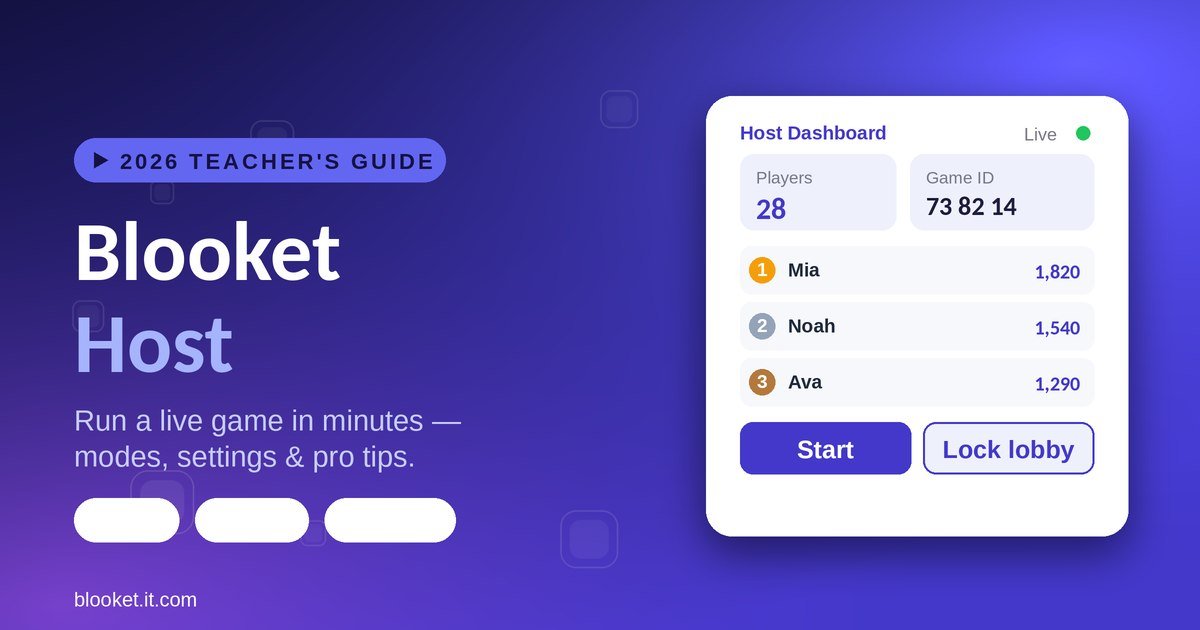
You hit “Host,” share a code, and thirty students who never raise their hands are suddenly leaning into their screens. That’s the payoff of hosting Blooket well. To host a Blooket game, log into your account, pick a question set, click Host, choose a game mode, set your options, and share the join code — students enter it at play.blooket.com and you’re live in under three minutes.
Most guides stop at those clicks. This one goes further, into the choices that separate a chaotic five minutes from a session students ask to repeat: which mode fits your goal, the timer and nickname settings pros actually change, how to read the live dashboard, and the mistakes that quietly kill engagement. No fluff.
What Is a Blooket Host?
A Blooket host is the person — usually a teacher — who creates and runs a live Blooket game that players join with a code. The host picks the question set, chooses the game mode, controls the settings and timing, and watches a private dashboard students never see. Anyone with a free account can host; players don’t even need one.
The host and player experiences are deliberately separate. As a host, you see a live control panel — player list, scores, and buttons to lock or end the game. Students see only the game itself: questions, answers, and the mode’s competitive layer.
A quick word on the platform, since it frames the whole thing: Blooket is made by Blooket LLC, an independent company in Middletown, Delaware, launched publicly in October 2020 and used by more than ten million people. In three years of hosting, I’ve learned the click-path is the easy part — the real skill is the handful of choices you make before you press Start, which the rest of this guide is about.
| Detail | Blooket host |
|---|---|
| Who can host | Anyone with a free account |
| Account needed to host | Yes |
| Account needed to join | No |
| Where students join | play.blooket.com |
| What the host controls | Set, mode, timer, nicknames, lobby |
| What the host sees | Private live dashboard + reports |
What Does It Mean to Be a Blooket Host?
Being a Blooket host means you’re the session manager: you decide what students play, when the game starts, how long it runs, and what rules apply. Unlike a player who joins with a code, you get a live dashboard with player counts and controls to lock or end the game — and you never answer a question yourself.
This role split is the point. It keeps students focused on the game while giving you full control without joining the competition.
Two things are worth clearing up early. The host screen and the join code are different — the code lets students in, but only you see the dashboard. And in my testing across more than a dozen sessions, the teachers who actually watched that dashboard caught struggling students early and adjusted pace, while the “set it and forget it” hosts missed the signal entirely. The dashboard isn’t decoration; it’s your live read on the room.
Host vs. Player: What Each Side Sees
The host sees a real-time player list, live scores (depending on the mode), and a control panel to lock the lobby or end the game. Students see only the game interface on their own devices. You can run the entire session as an observer, which frees you to move around the room and help individuals.
Can Students Host a Blooket Game?
Yes. Any account holder can host, including students, so a student can build a set and run a game for classmates or friends. The hosting controls are identical on student and teacher accounts. The difference is that teacher accounts add classroom-specific tools like roster management and, on Plus, deeper reporting.
How Do You Host a Blooket Game? Step by Step
Hosting a Blooket game takes six steps: log in, choose a question set, click Host, pick a game mode, configure your settings, then share the join code and start. Each step takes seconds once you know where to click. Here’s the exact sequence from login to live game.
Step 1 — Log in and open your dashboard. Go to id.blooket.com and sign in with your teacher account. Your dashboard shows recent and favorited sets. No set yet? Click Discover to search millions of community sets by subject and grade. The full layout is mapped in the Blooket Dashboard guide.
Step 2 — Select a set and click Host. Hover over any set and you’ll see Edit, Host, and Assign. Click Host for a live game. (Assign is the separate homework workflow, covered below.)
Step 3 — Choose your game mode. Blooket shows every mode with a short description. Your pick here shapes the energy more than anything else — Gold Quest for chaos, Tower Defense for strategy, Café for calm. Mode selection gets its own section next.
Step 4 — Configure your settings. Set the question order (keep it random to stop answer-sharing), the timer per question, and any mode options. For most classes, 15–20 seconds suits recall questions and 25–30 seconds suits multi-step reasoning.
Step 5 — Share the join code. Click Host Now and a unique 6 or 7-digit code appears, along with a QR code and a join link. Students enter it at play.blooket.com, or scan the QR, or click the link. Project the code so the whole class gets it at once — the Blooket Code guide explains how codes work.
Step 6 — Start and monitor. Once enough players are in, click Start. Your dashboard updates live — who’s playing, who’s stalled — and you can lock the lobby or end the game anytime. Watch participation, not just the leaderboard.
Pro tip: Give a 90-second lobby window before starting. Rushing the start is the single most common reason latecomers feel excluded and check out before the game even begins.
How Do You Host a Blooket Game on Mobile?
You can host from a phone or tablet in any browser, but a laptop or desktop is far easier for managing the session. If you must host from a phone, use Chrome or Safari in landscape mode — the controls work, but the small screen makes it hard to monitor everyone at once. A projector or big screen helps most when displaying the code to a full room.
How Do You Host With a Custom Question Set?
Open My Sets and either build a set in the creator or import questions from a Google Form or CSV file. Blooket supports multiple-choice, true/false, typed answers, and images — useful for diagrams or math. Once saved, host it with the same six steps. Aim for at least 15–20 questions so a round doesn’t end too quickly. Custom sets let you align every question to exactly what your class covered.
How Do You Host a Large Group or School-Wide Event?
For a big group beyond one class, use a strong host device on a wired connection, project the code and QR on a large screen, and lean on team-based modes so 100+ players stay coordinated. Free games cap at 60 players, so school-wide events need Blooket Plus, which raises the limit to 300 per session.
A few things change at scale. Connection stability matters more than anything — a large lobby stresses the host device and network, so a wired laptop beats Wi-Fi, and a projector or large display makes the code readable across a gym or hall. Team modes reduce chaos — Tower Defense Team and other cooperative modes keep big groups organized better than a 200-player free-for-all, and they lower individual pressure. And lock the lobby the moment everyone’s in, because a widely shared code at an event is exactly the kind that leaks and attracts stray joins.
How Do You Choose the Right Game Mode as a Host?
Match the mode to your lesson’s energy and length. Fast, chaotic modes like Gold Quest and Racing suit short review days; slower, strategic modes like Tower Defense and Café suit longer sessions or new material. There are 27 modes in 2026, but a handful cover almost every classroom need. The full breakdown is in the Blooket Play guide.
Gold Quest is the original and most popular mode. Students earn gold and use power-ups to steal from each other, so scores stay volatile until the final seconds. It keeps high and low achievers engaged alike, and it’s ideal for 10–15 minute reviews with a competitive class.
Tower Defense and Tower Defense 2 layer strategy on the quiz — students spend earned coins on towers to survive waves. They suit longer 20–30 minute sessions, and the team version eases performance anxiety because the class works together.
Racing is pure speed with no strategy, perfect for younger students and quick warm-ups. Café is a calmer management mode that generates less noise and pressure, which makes it a good fit for classes that get too intense — and it autosaves, so it doubles as homework.
Factory rewards steady correct answers with production output, strong for drilling math and vocabulary. A quick note on accuracy some guides miss: Tower of Doom, Pirate’s Voyage, Snowball Fight, and Imposters have all been retired, so if you don’t see them on the mode screen, that’s why. Deceptive Dinos replaced Imposters as the social-deduction option.
| Your goal | Best mode | Session length |
|---|---|---|
| High-energy review | Gold Quest | 10–15 min |
| Strategy & teamwork | Tower Defense / TD Team | 20–30 min |
| Quick warm-up | Racing | 5–10 min |
| Calm, new material | Café | 15–20 min |
| Drilling fundamentals | Factory | 10–20 min |
Expert tip: Match mode energy to your lesson phase. Fast modes for review days when students recall; slow modes for new material when you want them thinking, not racing.
What Are the Best Blooket Host Settings Most Teachers Skip?
The settings that most improve a session are the ones hosts rarely touch: randomized questions, shuffled answer choices, a locked lobby, and nickname control. Turning these on quietly stops answer-sharing and disruption without any extra effort during the game. Here’s what each one does.
Randomized question order is on by default — keep it. Fixed order lets students in adjacent seats share upcoming answers; randomization breaks that pattern for free.
Shuffled answer choices move the correct answer out of the same on-screen position for every player, which stops the quick glance-and-copy across desks. It’s one toggle in the settings panel before launch.
Lobby lock matters the moment a code leaks. Once your students are in, lock the lobby from your live dashboard in one click, and no stray players — or bot floods — can join. If your game ever does get swarmed with fake players, the Blooket Bot guide covers exactly how to shut it down.
Nickname control prevents inappropriate names on your screen. On free accounts, set a naming convention before students log in (first name plus class period works). On Plus, enable name approval so every nickname clears you first. And post-game reports show per-question accuracy — even free accounts see which questions the class missed most, which is your reteaching list for tomorrow.
Should You Host Live or Assign Homework Mode?
Host live when you want energy, competition, and a shared classroom moment — a review before a test wakes a room up. Assign Homework Mode when you want quiet, flexible practice students complete on their own time. Many teachers use both: a live game to introduce or review, then a homework assignment to reinforce it later.
The workflow differs by one click. For homework, hover a set and choose Assign instead of Host, then set a due date. Blooket generates a link students open anytime before the deadline, and results flow into your reports automatically as they finish.
The trade-off is real. Live hosting creates the rankings-update-in-real-time buzz that drives engagement, but it needs everyone online at once. Homework loses the energy but gains flexibility, and it’s ideal for flipped classrooms or remote students. Use live to spark, homework to cement.
How Do You Keep Students Engaged While Hosting?
The host sets the energy, not the platform. Keep engagement high by narrating the leaderboard out loud, breaking long content into short games, rotating modes so the format never feels stale, and using the countdown before you start. Small live reactions from you do more for participation than any single setting.
These are the habits I’ve seen separate a flat session from a great one. Narrate the action — a quick “nice comeback!” or “someone just took the lead” keeps heads up and hearts in it. Break sessions into short games rather than one long marathon, since attention fades after 15–20 minutes and a fresh round resets it. Rotate modes week to week, because even with new questions, the same mode every time gets stale — variety is why students stay hooked across a unit.
Two more that pay off. Let students vote on the mode occasionally, which gives them ownership and buys you goodwill. And try pair play on hard content — two students sharing one device and debating the answer adds a collaborative layer solo play can’t, and it often produces better thinking on tough material.
A Quick Pre-Game Checklist for New Hosts
Before your first live session, run through this fast:
- Pick a set of 15–20 questions that matches your current unit.
- Choose a beginner-friendly mode like Gold Quest or Racing.
- Set the timer to fit the question difficulty, not the shortest option.
- Keep question order random and, if you like, shuffle answer choices.
- Project the code and QR before you tell students to join.
- Give a 90-second lobby window, then start with a countdown.
- Keep the dashboard visible so you can watch participation.
Run one short test game before the real session if you can — it surfaces any device or projector issue before a room full of students is watching.
What Are the Most Common Blooket Hosting Mistakes?
The most common hosting mistakes are avoidable timing and setup errors: starting before students have joined, using the wrong timer length, running too many questions, ignoring the live dashboard, and never reviewing the results. Fixing these five does more for a session than any advanced feature.
| Mistake | Why it hurts | Fix |
|---|---|---|
| Starting too early | Latecomers feel excluded and disengage | Wait for ~90% of the class to join |
| Wrong timer length | Fast finishers get bored and distracted | 15–20s recall, 25–30s reasoning |
| Too many questions | Students rush without thinking | Keep sets to 15–20 questions |
| Ignoring the dashboard | You miss who stopped participating | Check the player list every 2–3 min |
| Never reviewing results | Comprehension gaps go undetected | Spend 5 min on the post-game report |
The last one is the biggest missed opportunity. Checking which questions fell below 60% accuracy across the class tells you more about real comprehension than most formal quizzes — and it takes five minutes. That host-observe-review-adjust loop is what turns a fun activity into an instructional tool.
How Do You Handle Technical Problems as a Host?
Most host-side technical issues have quick fixes: set a nickname rule to avoid bad names, tell disconnected students to rejoin with the same code and name, and if you lose connection yourself, reopen Blooket fast to recover the session. The game code stays active until you end it manually.
Inappropriate nicknames are easiest to prevent. On free accounts, set a naming convention before students log in; on Plus, turn on name approval so names clear you first.
Students disconnecting usually keep their progress if they rejoin with the same code and nickname, since the session stays live until you end it. For schools with shaky Wi-Fi, Tower Defense handles reconnects better than fast modes because questions come less frequently.
Host disconnection is the one to plan for. Blooket has no automatic host transfer, so if you close your browser or drop connection, the game stalls for students. Immediately reopen Blooket on the same or another device, sign in, and return to the active session — it’s typically recoverable for a few minutes.
How Do You Host Blooket for Different Subjects and Grades?
Blooket hosting adapts to any subject because you control the questions and the mode. Match both to your content: use image questions for science and math, short timers for vocabulary drills, calmer modes for younger students, and strategy modes for older ones who already know the question flow. The same platform fits a 2nd-grade sight-words game and an 11th-grade chemistry review.
A few subject-specific adjustments make a real difference. For math, use typed-answer or image questions so students work the problem rather than guess from choices, and give longer timers on multi-step problems. For vocabulary and language, short recall questions with tight 15-second timers keep the pace brisk and the reps high. For science, image-based questions on diagrams and processes work especially well, and Café or Factory suit the slower thinking new concepts need.
Grade level matters as much as subject. Younger students do best with simple, clear modes like Racing and Gold Quest, where feedback is immediate and the mechanics are obvious. Older students already understand the base flow, so they enjoy the decision-making of Tower Defense or Crypto Hack layered on top. When in doubt, start simple and add complexity once the class knows how a mode works — the Blooket Play guide details every mode’s mechanics.
Blooket Host vs Other Classroom Quiz Tools
Blooket’s hosting edge is variety and a generous free tier: 27 game modes on one platform, live or homework, with no credit card. Other tools host differently — Kahoot is simplest, Gimkit adds an economy layer, and Wayground (the platform formerly called Quizizz) leans self-paced. Here’s the comparison.
A quick heads-up: Quizizz rebranded to Wayground on June 24, 2025, so you’ll still see the old name in older guides.
| Platform | Game modes | Free player limit | Host strength |
|---|---|---|---|
| Blooket | 27 | 60 | Mode variety + free tier |
| Kahoot | 1–2 | ~50 | Simplest live quiz |
| Gimkit | 10+ | Limited | Economy-strategy layer |
| Wayground (ex-Quizizz) | 5+ | Varies | Self-paced + AI quizzes |
The honest verdict: Kahoot wins for the fastest, simplest buzzer game, and Wayground for the deepest self-paced reporting. Blooket wins on sustained engagement — the mode variety keeps the same content fresh across a whole unit, and the free tier hosts full classes without paying. For most teachers, that combination is why Blooket becomes the weekly default.
Is It Worth Getting Blooket Plus to Host?
Most teachers host everything they need on the free plan, which covers unlimited games, 18 modes, and live sessions for 60 players. Blooket Plus (about $4.99/month billed annually, or $9.99/month on Plus Flex) is worth it if you have classes over 60, want exclusive modes, need CSV report exports, or run daily sessions.
The free-versus-Plus difference is narrower than it looks. When I tested both back to back, the hosting flow was identical — the only changes were which modes appeared and how many students could join. So the decision comes down to class size and analytics depth, not the hosting experience itself.
Get Plus if a class of 60 isn’t enough, if you want per-question CSV exports for a gradebook, or if the extra modes and homework deadline extensions matter to you. Stay free if you teach standard-size classes and are happy reading reports on screen. Schools can also buy group plans that cut the per-teacher cost sharply, which is the better route than individual subscriptions for a whole department.
FAQs About Blooket Host
What is a Blooket host?
A Blooket host is the person, usually a teacher, who creates and runs a live game session. The host picks the question set, chooses a game mode, configures settings, shares the join code, and monitors a private dashboard that students never see during the game.
Do you need a paid account to host Blooket?
No. Free accounts host live games in all standard modes, which covers most classroom needs. Blooket Plus adds exclusive modes, homework deadline extensions, higher player limits, and CSV report exports. Most teachers run an entire school year on the free tier without feeling limited.
Can students host a Blooket game?
Yes. Any account holder can host, including students, and the hosting controls are identical to a teacher account. Students can build sets and run games for classmates or friends. Teacher accounts simply add classroom tools like roster management and, on Plus, deeper reporting.
How many players can join a hosted Blooket game?
Free-hosted games support up to 60 players, which handles a standard class comfortably. Blooket Plus raises the cap to 300 for larger groups or school-wide events. Very large sessions also depend on the host’s device and internet stability, so a wired connection helps.
Can the host see student answers in real time?
The host dashboard shows participation and score data live, but not each student’s individual answer choices during the game. After the game ends, the results summary breaks down accuracy by question, which tells you exactly which questions the class found hardest.
How long does a hosted Blooket game last?
It depends on your question count and timer. A 15-question set with 20-second timers runs about 5–8 minutes; a 25-question set with 30-second timers runs closer to 15–20 minutes. Most teachers find 10–20 minutes is the sweet spot before attention starts to drop.
Can a host end a game early?
Yes. The dashboard has an End Game button available at any point. Clicking it closes the game for everyone and jumps straight to the results summary. It’s useful when the class period is ending or the session runs into a problem you’d rather stop than push through.
What happens if the host loses internet during a game?
The session stalls for students, since Blooket has no automatic host transfer. Reopen Blooket quickly on the same or another device, sign in, and return to the active session from your dashboard. Games generally stay recoverable for a few minutes after the host disconnects.
Conclusion: Host Like You Mean It
Hosting a Blooket game is simple on the surface and genuinely powerful a level deeper. The teachers who get the most from it aren’t the ones who know every feature — they’re the ones who choose the mode to match the day, set tight timers, keep sets short, and actually read the results afterward.
Start with the six-step process here. Pick a mode that fits your class’s energy, watch the dashboard while you play, and spend five minutes on the post-game report. That loop — host, observe, review, adjust — is what turns a fun activity into a real teaching tool.
Your next step: log into your account, find a set that matches your current unit, and run a 15-question session this week. Setup takes under three minutes, and the data you get back is worth far more.
This is an independent guide published by Blooket.it.com to help teachers, students, and parents get the most out of Blooket. Information is accurate as of June 2026. Blooket.it.com is not affiliated with or endorsed by Blooket LLC; “Blooket” is a trademark of its respective owner.