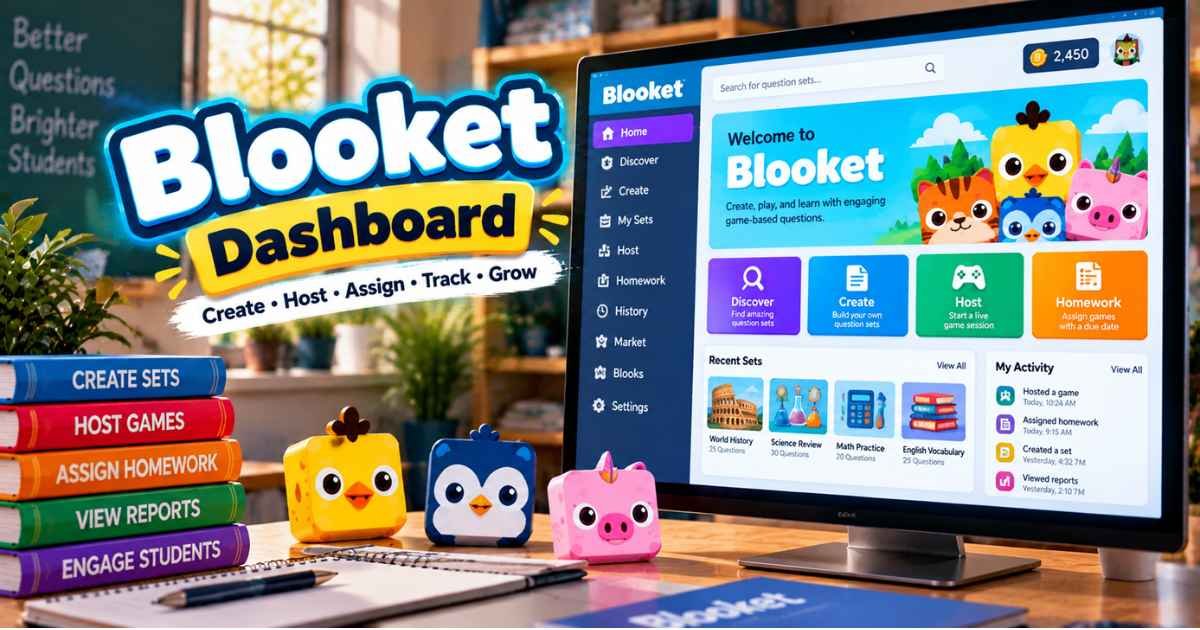
You logged into Blooket and landed on a screen full of tabs — Discover, Create, Market, a thing called a Blook — and none of it is obvious. The Blooket dashboard is your account home base: after you sign in at id.blooket.com, you arrive at dashboard.blooket.com, the one screen where you create question sets, host games, assign homework, track progress, and collect Blooks.
That’s the whole idea in a sentence. This guide maps every section for both teachers and students, shows exactly where the real value hides (it’s not the games — it’s the reports), and fixes the problems that send people searching. No filler, no fluff.
What Is the Blooket Dashboard?
The Blooket dashboard is the central control panel you see right after logging in. Teachers use it to create question sets, host live games, assign homework, and analyze student performance. Students use it to join games, complete assignments, earn tokens, and manage their Blook collection. Everything on the platform launches from here.
Think of it as your Blooket home base. Instead of jumping between separate pages, every tool sits on one screen, and what you see depends on whether you signed up as a teacher or a student. The two versions share a look but serve completely different jobs.
A little context on who’s behind it, because it matters for trust. Blooket is made by Blooket LLC, an independent company in Middletown, Delaware, and it launched publicly in October 2020. It has since grown past ten million users, with a shared library of more than twenty million question sets built by teachers.
Here’s the dashboard at a glance:
| Detail | 2026 |
|---|---|
| Where it lives | dashboard.blooket.com (after login) |
| Account needed | Yes — teacher or student |
| Cost | Free (Plus adds features) |
| Teacher core tools | Create, Host, Assign, Reports, Classes |
| Student core tools | Play, Homework, Stats, Market, Blooks |
| Game modes you can launch | 27 (18 free + 9 Plus) |
| Collectible Blooks | 330+ |
How Do You Access the Blooket Dashboard?
To access the Blooket dashboard, go to id.blooket.com, sign in with your email, Google, or Clever account, and you’re taken straight to dashboard.blooket.com. There’s no separate “dashboard login” — logging into your account is how you reach the dashboard. It loads instantly in any browser, on any device.
People search for “Blooket dashboard login” expecting a special page, so here’s the clean version in steps.
- Open any browser and go to id.blooket.com.
- Choose your sign-in method — email and password, Google, or Clever for schools that use it.
- Enter your details (or pick your Google account) and confirm.
- You land automatically on your dashboard at dashboard.blooket.com.
- Bookmark that page so you skip the login screen next time you’re already signed in.
One thing worth clearing up: dashboard.blooket.com is where your account lives after sign-in, while play.blooket.com is only for joining live games and blooket.com is the marketing site. If you ever get lost, start at id.blooket.com and the dashboard finds you. For every sign-in method and error, the Blooket Login guide covers it in full.
What’s the Difference Between the Teacher and Student Dashboard?
The teacher dashboard is built for creating and analyzing — question sets, hosting controls, homework, class management, and full reports. The student dashboard is built for playing and collecting — joining games, viewing assignments, earning tokens, and browsing Blooks. Same platform, two very different toolkits.
Blooket decides which version you see based on the account type you chose at signup, and that choice is permanent. Here’s the split at a glance.
| Capability | Teacher Dashboard | Student Dashboard |
|---|---|---|
| Join a game with a code | Yes | Yes |
| Create question sets | Yes | No |
| Host live games | Yes | No |
| Assign homework | Yes | No |
| View student reports | Yes | No |
| Manage classes | Yes | No |
| Earn tokens & Blooks | Yes | Yes |
| Play solo | Yes | Yes |
The takeaway is simple: if you need to build content and see data, you need a teacher account. If you just want to play, compete, and collect, the student dashboard has everything. A student account can’t later become a teacher account, so choose carefully at signup.
The Teacher Dashboard: Every Section Explained
The teacher dashboard packs every classroom tool into one screen. From here you can build a quiz, launch it live, send it as homework, group your students, and read exactly how each one performed. Here’s what every section does.
Play sits at the top and joins a live game with a Game ID. Teachers mostly use it to test how a set feels from the student side before hosting it for real.
Discover is Blooket’s public library of more than twenty million question sets, searchable by keyword, subject, or grade. Preview any set, then clone it to your own library and edit freely. Searching something like “7th grade photosynthesis” returns usable sets in seconds.
Create is where you build sets from scratch — multiple-choice, true/false, text-entry, or image-based questions. You can import from a spreadsheet via CSV, and a 20-question set takes roughly 8–10 minutes to build the first time. In 2026 you can also let the built-in AI generate a full set from a topic, which saves serious prep.
My Sets is your personal library. Every set you make or clone lives here, ready to edit, host, assign, or play solo. You can also generate a Solo Link — a direct URL that drops students into a self-paced game with no Game ID.
Favorites lets you bookmark strong sets from other creators so you can find them again without re-searching Discover.
History and Reports is the section most teachers underuse and the one that actually matters. Open any past game and you see question-by-question accuracy, time per question, individual scores, and class averages. This is where a fun review becomes real diagnostic data.
Classes lets you group students and track them across many sessions instead of one game at a time — ideal for a full semester.
Host is your live-game launcher: pick a set, choose a mode, set your options, and click Host to generate a Game ID, QR code, and join link. The full flow is in the Blooket Host guide.
Assign (Homework) sends a set as an at-your-own-pace assignment with a deadline. The free plan caps deadlines at 14 days; Plus extends that to 365. Results flow into your reports automatically as students finish.
News keeps you current on new modes, seasonal events, and platform updates — worth a glance so you don’t miss limited-time Blooks.
Settings holds your profile, email, password, subscription, and accessibility options, including large text, high contrast, and read-aloud.
The Student Dashboard: Every Section Explained
The student dashboard strips things down to what a player needs: get into a game fast, see homework, and manage rewards. It looks simpler than the teacher view on purpose, because a student’s top priority is joining before the rest of the class finishes typing. Here’s every section.
Play is the big button up top for entering a teacher’s Game ID. It’s the first thing a student taps when a code appears on the projector, and it needs no extra steps.
Homework lists any assignments the teacher posted, with deadlines shown clearly. Click one and start playing immediately — the Blooket Code guide explains how those assignment codes differ from live ones.
Stats shows a student’s own progress in a game-like way: coins earned, games played, and how they did on questions. It feels like a player profile rather than a clinical report card, which is part of why students actually check it.
Market is where tokens get spent. Each Blook box costs roughly 20–25 tokens and opens one random Blook based on drop-rate odds, and the Market rotates in seasonal items during holidays.
My Blooks displays the full collection — commons, uncommons, rares, and the elusive Legendaries and Mysticals. Students set a favorite as their avatar, and chasing rare ones is a big reason they keep playing.
Discover (Solo) lets students find any public set and launch it solo, with no teacher hosting required — the quiet study feature most players never discover.
Settings covers username, password, email, and accessibility preferences, the same account controls teachers get.
How Do You Use the Blooket Dashboard? Step by Step
Here’s the exact workflow a teacher follows to run a new unit, start to finish. It takes about ten minutes the first time and far less once you’re used to it. Follow these five steps.
Step 1 — Find or build your set. Start in Discover and search your topic. If a set has good reviews and 20+ questions, clone it to My Sets. If nothing fits, open Create. Name every set clearly from day one — something like “Unit 4 Cell Division — 25Q — Grade 7” saves real time once you have dozens saved.
Step 2 — Pick your game mode. The same set plays completely differently depending on the mode. Gold Quest for high-energy review, Tower Defense for strategy, Café for younger or calmer groups, Racing for a quick sprint. Rotating modes keeps the same content feeling new all week.
Step 3 — Host live or assign as homework. For a live game, click Host, share the Game ID on your projector, and students join at play.blooket.com. For homework, generate a Solo Link and drop it in Google Classroom, Canvas, or a QR code — no live session needed.
Step 4 — Watch it play out. During a live game, your host screen shows real-time scores and which questions are tripping the class up. You control when it starts and can end it whenever you’re ready.
Step 5 — Read the report. After the game, open History and spend two minutes on per-question accuracy. Any question that stumped 60%+ of the class is your reteaching target. This single habit is what makes the dashboard more valuable than any other quiz tool in the room.
How Do the Reports and Analytics Work?
Blooket’s reports are the dashboard’s real payoff. After every hosted game, the History section shows question-by-question accuracy, each student’s individual answers and score, time spent per question, and class-wide averages. It turns a fun review into precise data on what your class actually understood.
Most teachers host a game, watch students enjoy it, and close the tab — which wastes the best feature. The report tells you three things worth acting on: which questions were hardest (your reteaching list), which students struggled quietly (easy to miss during the noise), and how pacing felt (were students rushing or stuck).
On the free plan you get solid post-game summaries. Blooket Plus adds deeper analytics and CSV export, so you can pull results into a spreadsheet or gradebook, plus the Classes view for tracking the same students across a whole term. For a teacher who plays weekly, that export alone saves the time Plus costs. The Blooket Calculator can also help students make sense of the token side of their own stats.
How Do Tokens and Blooks Work on the Dashboard?
Tokens are Blooket’s in-game currency, earned by playing games, finishing homework, and spinning the Daily Wheel. Students spend them in the Market on Blook boxes. Blooks are collectible avatar characters — purely cosmetic, with zero effect on scores — but collecting rare ones is the motivation engine that keeps students replaying content.
Here’s the honest mechanic that makes the dashboard so effective. Tokens can’t be bought with real money; they’re earned only by engaging with the platform. That means a student chasing a Legendary Blook will voluntarily replay a vocabulary set three or four times in one evening — which is the entire point, quietly disguised as a game.
A few details worth knowing. Boxes cost about 20–25 tokens each and open one Blook based on drop-rate odds, with rare tiers at very low chances. There are over 330 Blooks across rarities from Common up to Chroma and Mystical, and the rarest Mysticals come only from tournaments and events, not boxes. The Daily Wheel, claimed after your first game each day, is the single most efficient token source most players ignore. For a full strategy on the current post-2025 token system, see the Blooket Play guide.
What Game Modes Can You Launch From the Dashboard?
From the Host screen you can launch 27 game modes — 18 free and 9 reserved for Blooket Plus. The mode changes everything about how a set plays, even though the questions stay the same. Gold Quest, Tower Defense, Café, Racing, Battle Royale, and Crypto Hack are among the most-used free modes.
The variety is the dashboard’s biggest edge over other quiz tools. One question set on the American Revolution can be a chaotic gold-stealing race one day and a strategic tower defense the next, which is why the same content stays fresh for weeks.
One accuracy note that separates this guide from the copied ones: several modes you’ll still see listed elsewhere no longer exist. Tower of Doom, Pirate’s Voyage, Snowball Fight, and Imposters have all been retired. Blooket folded Snowball Fight into Blook Rush and replaced Imposters with the dinosaur-themed Deceptive Dinos. If your dashboard doesn’t show Tower of Doom, that’s why — it’s gone, not broken. Full strategy for every current mode lives in the Blooket Play guide.
Blooket Dashboard: Free vs Plus
Most teachers run an effective classroom entirely on the free dashboard. The free plan gives you unlimited sets, the full Discover library, 18 game modes, live games for 60 players, homework with 14-day deadlines, and basic reports. Blooket Plus adds more modes, bigger games, deeper analytics, and time-saving creation tools.
Here’s the side-by-side.
| Feature | Free | Plus |
|---|---|---|
| Question sets created | Unlimited | Unlimited |
| Discover library | Full 20M+ | Full 20M+ |
| Game modes | 18 | All 27 |
| Live player limit | 60 | 300 |
| Homework deadline | 14 days | 365 days |
| Reports | Basic summary | Full + CSV export |
| Question Bank & audio questions | No | Yes |
| Copy / duplicate / merge sets | Limited | Yes |
| Accessibility tools | Basic | Full |
Plus costs $4.99/month billed annually ($59.88/year), or $9.99/month on Plus Flex with no commitment. That’s below Kahoot’s equivalent tier and well under Gimkit Pro at $9.99/month billed annually. For weekly users, the analytics and management depth pay for themselves; for occasional use, the free dashboard is genuinely enough. Schools can also buy group plans that drop the per-teacher cost sharply.
Blooket Dashboard on Mobile vs Desktop
The Blooket dashboard works on any device through the browser, but the experience differs by task. On a phone or tablet, joining and playing feel great, and the dashboard adapts to a smaller layout. On a laptop or desktop, creating sets, hosting, and reading reports are far easier thanks to the full keyboard and bigger screen.
The simple rule: use a phone to join and play, and use a computer to build, host, and analyze.
Students happily run the whole student dashboard from a phone — Play, Homework, Market, and Blooks all fit fine. Teachers can host in a pinch from mobile, but writing a 25-question set or scanning a class report is genuinely painful on a small screen. There’s no official Blooket app in 2026, so ignore App Store listings claiming to be one; the mobile website is the real thing.
Why Isn’t My Blooket Dashboard Working? Common Fixes
Most dashboard problems come down to a login issue, a browser glitch, or a feature that simply isn’t available on your account type. The fastest universal fixes are to refresh the page, clear your browser cache, and confirm you’re on the right account. Here’s each common issue.
You can’t log in to the dashboard. Double-check your email and password, confirm you’re using the right method (email vs Google vs Clever), clear your cache, and update your browser. If you still can’t get in, reset your password from id.blooket.com.
You don’t see the Host or Create option. These are teacher-only features. If you’re on a student account, they won’t appear — you’d need a separate teacher account to host or build sets.
The dashboard won’t load or shows a white screen. Usually a network block or an outdated browser. Refresh with F5, try a different browser, and check whether your school firewall is blocking Blooket; going straight to dashboard.blooket.com sometimes bypasses a block on the main domain.
Your changes aren’t saving. A weak connection often interrupts saves. Confirm other sites load, wait a moment, and re-save. On shared school devices, make sure you’re signed into your own account, not a classmate’s.
Your Blooks or tokens are missing. You were probably playing as a guest, which never saves progress. Log in first, then play, so everything ties to your account.
| Problem | First fix to try |
|---|---|
| Can’t log in | Recheck method, clear cache, reset password |
| No Host/Create button | You’re on a student account — need a teacher account |
| White screen | Refresh, switch browsers, check firewall |
| Changes won’t save | Check connection, confirm you’re on your own account |
| Missing Blooks/tokens | Log in before playing, not as a guest |
Common Blooket Dashboard Mistakes to Avoid
The biggest dashboard mistakes aren’t technical — they’re habits. Ignoring the reports, reusing one game mode, building sets that are too short, and never touching Discover are what stop teachers from getting real value. Each is easy to fix.
| Mistake | Why it hurts | Fix |
|---|---|---|
| Skipping the History/Reports tab | You run Blooket as entertainment, not teaching | Check reports after every game |
| Using one game mode every time | Students disengage when it’s predictable | Rotate modes with the same set |
| Building 10-question sets | They run out fast in multi-round modes | Use 20+ questions, 30 for homework |
| Vague set names | Impossible to sort once you have 40 sets | Include topic, count, and grade |
| Never using Discover | You rebuild what already exists | Clone a strong set, then edit |
| Playing as a guest to test | Nothing saves; skews your view | Log in first so data is real |
Blooket Dashboard vs Other Platforms in 2026
Blooket’s dashboard stands out for variety and its collectible economy. Where most quiz platforms give one or two ways to play, Blooket launches 27 game modes and layers on a Blook collection that keeps students coming back. Here’s how the main dashboards compare.
A quick heads-up: Quizizz rebranded to Wayground on June 24, 2025, so you’ll still see the old name in older menus.
| Platform | Game formats | Free player limit | Standout dashboard strength |
|---|---|---|---|
| Blooket | 27 modes | 60 | Mode variety + Blook collecting |
| Kahoot | 1–2 formats | ~50 | Fast, simple deployment |
| Gimkit | 10+ modes | Limited | In-game money strategy |
| Wayground (ex-Quizizz) | 5+ modes | Varies | Strong self-paced + AI quizzes |
| Quizlet | Flashcards | Varies | Best individual study |
The honest verdict: Kahoot wins for the simplest possible live quiz, Wayground for the deepest self-paced reporting, and Quizlet for pure flashcard study. Blooket wins on sustained engagement — the mode variety and Blook loop give it the longest repeat-play curve, which is exactly what a review tool needs. Many teachers pair Blooket for group games with Quizlet for solo study.
Is the Blooket Dashboard Safe?
Yes. The Blooket dashboard is built for classrooms and follows both COPPA and FERPA, the U.S. laws protecting student data. There’s no public chat anywhere on the platform, guest players share no personal information, and teachers control all game content and settings. Students under 13 use it under school or parental supervision.
During a game, a teacher sees only a student’s nickname, answers, score, and join time — not their real name (unless used), location, or email. That narrow visibility is what makes it appropriate for young learners.
One honest caution for both teachers and students: avoid any third-party tool that promises free tokens, auto-answers, or dashboard “hacks.” Most are useless client-side tricks, and some carry malware; the Blooket Hacks and Blooket Bot pages explain why they’re not worth the risk to your account or your school’s network.
Frequently Asked Questions About the Blooket Dashboard
Is the Blooket dashboard free to use? Yes. Most features are free, including unlimited question sets, 18 game modes, live games for up to 60 players, homework assignments, and basic reports. Blooket Plus adds more modes, bigger games, and deeper analytics for $4.99 per month billed annually.
How do I get to my Blooket dashboard? Go to id.blooket.com and sign in with email, Google, or Clever. You’re taken automatically to your dashboard at dashboard.blooket.com. There’s no separate dashboard login — logging into your account is what opens it. Bookmark the page for faster access.
Do students need an account to use the dashboard? To join one live game, no — students play as guests with just a code. But the dashboard itself, with tokens, Blooks, stats, and saved history, requires a free account. Without one, nothing a student earns is saved after the game ends.
Why can’t I see the Host button on my dashboard? Host is a teacher-only feature. If you’re signed in on a student account, it won’t appear. To host live games, create question sets, or view reports, you need a teacher account, which is a separate signup with a different email.
Can teachers track student progress over time? Yes. The Classes tab groups students so you can view performance across many sessions, and the History tab shows individual accuracy per game. Together they give a clear semester-long picture, and Blooket Plus adds CSV export for pulling data into a gradebook.
What is the difference between dashboard.blooket.com and play.blooket.com? dashboard.blooket.com is your account home after login, where you create, host, and track. play.blooket.com is only for joining live games with a code. blooket.com is the marketing site. All three are official Blooket pages with different jobs.
How do students earn tokens on the dashboard? Students earn tokens by playing live games, completing homework, and claiming the Daily Wheel after their first game each day. Tokens can’t be purchased with real money. They’re spent in the Market on Blook boxes that unlock new characters.
Can I export my Blooket reports? Yes, on Blooket Plus. The paid plan lets teachers download game results as a CSV file to import into a spreadsheet or gradebook. The free plan shows full reports on screen but doesn’t include the export option.
Does the dashboard look the same on mobile and desktop? The tools are the same, but the layout adapts. Joining and playing work great on a phone, while creating sets, hosting, and reading detailed reports are much easier on a computer with a full keyboard and bigger screen.
Conclusion: Your Blooket Dashboard, Mapped
The Blooket dashboard is far more capable than it looks on day one. The surface is a game launcher, but underneath sit a content library, a homework system, a student-analytics engine, and a reward loop that keeps students engaged without any extra effort from you.
Do three things this week. Explore Discover for sets in your subject, run one live game and actually open the History report afterward, and make sure your students know Blooks exist. That last one moves engagement more than any lesson tweak.
Start on the free plan — it has everything you need. Once Blooket becomes part of your weekly routine, Plus adds enough analytical and management depth to justify the cost. The dashboard was never complicated; it just needed a map. Now you have one, so open dashboard.blooket.com and put it to work.
