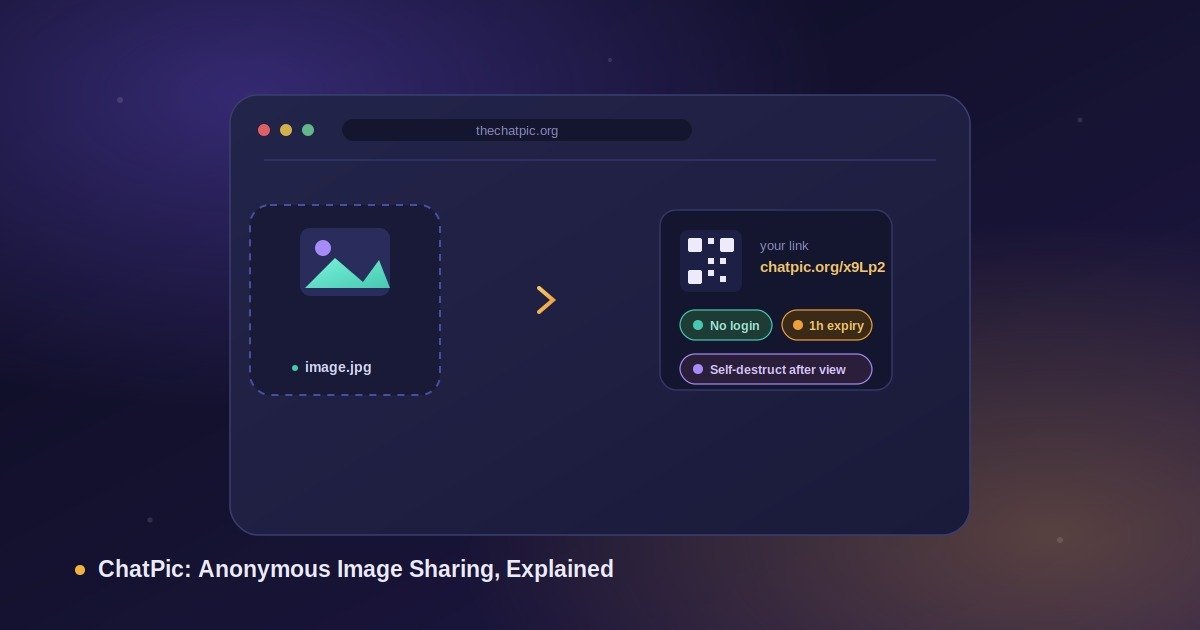
You drop a photo in, get a private link back, and that’s the whole interaction — no account, no email, no settings panel to dig through first. ChatPic is built around that one idea: sharing a picture shouldn’t require building a profile first. Upload a file, pick how long the link should live, and send it anywhere.
Most people use it for exactly that and stop there, which is fine — it works in under fifteen seconds. But there’s more sitting underneath the simple upload box: automatic metadata stripping, a self-destruct option, QR-code generation, and an actual moderation policy, which is more than most “anonymous” tools online can say. This guide walks through what ChatPic is, how it works, where it’s genuinely useful, and the habits worth building so the privacy side of it actually holds up.
What Is ChatPic and How Does It Actually Work?
ChatPic is a free, no-signup tool for sharing a single image and getting back a short, disposable link. You upload a JPG, PNG, GIF, or WebP file up to 5MB, the tool compresses it for fast loading, strips out its hidden metadata, and returns a link plus a scannable QR code. Nothing about the process asks who you are, so there’s no profile, no upload history tied to an account, and nothing for the platform to leak later because there was never anything personal collected in the first place.
Three things happen in the background between your click and the link showing up:
- Client-side compression — the image is resized and compressed in your browser before it’s sent, which is why uploads and downstream loading are fast even on a slow connection.
- Metadata stripping — re-encoding the file removes EXIF data as a byproduct: GPS coordinates, camera or phone model, and the original timestamp all get dropped. The copy your recipient opens is clean.
- Link and QR generation — a short URL and a matching QR code are generated together, so you can paste the link into a chat or just hold your phone up for someone to scan.
A quick note on the name
“ChatPic” has more history attached to it than the simple upload box suggests, and it’s worth clearing up. The original chatpic.org launched around 2014 as an anonymous image board and grew into a genuinely large platform — Discord servers, Reddit threads, and random forums all used it because you could drop an image and move on without any friction. That same lack of friction was also its undoing. With no identity checks and almost no moderation, the site had no real way to catch or remove illegal content, and by 2022–2023 that turned into serious legal exposure, including complaints to the National Center for Missing and Exploited Children and formal action in Greece. The original site went offline permanently in November 2023.
A handful of unrelated sites picked up the “ChatPic” name afterward, including thechatpic.org, which is what this guide is describing. It’s an independent rebuild with the safeguards the original never had: a published moderation policy, DMCA process, and content rules, alongside the same upload-and-link simplicity. If you’re trying to map out exactly what’s different between the two eras, the old-vs-new comparison goes through it point by point.
How to Use ChatPic: Step-by-Step
Sharing an image takes four steps and well under a minute once you know the flow.
Step 1 — Add your image
Click the upload area to browse your device, or drag a file straight onto it. ChatPic accepts JPG, JPEG, PNG, GIF, and WebP, with a 5MB cap per image — enough for nearly any photo or screenshot without needing to compress it manually first.
Step 2 — Set the caption and expiry
A caption is optional. The expiry setting matters more: choose 1 hour, 1 day, 1 week, or never. If the content is sensitive — a one-time code, a private screenshot, anything you’d rather not have sitting on a server indefinitely — switch on self-destruct so the link stops working the moment it’s opened once.
Step 3 — Upload
Hit upload. ChatPic compresses the file, strips its metadata, and generates the link and QR code together, usually in a couple of seconds.
Step 4 — Share or scan
Copy the short link, use your device’s native share sheet, or let someone scan the QR code directly off your screen. The link opens for anyone on any browser and any device — nobody on the receiving end needs an account either.
There’s no login-protected dashboard listing your past uploads, and that’s intentional rather than a missing feature. Anonymity here comes specifically from not retaining anything that ties a file back to a person, which means there’s also nothing to “manage” after the fact. If you uploaded something and want it gone early, the permanent deletion guide walks through every option — short version, self-destruct at upload time is the cleanest approach by far. The question of whether ChatPic requires a login anywhere in the flow comes up a lot too; it doesn’t, anywhere, by design.
Is ChatPic Safe to Use in 2026?
Safety here breaks into two separate questions, and they’re worth answering separately.
Is the platform itself safe? A modern ChatPic-style tool is reasonably safe when it strips metadata automatically, publishes a real moderation and takedown policy, and never asks for personal information — which describes thechatpic.org’s actual setup. The bigger risk is the mirror-and-clone problem: after the original chatpic.org shut down, a few unofficial copies appeared claiming to revive it “as it was.” Those deserve real suspicion. A legitimate tool doesn’t need surprise download prompts, fake “install” buttons, or a request for your email just to view an image — and it publishes an actual privacy policy with a real contact route, not just a placeholder page.
Is sharing through it safe for you? No web-based tool can promise total anonymity. Your internet provider, employer network, or anyone monitoring traffic at the network level can still see that you visited the site, even though the site itself stores nothing identifying about you. For routine sharing — a meme, a product photo, a screenshot for a friend — that distinction doesn’t matter much. For higher-stakes situations, adding a network-level layer closes that gap; the Tor and VPN guide covers how to set that up properly.
Legality is the third piece, and it depends entirely on what you upload rather than the act of using the tool. Anonymous image sharing itself is lawful in most countries; the content is what determines whether you’re in the clear. A country-by-country breakdown lives in the legal status guide if that’s relevant to your situation.
Practical Use Cases: Where ChatPic Actually Saves Time
ChatPic shows up across a wider range of everyday tasks than the name might suggest. These are the ones that come up most.
- Reddit and Discord. A direct image link previews inline on both platforms without forcing anyone through an account gate. It also keeps the image off your personal Reddit upload history, which matters if you’d rather not have everything you’ve ever posted tied to one username. Step-by-step walkthroughs exist for sharing on Discord and posting on Reddit specifically.
- Marketplace listings. Sellers on eBay, Etsy, and Facebook Marketplace use it to host product photos and drop clean links into descriptions and buyer messages, skipping the folder-and-album management most platforms push you toward.
- Bug reports and screenshots. Capture a screen, upload it, and paste the link into a Jira ticket, a GitHub issue, or a Slack thread in a few seconds — faster than attaching a file to a tracker that has its own size limits and upload quirks.
- WhatsApp and Telegram at full resolution. Messaging apps compress images hard by default, which is a real problem for anything where detail matters. Sending a ChatPic link instead of the raw file preserves the original quality — useful for designers, photographers, or anyone sending something destined for print. This is also a case worth pairing with good UI and visual design practices if the image is part of a client deliverable, since a compressed proof can misrepresent the actual finished work.
- Client proofs and design previews. Send a proof on a short expiry, or set it to self-destruct, so the client sees it once and the link closes — a simple way to keep unfinished or unpaid work from circulating further than intended.
- Classic forums. phpBB, vBulletin, and XenForo communities still depend on external image hosting for anything embedded in a post. A direct link drops straight into an image tag without extra setup.
- Documentation and notes. Embedding a screenshot in Notion, Obsidian, or a GitHub README, or working around an email attachment limit, is the same upload-and-link pattern applied to a different context.
- General privacy-minded sharing. The largest group of users isn’t doing anything specialized — they’d just rather not add another entry to another company’s database for a single photo. Upload it, set an expiry, move on.
ChatPic vs. Mainstream Image Hosts
The honest comparison against something like Imgur or WeTransfer comes down to a trade-off rather than one tool being strictly better.
| Feature | ChatPic | Imgur | WeTransfer |
|---|---|---|---|
| Free to use | Yes | Yes | Limited |
| No signup required | Yes | No, for full use | Above a size cap |
| Automatic EXIF removal | Yes | No | No |
| Self-destruct / burn after view | Yes | No | No |
| Expiring links | Yes (1h/1d/1w/never) | No | Up to 7 days |
| QR code included | Yes | No | No |
| Best for very large files | No | Limited | Yes |
| Public community / discovery | No | Yes | No |
If the goal is a public community with comments, voting, and discovery, Imgur is the better fit — that’s not what ChatPic is trying to be. If the job is moving a multi-gigabyte batch of files, a transfer service built for that volume makes more sense. For a single image shared quickly, privately, and without leaving a permanent record, ChatPic covers that specific gap in a way the bigger platforms don’t, mainly because metadata stripping and disappearing links were never priorities for them. The fuller breakdown sits in the ChatPic vs. Imgur comparison.
It’s also worth knowing the name itself isn’t exclusive. Several unrelated sites currently use “ChatPic” or close variants, none connected to each other or to the original chatpic.org. They vary in approach — some lean toward extra controls like password protection and view-count limits, others are closer to pure documentation of the original platform’s history. None of that confusion is unique to this space; plenty of shut-down brand names get reused by unrelated operators. The practical takeaway is the same one that applies to any tool handling personal content: check the exact URL before uploading anything sensitive, and read whichever site’s actual privacy policy before trusting it with a file.
Privacy and Safety Best Practices
A tool only does part of the work — the rest comes down to habits, and these apply whether you’re using ChatPic or any comparable host.
- Default to short expiry. A link that lives for an hour is exposed for a fraction of the time one set to “never” is. Pick the shortest window that still works for what you’re sending.
- Use self-destruct for single-use content. One-time passwords, a private screenshot, anything that only needs to be seen once — closing the link after that first view removes the need to remember to delete it later.
- Send links through encrypted channels. Pairing a ChatPic link with Signal or another end-to-end encrypted messenger keeps the transmission itself private, not just the hosting.
- Don’t post private links in public spaces. A link is only as private as the place you paste it — dropping it into a public forum or unlisted-but-indexed page defeats the purpose.
- Add a network layer for anything high-stakes. Routing through Tor or a VPN closes the gap that hosting-level anonymity can’t, as covered in the maximum-privacy upload guide.
- Remember EXIF removal doesn’t erase what’s visible. A house number, license plate, or open document sitting in frame is still visible to anyone who opens the link, metadata or not. Crop or blur before uploading if that’s a concern.
Security habits like these aren’t unique to image sharing — the same layered thinking shows up in enterprise IT and cloud security practices, just scaled up. The principle is identical: minimize what you expose, control how long it’s exposed for, and don’t rely on any single layer to do all the work.
Content Moderation and Legal Compliance
This is the part the original chatpic.org never had, and it’s the actual reason a modern version of the tool can keep operating. A responsible image-sharing platform needs a public, enforced stance on a few things: prohibited content (child sexual abuse material, non-consensual intimate imagery, content promoting violence, malware payloads, and copyright-infringing material) has no place on the platform and gets removed when reported. Valid DMCA takedown notices get actioned through a documented process. Every uploaded image can be reported, reports get reviewed, and confirmed violations are escalated to the relevant authorities where the law requires it.
None of that erases personal responsibility, though. Anonymity isn’t legal cover — whoever uploads a file is still governed by the laws of their own jurisdiction, and that doesn’t change based on how the platform handles moderation. The terms and privacy policy spell out the specifics in full if you want the formal version.
A Short Glossary
- A few terms come up repeatedly around tools like this, and it’s worth being precise about what they actually mean.
- EXIF metadata — hidden data embedded in an image file: GPS coordinates, device model, and timestamp. Stripped automatically on upload.
- Self-destruct / burn after view — a link setting that disables the link the moment it’s been opened once.
- Expiring link — a URL with a built-in lifespan (1 hour, 1 day, 1 week) after which it stops resolving. “Never” is also an option if persistence is actually needed.
- Anonymous sharing — uploading and distributing a file without an account, email, or any identifying detail attached to the upload.
- Mirror / clone site — an unofficial copy of a shut-down platform, often with little to no moderation. Worth treating with caution by default.
Frequently Asked Questions
Is ChatPic free?
Yes, completely — no tiers, no upgrade prompts, no hidden charges for the core upload-and-link feature.
Do I need an account?
No. No email, no username, no password, no profile.
How long do links last?
Your choice at upload time: 1 hour, 1 day, 1 week, or never — plus the option to self-destruct after a single view regardless of the expiry chosen.
What file types and sizes are supported?
JPG, JPEG, PNG, GIF, and WebP, up to 5MB per image.
Is it actually anonymous?
No personal data is required and EXIF metadata is removed automatically. Network-level visibility — your ISP seeing that you visited the site — is a limit of any web tool, not something specific to this one.
Can I delete something after sharing it?
Setting self-destruct or a short expiry at upload time is the cleanest method. The full deletion guide covers every edge case.
Is using it legal?
Anonymous sharing itself is legal in most places; what you upload determines your actual legal exposure. See the legal status guide for specifics by country.
Something isn’t working — now what?
Most upload or link failures trace back to browser or network issues. The troubleshooting guide covers the common causes and fixes.
Does it work on mobile?
Yes, on iPhone, Android, and any desktop OS through a normal browser — no app required.
Final Takeaway
Strip away the privacy engineering and ChatPic is four steps: upload, set an expiry, get a link, share it. The metadata removal and self-destruct option do the actual privacy work quietly in the background, which means the only real discipline left on your end is picking the right expiry window and not pasting a private link somewhere public. For anyone weighing it against a mainstream host, the trade-off is straightforward — less community, less bulk-file capacity, considerably more privacy by default.
For deeper dives into specific scenarios — Discord and Reddit sharing, Tor and VPN setups, the full legal breakdown by country — thechatpic.org‘s guides section stays current as the tool and its policies evolve. For broader tech and software coverage beyond this one tool, the rest of this site’s tech section is worth a look too.
Disclaimer
This guide is for informational purposes and reflects independent research into the platform’s publicly stated features as of June 2026. No anonymous web tool can guarantee absolute anonymity — network-level observers may still see that a site was visited, even when the site itself stores nothing identifying. Features, file size limits, and policies may change over time; check ChatPic’s own terms and conditions and privacy policy for the current details before sharing anything sensitive. The author is not affiliated with nor paid by thechatpic.org unless explicitly stated otherwise.