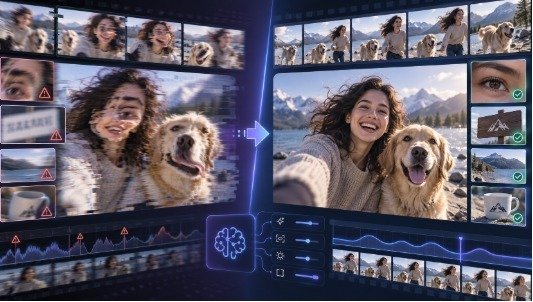
You upload a great-looking image, write a prompt, generate the video—and something immediately feels wrong.
The face changes halfway through. A product bends slightly. Background objects appear to move for no reason. The camera shakes when you wanted a smooth push-in. Text becomes unreadable. Or the entire scene moves so aggressively that the original image is barely recognizable.
These problems are common in AI image-to-video generation, but they are not always signs that you need a different tool.
In many cases, the issue begins before generation: the source image is difficult to animate, the prompt asks for too much movement, or the requested motion does not match the composition of the original image.
The good news is that small changes can make a significant difference.
Here is how to diagnose the most common image-to-video problems and improve your results without endlessly regenerating the same clip.
Start by Understanding What the Prompt Actually Needs to Do
One of the biggest mistakes in image-to-video generation is treating the prompt like a text-to-image prompt.
With text-to-image, the model needs you to describe the scene.
With image-to-video, the scene already exists.
The model can already see the person, product, landscape, lighting, colors, and composition in your uploaded image. What it needs from the prompt is primarily information about what changes over time.
Recent image-to-video prompting guidance consistently emphasizes this distinction: focus on motion rather than repeatedly describing what is already visible in the source image.
Instead of:
A beautiful woman standing by a window in a bright modern apartment wearing a blue dress with cinematic lighting.
Try:
The camera slowly pushes toward the subject. Her hair moves gently in the breeze while the curtains shift naturally behind her.
The second prompt gives the model something actionable.
It describes movement.
Problem: The Video Looks Chaotic
A common instinct is to put every idea into a single prompt.
You might ask the person to turn around, smile, walk forward, move their hands, while the camera circles them and the background changes.
That sounds creative on paper.
For a short AI-generated clip, however, it can be too much.
A still image only provides information about one moment. When you ask for several major actions, the model has to invent more unseen information: different body positions, hidden parts of objects, changing perspectives, and new background details.
The more it has to invent, the greater the opportunity for visual instability.
The Fix: Choose One Primary Movement
Begin with one main action.
For example:
Too much:
The woman turns around, walks toward the table, picks up a cup, smiles at the camera, while the camera circles around her.
Better:
The woman slowly turns her head toward the camera. Subtle hair movement. Stable camera.
Once a simple version works, you can gradually test more movement.
Runway’s own recent image-to-video guidance similarly recommends focused motion instructions instead of overloading a short generation with competing actions.
Problem: Faces Start Changing
Faces are especially noticeable when something goes wrong.
Even small changes to the eyes, mouth, jawline, hair, or facial proportions can make an otherwise impressive clip feel unnatural.
This often becomes more obvious when the requested movement is dramatic.
A close-up portrait, for example, may work well with subtle blinking, slight head movement, breathing, hair movement, or a gentle camera push.
The same portrait may struggle if you ask the person to turn completely around or rapidly move across the frame.
The Fix: Reduce the Amount of New Visual Information
With portraits, start conservatively.
Try prompts such as:
Subtle natural breathing, slight head movement, gentle blinking, slow camera push-in.
Or:
The subject remains facing the camera while a light breeze moves the hair naturally.
The objective is to let the model animate information that is already visible rather than forcing it to invent large amounts of missing facial geometry.
For identity-sensitive images, subtle motion is often more effective than dramatic motion.
Problem: Products Bend, Warp, or Change Shape
Product images create a different challenge.
A viewer may tolerate a small background variation, but they will quickly notice if a bottle changes shape, a shoe develops unusual geometry, or packaging suddenly looks different.
This becomes particularly important when the source image includes branded packaging.
The Fix: Move the Environment Instead of the Product
The product itself does not always need to perform the action.
You can create movement through:
- reflections;
- lighting;
- steam;
- water;
- particles;
- fabric;
- shadows;
- background movement; or
- camera motion.
Instead of:
The perfume bottle spins rapidly and flies toward the camera.
Try:
Slow camera push toward the perfume bottle. Reflections move subtly across the glass while soft light shifts in the background. The bottle remains stationary.
The result can still feel dynamic while requiring much less structural invention from the model.
Problem: Text and Logos Become Blurry
Text is difficult because even a small distortion is obvious.
A product label may look correct in the original image but begin changing once the scene starts moving. The same problem can affect signs, packaging, interface screenshots, posters, book covers, and other text-heavy images.
Recent image-to-video troubleshooting guides frequently identify logos and readable text as elements that benefit from lower motion and stronger preservation instructions.
The Fix: Keep Important Text Stable
Avoid dramatic movement involving the text-bearing object.
Instead, animate the camera or surrounding environment.
For example:
Slow, stable camera push. Keep the package shape, logo, and label unchanged and readable. Subtle background light movement.
Also consider whether the text actually needs to be generated as part of the video.
For professional advertising or branded content, another practical approach is to generate the motion first and add perfectly readable text later in a video editor.
Problem: The Camera Movement Feels Unnatural
Words such as cinematic, dramatic, or dynamic may describe a mood, but they do not clearly tell the model what the camera should do.
A model usually benefits more from specific movement instructions.
The Fix: Name the Camera Movement
Try phrases such as:
Slow push-in
The camera gradually moves closer to the subject.
Pull-back
The camera slowly moves away, revealing more of the environment.
Pan left or right
The camera moves horizontally across the scene.
Tilt up or down
The camera moves vertically.
Static camera
The viewpoint remains fixed while elements inside the scene move.
Gentle orbit
The camera moves partially around the subject.
Do not automatically choose the most dramatic camera move.
Match the movement to the image.
A close portrait often benefits from a gentle push-in.
A wide landscape may support a slow pan.
A centered product photograph may work well with a restrained push or subtle orbit.
The source image should guide the movement—not the other way around.
Problem: The Source Image Is Working Against the Animation
Prompts get much of the attention, but the source image matters just as much.
A confusing image gives the video model a difficult starting point.
Imagine an image containing several people, overlapping hands, tiny faces, complex reflections, partially hidden objects, text, and a crowded background.
Now ask the model to animate everything.
There are many places where the scene can become unstable.
The Fix: Start With a Cleaner Image
When possible, choose a source image with:
- one obvious primary subject;
- clear subject boundaries;
- enough resolution to preserve important details;
- visible facial features when animating people;
- simple composition;
- consistent lighting; and
- sufficient space for the intended movement.
You do not always need the highest-resolution image available.
You need an image that is easy to interpret.
Problem: The Subject Moves Outside the Natural Composition
The starting image determines where everything exists at the beginning of the video.
If a person is already positioned against the far-right edge of the frame, asking them to walk further right gives the model very little visual space to work with.
If you want major motion, plan for it before generation.
The Fix: Match Motion to Available Space
Look at the image as if it were the first frame of a real video.
Ask:
Where can the subject logically move?
How much room exists around them?
What would the camera reveal if it moved?
Does the image contain enough visual information for the requested action?
A good image-to-video prompt works with the composition rather than fighting against it.
A Simple Prompt Formula That Solves Many Problems
You do not need an extremely long prompt.
A practical structure is:
Camera movement + subject movement + environmental movement + pace
For example:
Slow camera push-in. The subject turns slightly toward the window. Hair moves gently in the breeze. Curtains shift softly in the background. Calm, natural pacing.
For a product:
Static camera. Steam rises slowly behind the coffee cup while warm light moves subtly across the table. Gentle realistic motion.
For a landscape:
Slow forward camera movement. Clouds drift gradually across the mountains while grass moves lightly in the wind. Peaceful natural pacing.
These prompts describe what changes instead of rewriting the source image.
Once your source image and motion prompt are clean, you can test the workflow in the image-to-video platform you prefer; Vidou.ai is one browser-based option for experimenting with prompt-guided motion from a source image.
Do Not Change Everything After a Bad Generation
Another common mistake happens after the first result.
The clip does not look right, so the creator rewrites the entire prompt.
Now five variables have changed at the same time.
Even if the next result improves, it is difficult to know why.
Change One Variable at a Time
A better workflow looks like this:
Generation 1:
Slow camera push-in + subject turns head + hair movement.
Face changes too much.
Generation 2:
Keep everything the same, but reduce the head movement.
If that improves identity stability, you have learned something useful.
Next, perhaps reduce the camera movement.
This approach turns prompting into controlled iteration rather than random regeneration.
Recent prompting guides recommend the same basic debugging principle: preserve what worked and change individual elements instead of rewriting the complete prompt after every attempt.
Better Results Usually Come From Better Constraints
AI video prompting can feel as though more detail should always produce a better result.
Often, the opposite is true.
The strongest image-to-video prompts give the model enough direction to understand the motion while limiting unnecessary decisions.
One clear action is often better than four actions.
One appropriate camera movement is often better than several.
Subtle motion may preserve a face or product better than dramatic movement.
And a clean source image can solve problems that no amount of prompt rewriting will fix.
The goal is not to describe everything that could possibly happen.
It is to give the model a believable next moment.
Once you start treating the uploaded image as the first frame of a video rather than simply a picture that needs animation, prompt writing becomes much easier.
Look at what the image already provides, decide what should logically change, and keep the first generation controlled.
Then build from there.
That simple shift can turn a frustrating cycle of warped, unstable clips into a much more predictable creative workflow.
Disclaimer: The information provided in this article is for general informational and educational purposes only and does not constitute professional video production, technical, or AI advice. AI video tools, model capabilities, and prompting best practices change frequently. Readers should verify current features and guidelines with each platform. The author and publisher disclaim all liability for content creation outcomes, technical issues, or financial losses arising from reliance on this content. Always test workflows and follow platform terms of service.
Unlock a world of practical wisdom—browse our real-world guides and handle life with greater confidence.