Three hours building 150 Spanish vocabulary flashcards on Quizlet. Your students want to play Blooket. The thought of retyping every single term and definition feels like punishment — and it should, because you don’t have to do it.
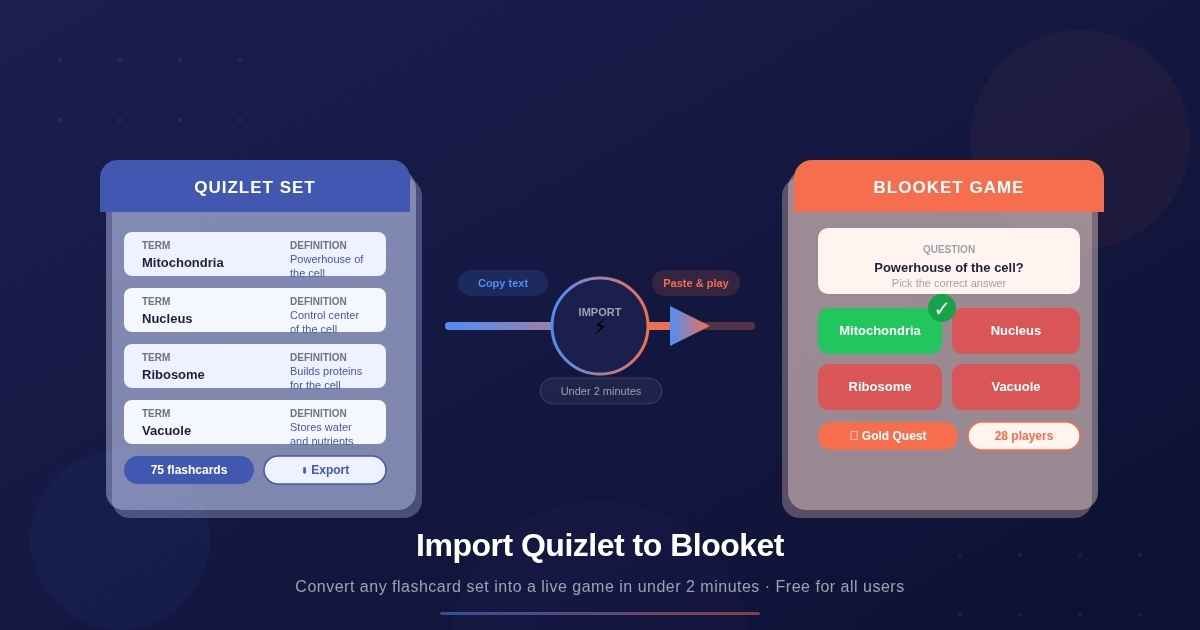
Blooket includes a built-in Quizlet import feature that converts a complete flashcard set into a ready-to-play question library in under two minutes, free for all account types. To import Quizlet to Blooket, you export your set from Quizlet as plain text, paste it into Blooket’s import box, and click “Add Questions.” That’s the whole process. This guide covers all eight steps in detail, including the critical export stage most tutorials rush past, plus exactly what to do after the import so your set actually runs well in a game.
This is an independent guide for teachers and students — not the official Blooket website. For official documentation, visit help.blooket.com.
Can you import Quizlet to Blooket?
Yes, and it is one of the most practical time-saving features Blooket offers. Blooket includes a native Quizlet import tool available on all free accounts — no Blooket Plus subscription needed. A 75-term vocabulary set imports in roughly 45 seconds. A 200-term set takes about two minutes, including a quick review pass afterward.
The import works by converting Quizlet’s term-definition structure into Blooket’s question-answer format. Each Quizlet “term” becomes an answer choice by default, and each Quizlet “definition” becomes the question prompt. Blooket then auto-generates three distractor choices for each question by sampling similar vocabulary from the same set.
One firm restriction applies: you can only import public Quizlet sets. Private sets block the export function Blooket needs. Sets built using Quizlet Plus premium features may also restrict copying unless you hold a Quizlet Plus account yourself.
What you need before starting
Before the actual import from Quizlet to Blooket begins, confirm you have access to the right accounts and content. The process connects two platforms, and one missing piece on the Quizlet side stops everything before it starts.
Here is what you need:
- A Blooket account — the free tier works fine; access it through the Blooket dashboard after logging in
- A Quizlet account with access to the set you want to import
- The Quizlet set must be public — private sets cannot be exported
- A desktop or laptop browser — the copy-paste flow between two tabs is awkward on phones
You do not need Blooket Plus. You also do not need Quizlet Plus for standard public sets. The premium restriction only applies if the original set was built using Quizlet’s paid tools.
How to import Quizlet to Blooket: step by step
These eight steps take under five minutes total, whether you are working from a set you own or pulling in a public set from another teacher. Step 5 is where most first-time importers get stuck — read it carefully before you start rather than discovering the problem mid-process.
Step 1: Log in and open the Create page
Sign in to your Blooket account at blooket.com using Google, Apple, or email — whichever option you chose at signup. Once inside your Blooket dashboard, click Create in the top navigation bar. The Set Creator page shows three options: Manual Entry, CSV Import, and Quizlet Import.
Step 2: Select Quizlet Import and name your set
Click Quizlet Import. A title field and description field appear above the creation method selector.
Add a title that includes subject and topic. “Chemistry: Periodic Table Review” is easier to locate in a library of 50 sets than “Quiz 3” or “Unit 5.” Add a short description if you regularly build large libraries — it surfaces correctly in search later.
Click Create Your Set.
Step 3: Choose “Your Quizlet” or “Search Quizlet”
Blooket presents two source options:
- Your Quizlet — imports from sets in your personal Quizlet library
- Search Quizlet — lets you browse any public set by keyword or topic
Select one. A new browser tab opens. If you are not already signed into Quizlet, you’ll be prompted to log in before proceeding.
Step 4: Find the set in your Quizlet library
Inside the Quizlet tab, navigate to your library and locate the target set under “Flashcard sets.” If you’re importing a public set created by someone else, you must save a copy to your library before you can export it. Click the three-dot menu on that set and choose Make a copy.
If “Make a copy” is unavailable, the set uses Quizlet Plus premium features. You need a Quizlet Plus account to copy it.
Step 5: Export the set — the step most guides skip
Do not copy the Quizlet page URL and paste it into Blooket. That approach fails. Blooket reads tab-separated plain text, not URLs.
Inside the Quizlet set page, click the three dots below the set name. Select Export from the dropdown. This opens the export settings dialog.
If Export is not visible:
- The set is not in your library yet — go back and use “Make a copy” first
- The set owner has restricted sharing
- The set uses Quizlet Plus premium features that block export for free accounts
Step 6: Copy the plain text from the export dialog
Inside the export dialog, keep the default settings:
| Setting | Recommended value |
|---|---|
| Between term and definition | Tab |
| Between rows | New line |
| Random Order | Unchecked |
Click Copy text. Quizlet copies all terms and definitions to your clipboard as tab-separated plain text — one flashcard per row, term on the left, definition on the right.
Step 7: Paste into Blooket and check the column layout
Switch back to your Blooket browser tab. Paste the copied text into the import text box. Blooket shows a two-column preview:
- Left column (default): Quizlet terms → these become the answer choices in Blooket
- Right column (default): Quizlet definitions → these become the question prompt
This default layout works well for most vocabulary and science sets, where students read a definition and choose the correct term.
If you want the term to appear as the question prompt — for example, showing the word “Mitochondria” and asking students what it does — tick the Flip questions and answers checkbox before proceeding.
Step 8: Click “Add Questions,” review, and save
Click Add Questions. Blooket processes the import and brings you to the Set Edit page.
Before hitting Save, take 10 minutes to review:
- Scroll through every question and check the three auto-generated distractors for each
- Look for definitions that truncated mid-sentence — very long answers sometimes cut off near the 200-character mark
- Identify term-only prompts you want to rewrite as full questions before hosting
Click Save Set. The imported set now lives in your Blooket library, ready to host as any game mode.
How to import Quizlet into an existing Blooket set
If you already have a Blooket set with 30 manual questions and want to add 20 more from Quizlet, you do not need to start over. Blooket’s Quizlet import option works on the Set Edit page of an existing set, appending new questions without touching the originals. Most guides miss this entirely.
Open your Blooket dashboard and find the existing set. Click the pencil icon to open Set Edit. Near the top of the question list, look for the Quizlet Import button — it sits beside the manual “Add Question” option.
Click it. The same export-copy-paste flow from Steps 3–7 applies exactly. The only difference is the outcome: instead of creating a new set, Blooket appends the imported questions to the bottom of your existing set. All original questions stay intact.
This method is clean for combining teacher-built intro questions with a Quizlet vocabulary list covering the same unit — no manual re-entry, no duplicate sets to manage.
What to do after the import
The two-minute import is the easy part. The next 10–15 minutes of review and setup determine whether your imported set actually plays well when students are in the game. Three areas need attention after every import: distractor quality, game mode selection, and question phrasing.
Reviewing auto-generated distractors
Blooket auto-generates three wrong answer choices for each question by sampling other terms from the same set. For large, varied sets (75+ terms), this usually produces reasonable distractors. For smaller sets or sets with near-synonyms, the results can be unreliable.
Common issues found across multiple imported sets:
- A distractor that is technically also a correct answer (two synonyms treated as separate terms in the source Quizlet set)
- Distractors that are clearly unrelated, making questions too easy to guess correctly without any subject knowledge
- The correct term appearing as both the answer and a distractor — Blooket catches this most of the time, but not always
From the Set Edit page, click the pencil icon on any question to edit its four answer choices manually. On average, about one in eight imported questions needs at least one distractor adjustment. Skipping this step and discovering an error mid-game is far more disruptive than fixing it beforehand.
Which Blooket game modes work best for imported sets
Not every game mode suits every type of content. Here is what holds up in practice across different subjects, based on running imported sets through live Blooket sessions:
| Content type | Best game mode | Why it works |
|---|---|---|
| Foreign language vocabulary | Gold Quest | Fast rounds reward quick recall; short terms keep answers readable |
| Science definitions | Tower Defense | Slower pace suits longer definitions; students read more carefully |
| History dates and events | Battle Royale | Elimination pressure keeps focus sharp on accuracy |
| Math facts | Café | High question repetition suits short arithmetic answers |
| Literary terms and concepts | Factory | Medium pace; readable for 150–200 character definitions |
| Geography and capitals | Racing | Competitive format suits single-word factual answers |
If you are running an imported set for the first time and are unsure which mode to choose, Gold Quest is the safest default for vocabulary-type content. It works with any class size and rarely causes confusion about the game mechanics themselves.
Rephrasing term-only prompts as full questions
Quizlet terms are often single words: “Mitochondria.” As a Blooket question prompt, that single word shows students four definitions and asks them to choose — which can work, but it becomes pattern-matching after a few rounds.
A stronger version: “Which organelle produces ATP through cellular respiration?” Same concept being tested. Significantly higher cognitive demand.
After import, identify the 20–30 highest-value questions in your set and rewrite them as complete interrogative sentences. Leave lower-priority terms in their original format. For a 100-question set this takes about 8 minutes and noticeably improves how the game plays.
Quizlet import vs CSV import vs manual entry
Blooket gives you three paths to build a question set. Knowing when to use each one saves real setup time over the course of a school year.
Quizlet import is always the fastest option when your content already lives in Quizlet. CSV import makes more sense when your source is a spreadsheet, because you control the exact formatting from the start. Manual entry is for building from scratch or when images are central to the question. The Blooket question bank guide explains how to search and pull from Blooket’s community library as a fourth option.
| Method | Best for | 50-question setup time | Image support | Free? |
|---|---|---|---|---|
| Quizlet Import | Existing Quizlet flashcard sets | 2–3 minutes | Rarely transfers | Yes |
| CSV Import | Google Sheets or Excel content | 8–12 minutes | Yes, via image URLs | Yes |
| Manual Entry | New sets built from scratch | 35–50 minutes | Yes, full upload | Yes |
| Question Bank | Discovering community-built sets | Under 1 minute | Yes | Partial (copy = Plus) |
For most classroom use cases, Quizlet import and CSV import cover the majority of real-world scenarios. Manual entry is reserved for situations where neither format quite fits.
Common mistakes and how to fix them
Most import problems trace back to the same handful of errors. All of them are avoidable. Knowing them in advance saves the frustration of troubleshooting during prep time.
Pasting the Quizlet URL instead of exporting the text
The most common mistake by a wide margin. Many users copy the Quizlet set URL and paste it into Blooket’s import text box, expecting Blooket to fetch data from the link automatically. It doesn’t. Blooket reads tab-separated plain text, not URLs, and returns an error or blank import every time.
Fix: Use Quizlet’s Export function every time. Three dots → Export → Copy text → paste into Blooket. The URL plays no role.
Trying to import a private Quizlet set
Private sets don’t display the Export option. The set is locked from any external access, including Blooket’s import process.
Fix: Change the target set’s privacy setting to Public inside Quizlet (Settings → Privacy), then export. If the set belongs to someone else, ask them to share a public copy or send you the exported text directly, which you can then paste manually into Blooket.
Skipping the distractor review after import
Auto-generated wrong answers are imperfect, and skipping the review means students encounter errors mid-game. In one sixth-grade biology class, three imported questions had distractors that were technically correct — students noticed mid-game and the confusion stalled the session for several minutes.
Fix: Always spend 10 minutes on the Set Edit page after every import. Check all four answer choices on each question before hosting.
Importing a set that uses Quizlet Plus premium features
Sets built with Quizlet Plus tools — certain image types, audio, advanced diagrams — often block the copy and export functions for free-tier Quizlet users.
Fix: Check whether the set was created with Plus features. If it was, you either need a Quizlet Plus account to copy it, or you rebuild the text-only portion using Blooket’s manual entry or CSV import instead.
Expecting images and audio to transfer
They don’t. Quizlet images occasionally appear as broken image links in Blooket; audio never transfers. Only plain text moves cleanly through the import.
Fix: After importing, open the Set Edit page and add images manually using Blooket’s built-in image upload. Keeping a subject-specific folder of frequently used diagrams — cell structure, map outlines, grammar charts — makes this fast. Budget five extra minutes for image-heavy sets.
Importing sets larger than 300 terms
Very large Quizlet sets occasionally time out during the paste-and-process step. Most sets never hit this limit, but anything over 300 terms is at risk.
Fix: Split the Quizlet set into sections of 150–200 terms. Export each section separately and import into individual Blooket sets. Then use the set merge feature available from the Set Edit page to combine them into one complete set.
FAQs
Is importing Quizlet to Blooket free? Yes. The Quizlet import tool is available on all Blooket free accounts with no upgrade required. You also don’t need Quizlet Plus for standard public sets. The premium restriction only applies if the original set was built using Quizlet Plus features such as audio, advanced diagrams, or certain image types.
Why don’t I see the Export option in Quizlet? Export only appears for sets saved to your personal Quizlet library. If the set belongs to someone else, save a copy first using the three-dot menu → Make a copy. If “Make a copy” is grayed out, the set uses Quizlet Plus premium features that block copying for free accounts.
Can I import Quizlet to Blooket from a phone or tablet? Technically yes, but the copy-paste flow between two browser tabs is clumsy on small screens. A laptop or desktop gives a significantly cleaner experience. Teachers building sets before class should use a computer. Students importing for personal solo practice can manage on mobile, though it takes more patience.
Will my Blooket set sync automatically if I update the original Quizlet set? No. The import creates a one-time snapshot. Changes made to the original Quizlet set after import do not carry over to Blooket. To reflect updates, re-import the revised set. You can add it to your existing Blooket set as an append or replace the old version entirely by creating a new set from the updated export.
How many questions can I import at once? Blooket handles up to roughly 300 questions per import session reliably. Sets larger than that may time out during processing. Split anything over 300 terms into chunks of 150–200 terms, import each separately, and then use the set merge feature from your Blooket dashboard to combine them into one set.
Can I import another teacher’s public Quizlet set? Yes. Any set with public privacy is accessible to any Quizlet user. Inside the Blooket import flow, use Search Quizlet, find the set, save a copy to your library via Make a copy, then export and paste using the standard steps. Always review a public set for accuracy before hosting — anyone can publish a Quizlet set and public sets are not fact-checked.
What does “Flip questions and answers” actually do? By default, Blooket displays the Quizlet definition as the question prompt and the term as the correct answer. Ticking “Flip questions and answers” reverses this, so the term becomes the prompt and the definition becomes the correct answer. Use the flip option when your terms are more self-explanatory than the definitions, or when showing a vocabulary word and asking for its meaning is the stronger pedagogical direction.
Can I add more questions to an imported set later? Yes. Open the set from your dashboard, click Edit, and use any of the three input methods — manual entry, another Quizlet import, or CSV upload — to add questions. All input types coexist in the same set without formatting conflicts. There is no limit on how many times you add to the same set.
Final thoughts
Learning how to import Quizlet to Blooket removes the single biggest friction point for teachers who already have study material in flashcard form. A 100-term vocabulary set that would take 45 minutes to type manually imports in roughly two minutes. Across a full school year with 8–10 units, that adds up to hours of saved prep time.
The export step — three dots, Export, Copy text — is the only real stumbling block. Get that right and the rest of the process is straightforward. Then spend your saved time on distractor review and game mode selection. Those two post-import decisions determine how well the session actually runs.
Once your set is ready, the Blooket host guide walks through every setting you need for a smooth live game. To explore more classroom strategies, game mode breakdowns, and question set tips, browse the independent Blooket guides on blooket.it.com.
Elevate your everyday life — explore fresh insights that make a difference.