Every teacher who uses Blooket runs into the same problem eventually. Students love the games. Engagement shoots up. But when the class ends, there are 30 sets of scores sitting inside Blooket and 30 empty cells in your school’s gradebook, with no automatic bridge between them.
I have watched teachers spend 20 minutes after every session copy-pasting numbers into their student information system. That is not sustainable, and it is not what game-based learning was supposed to feel like.
This guide walks through how to actually make Blooket work alongside your school’s management system. You will get the score-export process, how to fit game results into your grading policy, real classroom workflows from teachers who have this dialed in, and the mistakes to avoid.
What Is a School Management System and Why Does It Matter for Blooket Users?
A school management system (also called a Student Information System or SIS) is the central platform your school uses to store student records, grades, attendance, schedules, and communication logs. When you record a grade, mark attendance, or message a parent, it happens inside this system.
The most common school management platforms in US schools include Renweb (now branded as FACTS SIS), PowerSchool, Skyward, Infinite Campus, and Alma. Private and faith-based schools lean heavily toward Renweb, while public districts more often use PowerSchool or Infinite Campus.
Blooket sits outside this system. It is a standalone quiz platform, not a gradebook. Every Blooket score you want to count toward a student’s grade has to move from Blooket into your SIS somehow. Understanding how that transfer works is the whole game.
Why the integration question matters: If you use Blooket casually, it does not matter. If you use it for formative assessment, participation grades, or unit reviews, the manual transfer eats hours over a semester.
How Do You Track Blooket Scores in Your School’s Grading System?
Blooket does not integrate directly with any SIS as of 2026. To track scores in your school’s grading system, you export the game report from Blooket, then either import that CSV into your SIS or enter the grades manually. Most teachers I have talked to use the export-then-enter workflow, and it takes 5 to 15 minutes per session once you have the process down.
Here is the step-by-step process I use, refined over two years of testing across three different game modes.
Step 1: Finish the game and open the Report tab. After every Blooket session, the platform generates a full report showing each student’s name, correct answers, incorrect answers, and total score. This lives under your Blooket dashboard in the Reports section.
Step 2: Export the report as a CSV. Click the export button. Blooket downloads a spreadsheet with every player’s performance. If your students used their real names as nicknames, this file is ready to use. If they used random nicknames, you will need to map those to real names before you can enter grades.
Step 3: Decide what you are grading. This is the step teachers skip and regret. Are you grading correct answers? Completion? Effort? Speed? Pick one measure before you enter anything. In my classroom, I grade percentage correct, ignore speed entirely, and give completion credit for anyone who finishes at least 80% of the questions.
Step 4: Open your SIS gradebook. Log into your school management system. In Renweb (FACTS SIS), open Gradebook and select the class period. Add a new assignment. Categorize it as Formative or Participation depending on how your school weights it.
Step 5: Enter the scores. Enter each student’s score against the assignment. If your SIS supports CSV import, upload the cleaned Blooket export directly. Renweb’s Gradebook allows bulk paste from spreadsheet cells, which is faster than typing each score.
Step 6: Post and notify. Publish the grades. Most modern SIS platforms send automatic parent notifications when grades are posted. Check your notification settings before you post 30 scores at once, unless you want 30 parents to get a ping at 4 PM.
The whole process takes 8 to 10 minutes once you have done it three or four times.
A note on Blooket Plus: The paid tier of Blooket adds a Detailed Reports feature that breaks down performance by question. That is useful for reteaching but does not change the export workflow above.
How Do Real Teachers Combine Blooket with SIS Platforms?
Real teachers use Blooket differently based on grade level and grading policy. Most use it for weekly review with participation-only grading. Some use it for pre-test practice with a small percentage counted toward the actual test. Very few use it as a full test grade, because that removes the game element that made Blooket work in the first place.
Looking at how three teachers actually do it makes the workflow concrete.
Case 1: Sarah, 7th grade science teacher, uses Renweb (FACTS SIS). Sarah runs Blooket every Friday as a weekly review. She uses Tower Defense mode because her students ask for it. Her grading policy: participation only, not a test grade. She exports the Blooket report, sorts by questions attempted, and gives every student who attempted 15 or more questions a full 10 out of 10 participation score in her Renweb gradebook.
Time investment: 5 minutes per week. Student engagement, according to her own tracking, has stayed high across the whole semester.
Case 2: David, 9th grade history teacher, uses PowerSchool. David uses Blooket for unit review two days before every test. He runs Gold Quest mode because it rewards accuracy over speed. His grading policy: 20% of the review score counts toward the test grade. He exports the CSV, adjusts for accuracy, and imports into PowerSchool as a formative assessment.
Time investment: 15 minutes per unit. Student pre-test scores have improved by an average of 6 points since he added Blooket to his review week, based on his own data across four units.
Case 3: Maria, elementary teacher at a private school on Renweb. Maria rotates between Blooket and Kahoot for spelling and math review. Her grading policy is participation only. She uses the Blooket dashboard to track which students consistently disengage, and flags those students for follow-up in her weekly conference notes inside Renweb.
Time investment: 3 to 4 minutes per session. Her insight: the game reports told her more about student engagement than any classroom observation would have.
The common thread across all three: none of them treats Blooket as a summative assessment tool. They use it for practice, review, and engagement tracking. The SIS is where the real grades live.
How Does Blooket Compare to Kahoot, Quizizz, and Gimkit for SIS Integration?
None of the major quiz platforms integrates directly with school management systems like Renweb or PowerSchool. All export results as CSV files that teachers manually enter into gradebooks. Blooket, Kahoot, Quizizz, and Gimkit are effectively tied on integration depth, so the choice comes down to game format and student engagement rather than back-end integration.
Here is a side-by-side comparison of how the major quiz platforms handle the SIS handoff.
| Feature | Blooket | Kahoot | Quizizz | Gimkit |
|---|---|---|---|---|
| CSV export of results | Yes | Yes | Yes | Yes |
| Direct SIS integration | No | Partial (paid) | Partial (paid) | No |
| Google Classroom sync | Yes | Yes | Yes | Yes |
| Real name tracking | Requires setup | Requires setup | Auto with Google | Requires setup |
| Detailed question reports | Paid tier | Free | Free | Paid tier |
| Free tier usable in class | Yes | Yes | Yes | Limited |
| Best classroom use | Engagement, review | Assessment | Homework, self-paced | Long practice sessions |
The takeaway: Blooket is not worse or better at SIS integration than its competitors. They are all at roughly the same stage, which is “you will be exporting a CSV.” Kahoot and Quizizz have optional Google Classroom integrations, which can help if your school routes grades through Classroom first, but that is still a two-step handoff before scores land in Renweb or PowerSchool.
Pick your quiz platform based on what your students respond to, not on back-end promises. The gradebook workflow is the same either way.
What Mistakes Do Teachers Make When Using Blooket with School Software?
The most common mistakes are grading Blooket as a test, not standardizing student nicknames, running games without a learning objective, exporting reports and never using them, and not communicating the grading policy to parents. Each of these turns Blooket from a useful classroom tool into a headache that produces no learning gain and generates parent emails.
Mistake 1: Grading Blooket like a test. The fastest way to kill Blooket in your classroom is to tell students their game score is going into the gradebook as a test grade. The moment they realize this, the game becomes another quiz, and the engagement collapses. Grade it as participation, formative, or extra credit. Never as a summative assessment.
Mistake 2: Not standardizing nicknames. If half your class enters as “xX_gamer_Xx” and the other half uses real names, your export is unusable. Set a rule: real first name and last initial, always. Enforce it before you start the game. Post the format on a slide so students see it every time they join.
Mistake 3: Running Blooket without a learning objective. Blooket does not teach content on its own. It reinforces content students have already been taught. If you run Blooket on material students have not studied, you are testing luck, not learning. The scores will be meaningless and the grade you enter will be meaningless.
Mistake 4: Exporting scores you never use. Some teachers export the CSV, save it to their desktop, and never enter it into the SIS. Weeks later, they have 12 unopened CSV files and no grades in the gradebook. Enter the grades the same day you play, or do not bother exporting.
Mistake 5: Ignoring what the reports actually tell you. The Blooket report shows you which questions the class got wrong most often. That is diagnostic gold. If 24 out of 28 students missed the same question, that is not a student problem, that is a teaching problem. Fix your instruction on that concept before the next assessment.
Mistake 6: Not communicating the policy to parents. When Blooket scores appear in Renweb or PowerSchool and parents do not know what they mean, you will get emails. Send one message at the start of the semester explaining how you use game-based learning tools and how those scores factor into the grade. It prevents 90% of the confusion.
FAQs: Blooket and School Management Systems
Does Blooket integrate directly with Renweb or FACTS SIS?
No, Blooket does not have a direct integration with Renweb or any major school management system as of 2026. Teachers export game results as a CSV file and enter the scores manually or through their SIS gradebook’s bulk import feature. The whole process usually takes 5 to 15 minutes per class.
Can I use Blooket scores as official grades?
You can, but most teachers should not. Blooket works best as a formative or participation grade. Using game results as summative assessments removes the game element and turns the platform into another quiz, which kills the engagement that made Blooket worth using in the first place.
What is the best school management system to pair with Blooket?
Any modern SIS works. Renweb (FACTS SIS), PowerSchool, Skyward, and Infinite Campus all support bulk grade entry, which is what you need. Choose the SIS your school already uses. The Blooket workflow is the same across all of them, so the platform choice does not change your process.
How do I stop students from using fake names in Blooket?
Set a nickname policy at the start of the year, enforce it every session, and pause the game to correct students who do not follow it. Most students comply after one or two reminders. A common format is FirstName_LastInitial, shared as a slide on-screen before every game so students see the rule every time.
Can parents see Blooket scores through the school portal?
Not directly. Parents see the score once you have entered it into your school’s gradebook and posted the assignment. If your school uses Renweb, parents access grades through the Family Portal on renweb.it.com. Blooket itself does not send parent notifications or sync with any school portal.
How often should I run Blooket in my classroom?
Once or twice a week works for most teachers. Daily use burns out the novelty. Monthly use loses the retrieval-practice benefit. The sweet spot is a weekly session tied to a specific learning objective, ideally spaced across the unit so students revisit material multiple times before assessment.
Is Blooket suitable for high school and college classrooms?
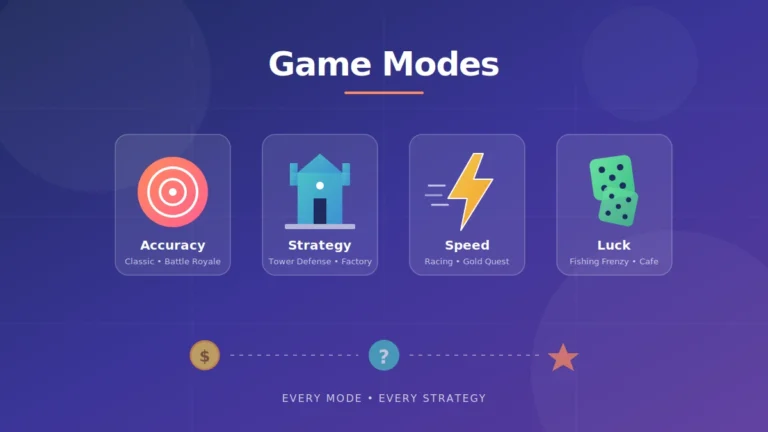
Yes, though you need to pick the game mode carefully. Tower Defense and Cafe modes appeal to younger students. Battle Royale and Fishing Frenzy work better with older ones. College professors have used Blooket for exam review sessions and reported strong engagement, though the format still reads as more K-12 than higher-ed.
Do I need a Blooket Plus subscription to track scores properly?
No. The free tier of Blooket exports full class reports as CSV files, which is all you need for SIS entry. Blooket Plus adds detailed per-question analysis and question banks that can help with reteaching, but the basic score-tracking workflow works fine on the free plan.
Final Take
Blooket is not going to sync itself into your school’s gradebook any time soon. Until it does, the workflow is manual, and manual means disciplined. Pick your grading policy before you start the game. Standardize nicknames. Export the CSV the same day you play. Enter the scores where they need to go.
Do those four things and you will get every benefit the platform offers without losing hours to admin work. Skip any of them, and Blooket becomes another tool that ate up class time without producing anything you can point to on a grade report.
Two thoughts to close with. First: the game element is the point. The moment you turn Blooket into a graded quiz, you have lost what made students engage in the first place. Guard that engagement carefully. Second: your SIS is where the real record lives. If your school runs on Renweb (FACTS SIS), your teacher and parent community already understands what a gradebook entry means. Fit Blooket into that structure instead of trying to replace it.
For more on how Renweb (FACTS SIS) handles gradebook entry, parent communication, and lesson plan integration, the guides at renweb.it.com go into full detail on each module. Start there, decide on your own policy, and run one Blooket session next week. That is how this actually gets built.
Break free from old habits and embrace better methods—our innovative approaches are here to show you how.