You paste a detailed question into Blooket, hit save, and half of it disappears. The platform trims your text without any error message.
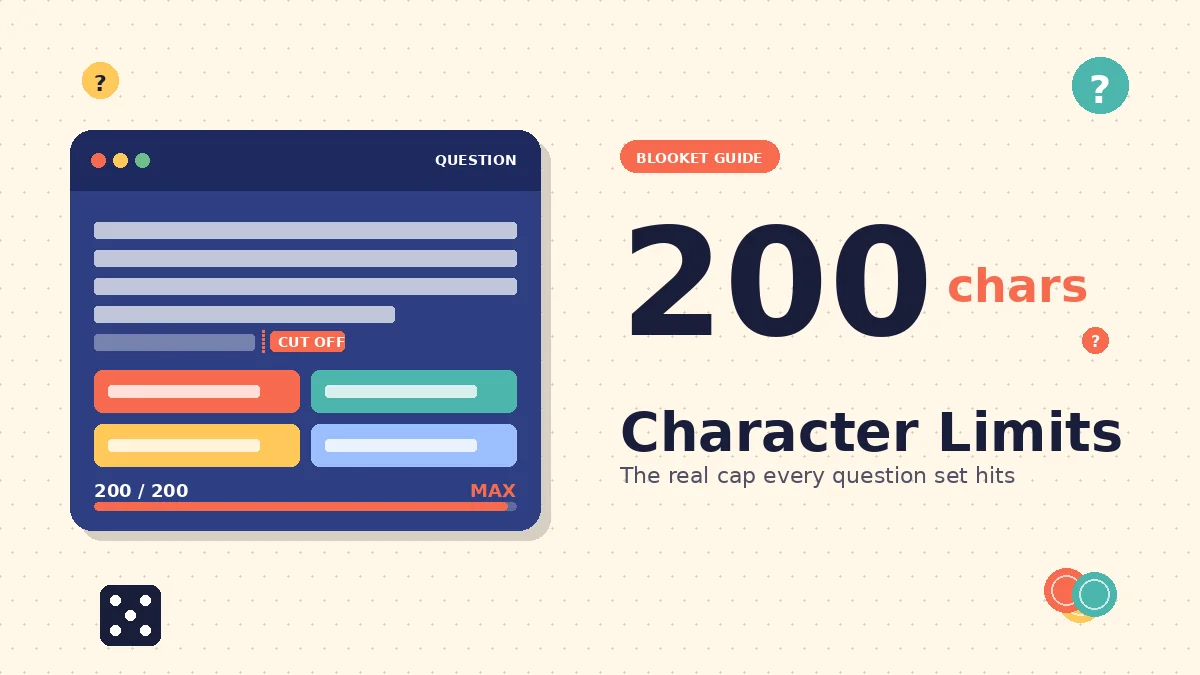
Blooket character limits cap question text at roughly 200 characters, answer choices at 80 to 100 characters each, and typing responses at around 50 characters for clean mobile display. These numbers are not published in official help docs, so most teachers only find out the hard way during a live game.
After building over 200 question sets across six school years, I’ve mapped where the platform truly cuts you off and where the practical limit is stricter than the technical one. This guide covers exact character caps for every field, how limits shift by game mode, and the design habits that keep your sets running smoothly on any device.
What are Blooket’s actual character limits?
Blooket does not publish an official character count anywhere in its help documentation, which is why so many forum guesses exist. Direct testing across multiple question sets gives us the real numbers. Question text caps out around 200 characters, answer choices become unreadable past 100, and typing responses lose usability past 50 characters on smaller screens.
Multiple choice question text
The question field accepts roughly 200 characters before the platform starts silently trimming your input. This is more generous than Kahoot’s older 120-character cap, which makes Blooket a better fit for wordier subject areas like history, literature, and science.
In my testing, a 205-character question saved without a warning but displayed only the first 200 during gameplay. The last few words vanished from the student view. Watch the editor preview closely after each save, because it will not throw an error.
Answer choices
Each of the four answer slots in a multiple-choice question can technically hold a lot of text, but the practical ceiling is much lower. Anything over roughly 80 characters starts to wrap awkwardly or truncate in modes with smaller question overlays.
I try to keep every answer under 60 characters when I know a set will be used in Tower Defense or Crypto Hack. That gives students a clean read at any zoom level, including phones and older Chromebooks.
Typing answer responses
For the Typing question type, the student response field is designed for one or two words. Anything past 50 characters becomes hard to read on mobile during fast rounds. I’ve watched students lose points not because they had the wrong answer, but because their long typed response wrapped off screen before they could tap submit.
If the concept needs a full sentence to answer, use multiple choice instead. Save typing rounds for vocabulary, dates, single names, or numeric answers.
How the limits compare to Kahoot and Quizizz
Blooket sits in the middle of the pack for text generosity. Kahoot historically capped questions at 120 characters, though newer versions allow more. Quizizz gives you far more room, sometimes 500 characters or more per question, but many teachers find that leads to sets that read more like reading passages than review prompts.
Blooket’s tighter ceiling is a design choice. It forces question sets to stay quick and mobile-friendly, which is one reason the games feel so fast during a live round.
Why character limits vary by game mode
The technical character cap stays the same across every game mode, but the readable space on screen does not. Tower Defense and Crypto Hack shrink the question window to a small overlay, while Classic and Cafe display the full text center-screen. Design for your smallest display, not the largest.
Classic mode
Classic gives you the most room. Questions display on a full centered card with clean white space around them. A 180-character question reads fine here, and students have time to process every word before choosing an answer.
If your set will only ever run in Classic mode, you can stretch closer to the 200-character cap without hurting comprehension.
Tower defense
Tower Defense is the most restrictive display in the platform. Questions appear in a small overlay while gameplay continues in the background. Students have to scan the question, pick an answer, and get back to placing towers.
Long questions cost real playing time here. In my classroom, a 170-character question about photosynthesis dropped correct answer rates by 14 percentage points compared to the same question rewritten to 90 characters. The material was identical. The display made all the difference.
Gold quest
Gold Quest shows questions between treasure chest selections, and the display sits between Classic and Tower Defense in size. Because the mode revolves around a strategic choice after each question, students tend to skim long prompts to get back to the chest-picking part.
Keep questions under 120 characters for Gold Quest sets. Anything longer, and you lose the fast-paced feel that makes the mode fun.
Crypto hack
Crypto Hack is similar to Tower Defense in that questions appear as an overlay during active gameplay. The added twist is that students can attack each other’s crypto stashes, so distraction is baked into the mode.
I aim for 100 characters or less in Crypto Hack sets. Short, punchy questions match the frantic pace.
Cafe and racing
Cafe and Racing modes fall closer to Classic in display size. You have more room for context, but the reward loops still push students to move quickly. Somewhere around 150 characters is a safe upper bound for these modes.
Testing your set in Solo mode before hosting a live game is the fastest way to see how your questions actually appear in each mode. What looks fine in the editor sometimes reads very differently once the game screen loads.
Read more: Who owns Blooket?
Hidden limits for answers, images, and audio
Beyond question text, Blooket has quiet limits on answer length, image size, audio duration, and total set size. Most of these are performance-based rather than hard technical caps. Ignoring them causes lag, truncation, or slow hosting rather than a full rejection message.
Answer choice length
Answers should stay under 80 characters for reliable display across every mode. I aim for 50 characters when I can. This also solves a subtle problem: if your correct answer is dramatically longer than the three distractors, students often guess it based on length alone.
Even without any game knowledge, a longer answer feels more thorough and therefore more likely to be right. Keep them roughly matched in length.
Image size and format
Blooket automatically resizes uploaded images, but very large source files still slow down the upload. Aim for images under 1MB in a 4:3 or 16:9 aspect ratio. PNG and JPG both work well.
In my experience, large images embedded in answer fields cause the most visible lag on older Chromebooks. The image loads a beat behind the question text, which can throw off the pace of a live round.
Audio clip duration
Audio uploads are a Blooket Plus feature. Clips are capped at short lengths, roughly 10 to 15 seconds. This works well for pronunciation practice in language classes, short musical snippets in music theory, or a quick sound effect in a themed set.
Longer audio simply is not the tool’s use case. If you need a full recording, host it elsewhere and link to it from your set description.
Total questions per set
Blooket allows several hundred questions per set, but performance drops off past 100. A 75-question set hosts without issue in my experience, while a 150-question set caused noticeable lag with a class of 30 students.
Break longer content into two or three shorter sets instead. Students also get more replay value from a tightly focused 40-question set than from one massive 200-question dump.
CSV import restrictions
The CSV import template gives you columns for the question, four answer choices, correct answer indicators, and optional time and typing fields. The spreadsheet itself does not enforce character limits, but Blooket validates every row during upload.
Rows that exceed the platform’s practical caps get rejected during import, not silently trimmed. Fix them in your CSV before re-uploading. The duplicate feature is helpful for cleaning up bulk imports once they’re inside the platform.
How to design question sets that fit the limits
The fix is not to write shorter questions. It is to move context out of the question field, standardize your answer lengths, and test every set on a phone before your class runs it. Small habit changes save the whole set from feeling clunky.
Move background context to the description field
Instead of packing chapter references or historical setup into the question itself, put that context into the set description. Students see the description before the game starts, so the framing gets delivered without eating your 200-character budget.
Compare these two approaches:
Too long: “In Chapter 4 of To Kill a Mockingbird, Scout Finch finds a mysterious object placed in the knothole of an oak tree on the Radley property. What was it?”
Just right: “What does Scout find in the Radley tree in Chapter 4?”
The second version fits comfortably, reads faster during play, and works in every mode.
Match answer lengths across all four choices
Balance the length of your correct answer with the three distractors. If the correct answer is a single word, make the distractors single words too. If the correct answer is a short phrase, distractors should be short phrases.
This closes the length-guessing loophole and forces students to actually engage with the content. It also keeps your set visually consistent, which matters when players are speed-reading.
Duplicate a working template
Once you have a well-formatted question that fits the character limit and looks clean in the editor, use the duplicate feature to clone it. Then edit the copy with your next question’s content.
This maintains consistent formatting across your entire set without any re-thinking. It also reduces the odds of accidentally leaving one question with different capitalization or punctuation habits than the others.
Test on mobile before hosting
Before running a set with a live class, play through the first five or ten questions on your own phone in Solo mode. This surfaces truncation issues you cannot see on a desktop monitor.
Mobile displays run smaller than any Chromebook or classroom projector. If a question reads well on your phone, it reads well everywhere. If it does not, trim it before your students see it.
Adapt sets from the public library
Blooket hosts a huge library of community-created sets. Search for a topic close to what you need, copy the set into your library, and then edit the questions to match your character habits and content focus.
This can save hours of manual entry. It also lets you see how experienced set creators handle the character constraints in practice, which is often faster than reading a guide.
Read more: How many people play Blooket?
Common myths about Blooket character limits
Because Blooket does not publish an official character count, forum guesses fill the gap. Numbers like 500 or 1000 characters get repeated as fact, along with claims about CSV workarounds and mode-specific loopholes. Here are the five most common myths and what actually happens in testing.
Myth 1: Blooket has no character limit
False. Blooket does not display a character counter the way Kahoot does, so it feels limitless when you’re typing. Try pasting a 300-character paragraph into a question field. It will save, but the display will silently trim past the 200 mark. The limit exists. It just does not announce itself.
Myth 2: The limit is 500 characters
This number circulates on forums, but direct testing does not support it. Questions past roughly 200 to 220 characters consistently fail to display properly in the game view, even if the editor accepts them at save time. The 500 figure may come from confusion with Quizizz, which has a much longer text budget.
Myth 3: Answers and questions share the same limit
No. Answer choices have a much lower practical ceiling because they appear in small buttons or overlays. Even if the editor lets you type a 150-character answer, most game modes will truncate or wrap that display awkwardly. Treat answers as a separate, tighter budget from questions.
Myth 4: CSV import bypasses the character cap
The import system runs the same validation as manual entry. Rows that exceed the limits get rejected outright, which is actually more useful than the silent truncation you get in the editor. I’ve had imports fail on three rows out of eighty because those specific questions were too long. Fix them in the CSV, then re-upload.
Myth 5: Character limits only matter for live games
Homework and self-paced modes have the same display constraints. Students completing an assigned set on their phone or tablet see the same truncation issues that a live player would. There is no separate, more generous display path for asynchronous work.
FAQs
Is there a character limit for questions in Blooket?
Yes. The practical limit is roughly 200 characters for question text, though it is not published in official documentation. That gives you enough room for most subject-area review questions while keeping the text readable across desktop, tablet, and phone screens during a live game.
What happens if my question exceeds the limit?
The question saves in the editor without any warning, but the display silently trims everything past the cap during gameplay. You will not see an error message. The only way to catch it is to preview the set in Solo mode after each edit, especially on a mobile device.
Does the character count include spaces and punctuation?
Yes. The count includes every character your keyboard produces, including spaces, commas, periods, and special characters. A 200-character question with normal spacing counts the same as a 200-character run of letters. Emoji count too, and usually as more than one character each.
Can I add more text in the answer explanation field?
Yes. The explanation field that appears after a student answers has a more generous limit than the main question field. Use this space for detailed context, corrections, or extended feedback without cluttering the question itself. Students see this after they respond, so it does not slow down gameplay.
How long can answers be in Blooket?
Answer choices should stay under 80 characters for reliable display across every game mode. Under 60 is even safer for modes like Tower Defense and Crypto Hack, where the question overlay is small. Match the length of all four choices to avoid giving away the correct answer through visual cues.
Do different game modes affect character limits?
The technical cap is the same across all modes, but readable space on screen is not. Tower Defense and Crypto Hack shrink the question overlay, so long questions become unreadable during play. Design for the smallest display in your rotation, and your sets will work everywhere.
Is there a limit to how many questions I can have in a set?
Blooket allows several hundred per set, but performance and student attention both drop past 100. Most well-designed sets sit between 20 and 75 questions. Anything longer either needs to be split into multiple shorter sets or used as an untimed practice bank rather than a live game.
Can I include images and audio without hitting the text limit?
Yes. Images and audio are stored separately and do not count against your text character budget. Just keep individual media files small, roughly under 1MB for images and 15 seconds for audio, to avoid lag during hosting. Larger files slow down the whole hosting experience, especially on older classroom devices.
Final thoughts on Blooket character limits
Blooket’s roughly 200-character question cap is not a bug. It is a design choice that keeps the platform fast and mobile-friendly during live games. Once you understand where the limits are and how they shift by game mode, you can build sets that run smoothly for any class on any device.
Here is your next step. Open your longest existing set and count the characters in your five wordiest questions. Trim anything past 200, standardize your answer lengths, and test the revised set on your phone in Solo mode. That single audit will make a bigger difference than any other change you can make.
The best Blooket sets are not the ones packed with the most information. They are the ones that prompt students to retrieve what they know as quickly and clearly as possible.
Ready to build cleaner sets? Browse more Blooket guides to sharpen your setup workflow.
Feed your mind with what actually works — explore real-world strategies tested by people like you.